Video Cartoonizer

Upload your original video, turn it into a cartoon with a written style direction, and keep editing the result in the same project. Free to try, no signup.

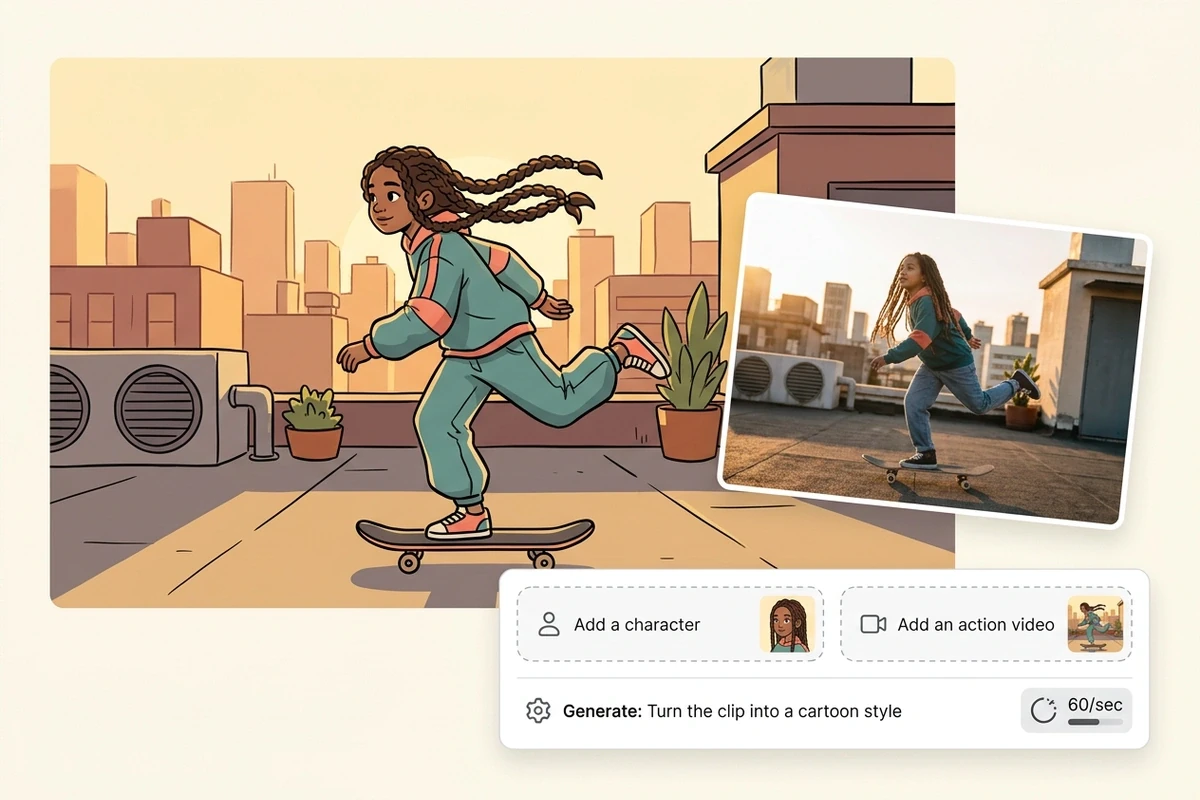
Cartoon-styled rooftop frame beside the original photographic clip frame, with a short prompt bar below.
Claude
GitHub
Google
Linear
Microsoft
Monday
Netlify
Notion
OpenAI
Sentry
Slack
Stripe
Supabase
Claude
GitHub
Google
Linear
Microsoft
Monday
Netlify
Notion
OpenAI
Sentry
Slack
Stripe
Supabase

What a Video Cartoonizer Changes

Most video to cartoon converters apply one preset and hope the motion holds. This one converts your original video to cartoon from a written direction: you name the line weight, the shading and what has to stay recognizable, and the result stays in the project. Starting from one still image instead? Photo to Anime Video AI Free covers that route.

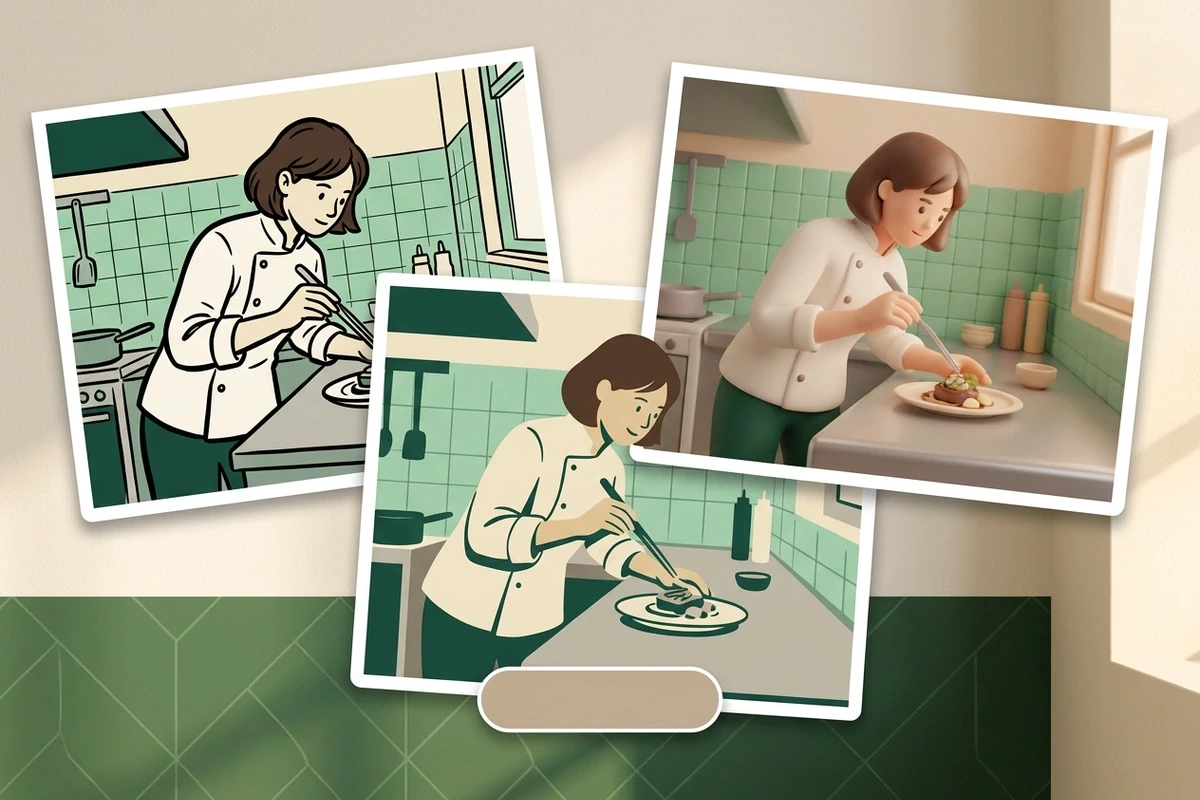
Three cartoon treatments of one kitchen frame arranged as cards: ink outlines, flat cel color and soft 3D shading.

Direct the Style First

Say "hand-drawn cel with bold outlines" or "soft 3D toy shading" and keep one direction per request. Mixing two looks in a single prompt is why a pass comes back inconsistent. That is the difference between cartoonifying videos and dropping a filter on them. A named style such as Ghibli Art Video Generator also pins the palette.
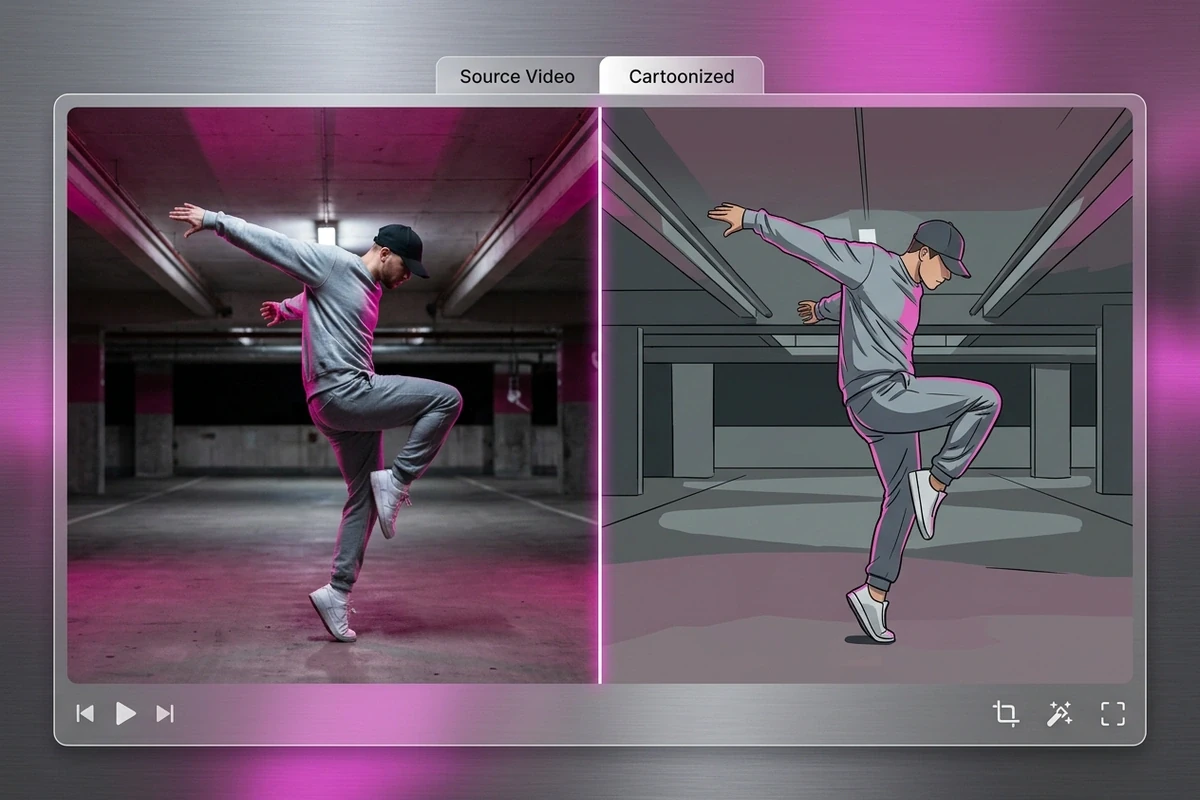
A dancer mid-spin shown as original footage and as cartoon animation, with the pose unchanged between both halves.

Protect the Motion

Name the action that has to survive: a walk cycle, a turn to camera, a raised hand. Fast cuts and crowded frames are where a cartoon pass loses the subject, so cut to the beat you plan to post and check the frame before polishing. A Video Upscaler helps when the source is soft.

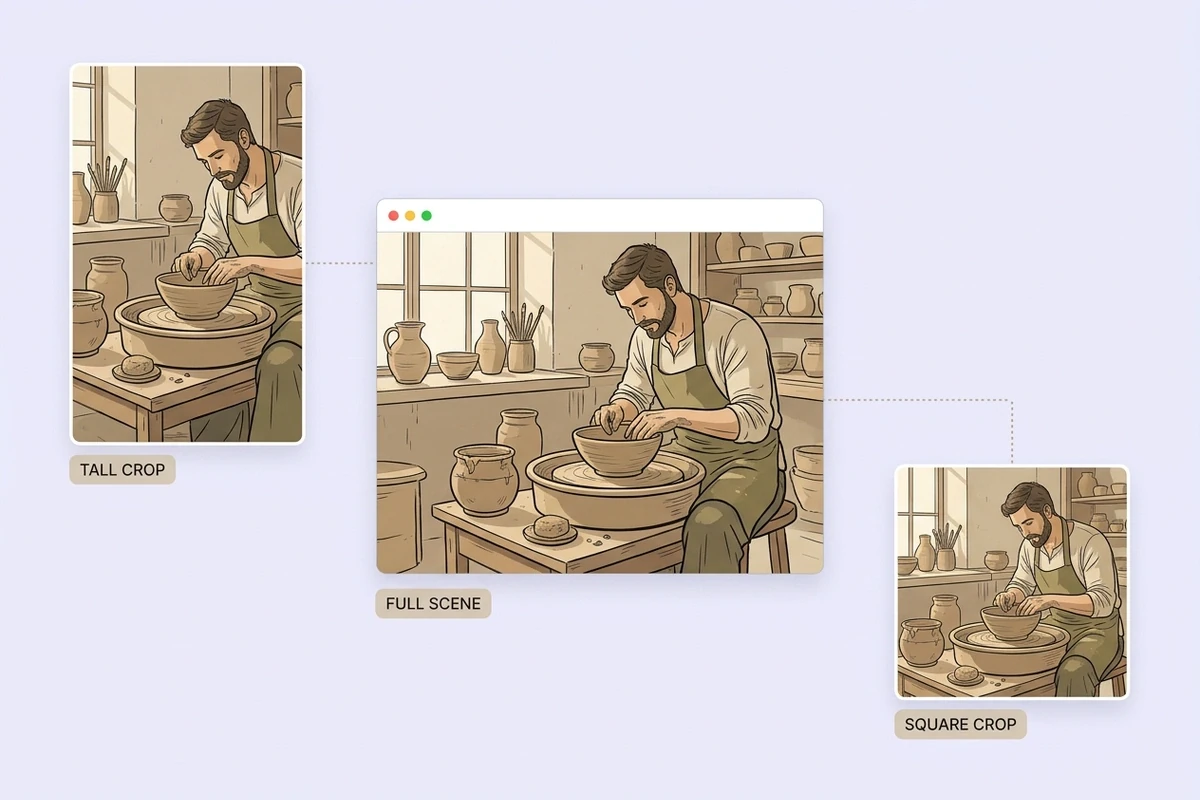
A cartoon frame of a potter paired with vertical and square crops of the same frame.

Finish It in the Project

The cartoon clip lands beside the brief that produced it, so crops, captions and ad variants follow without another upload. For anyone who wanted a free video editor that turns videos into cartoons, the point is that the result stays editable. AI Product Video Ads can then reuse the same footage for a shorter paid cut.

What you can do with Ottermind

Cartoon product demos

Restyle a short pack-shot or unboxing clip so a plain demo reads as animation, then cut it for the channel that actually converts.

Explainers from talking heads

Turn a founder or tutorial clip into a cartoon version that keeps the gesture and the beat, which suits training and onboarding videos.

Family and travel footage

Give a holiday clip a drawn look while keeping the people recognizable, then share a version that feels made rather than filtered. A single frame can also become an illustration through Photo to Anime Converter.

Dance and sports snippets

Keep the pose and timing of a short athletic or dance clip and change only the art direction, which is where filters usually fall apart.

How to Cartoonize a Video Clip

Step 01

Upload the clip

Start with footage you have permission to use. A short, steady, well-lit clip converts more cleanly than a long montage, so trim to the section that carries your message.

Step 02

Describe the look

Name the style, outline weight, palette and shading in plain language, then add the one motion detail that must survive. Keep the first request short so changes stay predictable.

Step 03

Compare and continue

Check the cartoon frame against the source at the same moment, then keep editing, crop for each platform, or export from the same project without rebuilding the brief.

Why creators choose Ottermind

One Project, Many Passes

Try a second direction without starting over, because the source clip and the written brief stay together.

Image to Video

Prompt as Direction

A written brief handles a specific line weight or palette better than a fixed preset list.

Context Carries Over

Later crops, captions and exports inherit the decisions already recorded for this clip.

You Choose the Moment

You pick the clip, the length and the beat, so the output matches what you plan to post.

Boundaries Stated

Crowds, heavy grain and whip-fast motion still limit the result, and the workflow says so.

Runs in the Browser

No install step stands between an idea and a revision, so the next pass is not machine-bound.

Frequently asked questions

What does a video cartoonizer actually do?

It re-renders footage in a cartoon style instead of overlaying a filter. You supply the clip and a written direction; the style, outline and shading follow that direction, and the result stays editable in the same project as the brief that produced it.

Can you turn a video into a cartoon online free?

Yes, with a limit worth knowing. You can open the workspace and cartoonify a video without signing up, which covers a limited number of free rounds — enough to test one direction on one clip. Heavier work may depend on credits, so budget the passes you need.

Can it work on real footage, not photos?

Yes, a clip is the input. Photos are the simpler case because one frame carries all the detail; video adds motion, so naming the action that must survive matters more than stacking style words. Still images are handled by the photo routes instead.

What happens to faces during conversion?

Faces carry the most detail and change first when the source is soft, small in frame or heavily shadowed. Fill the frame, keep lighting even, and say which expression has to stay; then compare one frame before rendering the whole clip.

Do I need to install an app?

No. The work happens in the browser, so a revision does not depend on which device has software installed. That also means you are not stuck comparing the cartoon frame with the source on a phone screen.

Why did my result look muddy?

Usually three causes: two art directions in one prompt, a clip that is too long for the detail you want, or a soft source. Split the direction, trim to the beat, and clean the source first. A Video Compressor keeps the upload practical.

Discover more video AI tools

More on getting video right

Turn Your Clip into a Cartoon

Upload the section that matters, describe the look and the motion to keep, and compare the first result before committing to a full pass.

Cartoonize a Clip