AI Quote Generator for Original Quotes and Quote Images

Turn a topic into an original short quote for a specific audience and purpose, then continue in Ottermind Studio to create a shareable quote image. Describe the message in your own words, review the wording, and refine the visual without pretending an AI-created line came from a famous person.

See two quote-to-image workflows

These examples began with short, realistic requests. One creates an original line; the other turns a sourced historical quotation into a presentation visual.

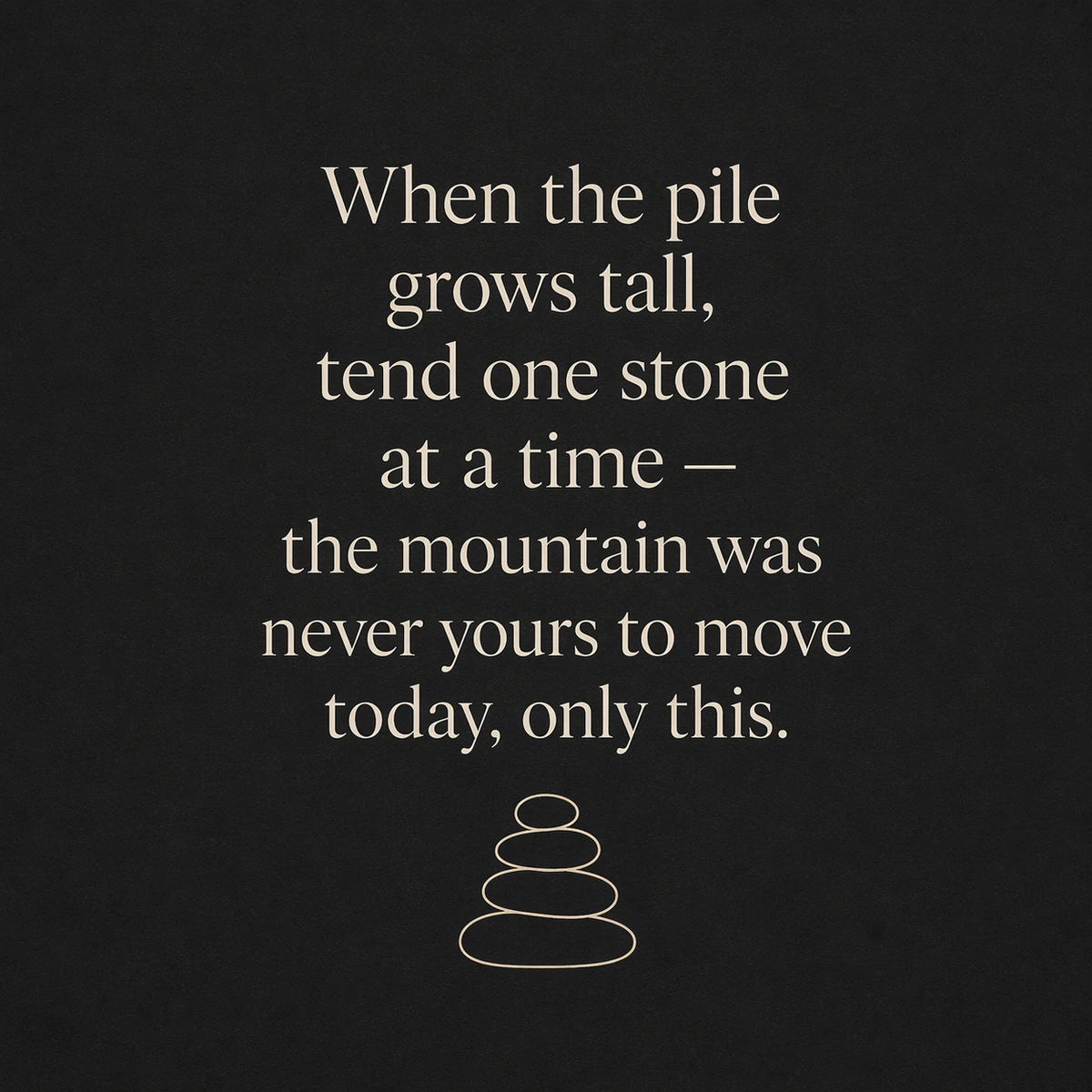
Square quote image with an original line about tending one stone at a time

Create an original focus quote and social graphic

Create a calm, original quote about staying focused when work feels overwhelming.

The result became a square social graphic built around an AI-generated line with no invented author. Before sharing, review it for unwanted cliches, accidental similarity, punctuation, and audience fit.
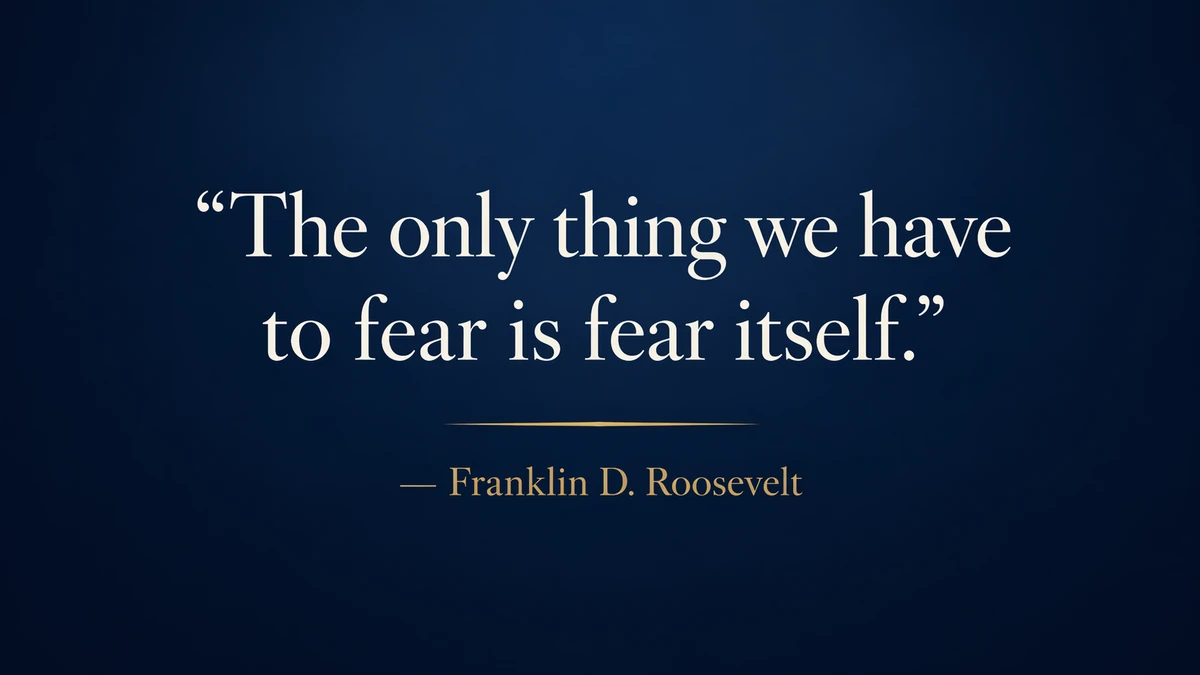
Presentation quote image attributing the fear itself quotation to Franklin D. Roosevelt

Turn a verified FDR quotation into a presentation visual

Turn this verified FDR quote into a clean 16:9 presentation graphic: 'The only thing we have to fear is fear itself.'

The wide graphic preserves the supplied excerpt and attributes it to Franklin D. Roosevelt. Ottermind generated the visual treatment, not the historical quotation. Check the wording, speaker, work, and date before publishing.

Create words and visuals around the same brief

An AI quote generator is most useful when it keeps the message, audience, purpose, and visual context together. It should give you options you can judge, refine, and turn into a readable visual.

Start with audience and purpose, not only a topic

Motivation is broad. A calm line for an overwhelmed new manager should not sound like a fitness slogan. Include who will read the quote and where it will appear, then choose the language that fits.

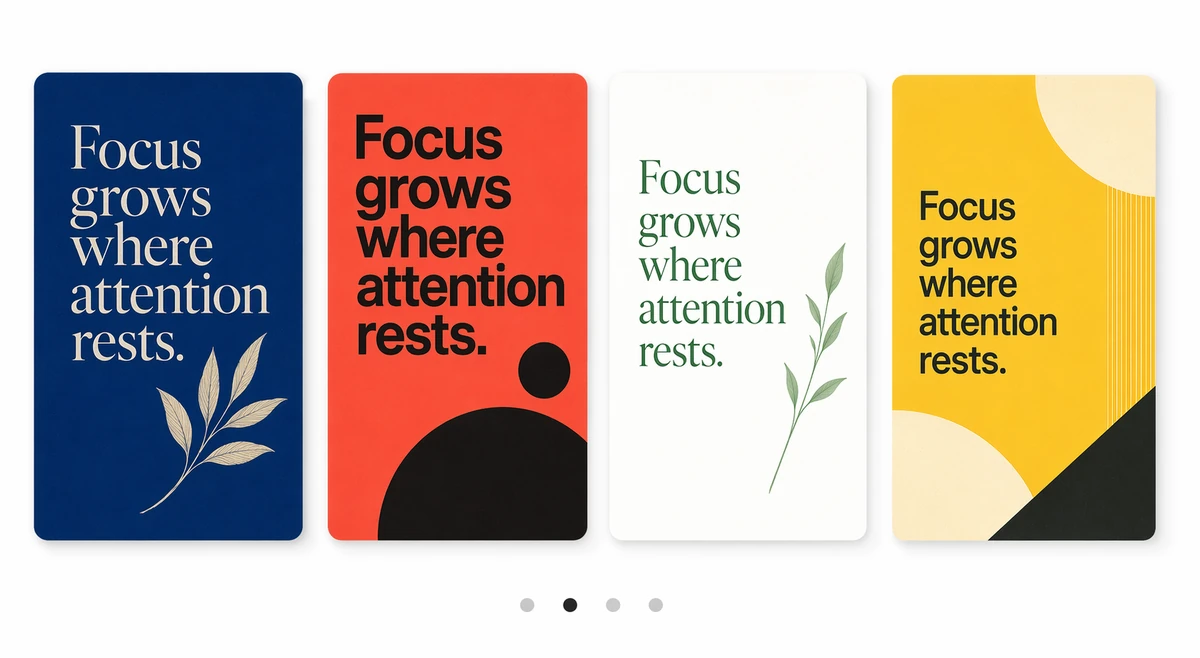
Four colorful visual directions for the same original focus quote

Keep original lines separate from existing quotations

Use original wording without adding a famous or fictional author. For an existing quotation, preserve the text and supply a source that can be checked. This page does not certify historical attribution.

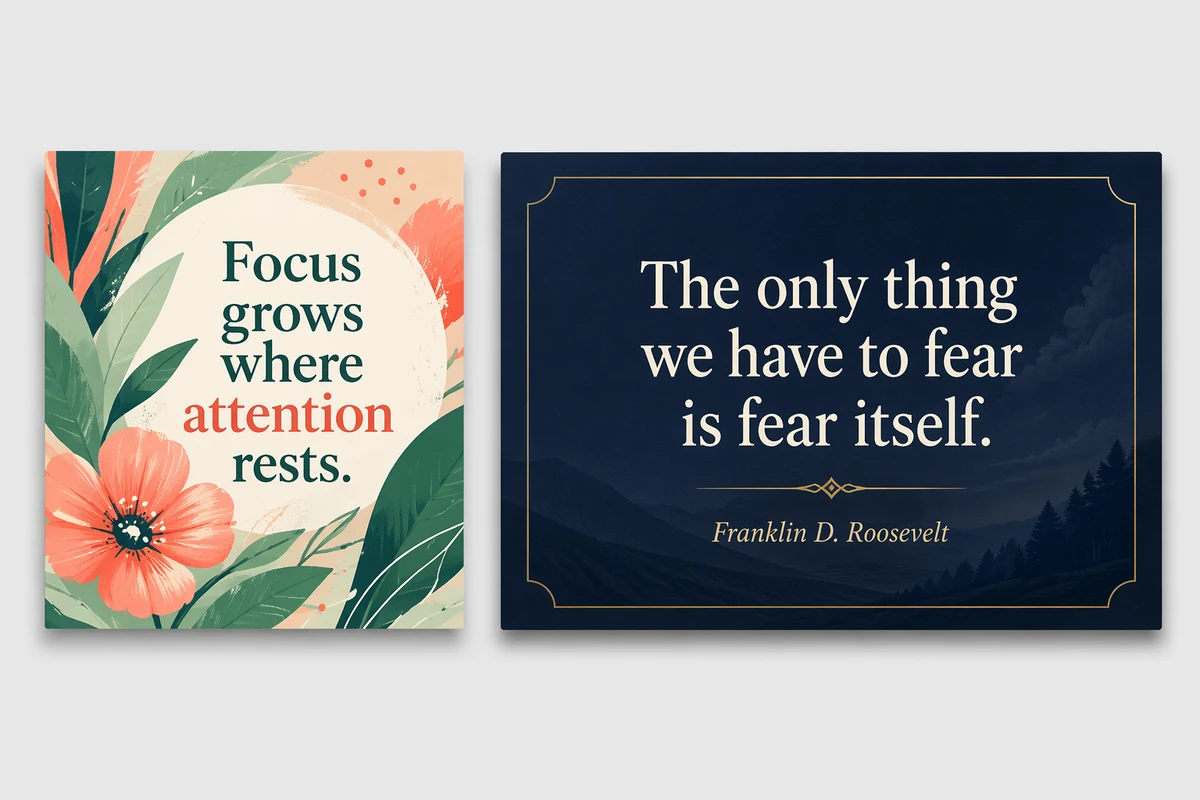
An original focus quote beside a sourced Franklin D. Roosevelt quotation

Continue from the selected line to a quote image

In Studio, the chosen line can continue into a visual brief for typography, color, background, composition, and channel. Add a supported reference image when it clarifies the direction. Treat the generated result as a design to review rather than locked typesetting.

Explore AI image generation
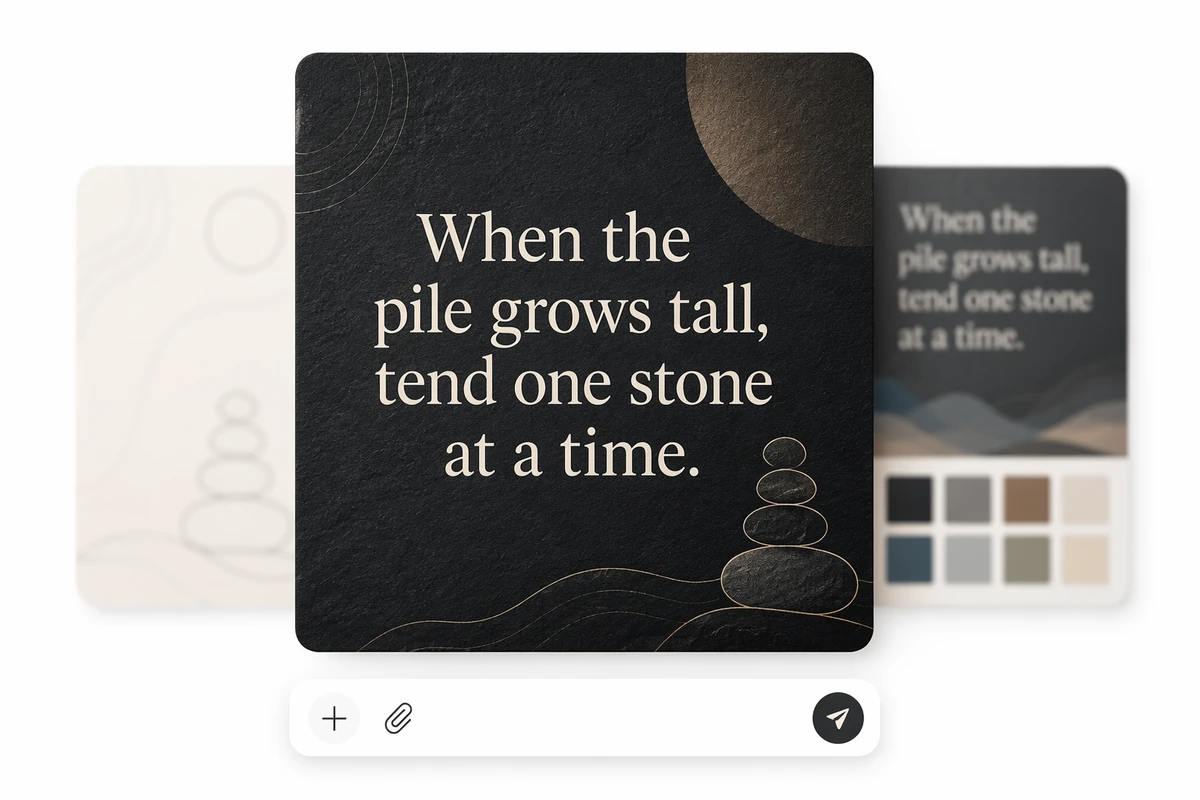
A short request continuing into a finished square quote image

Review the exact words before you publish

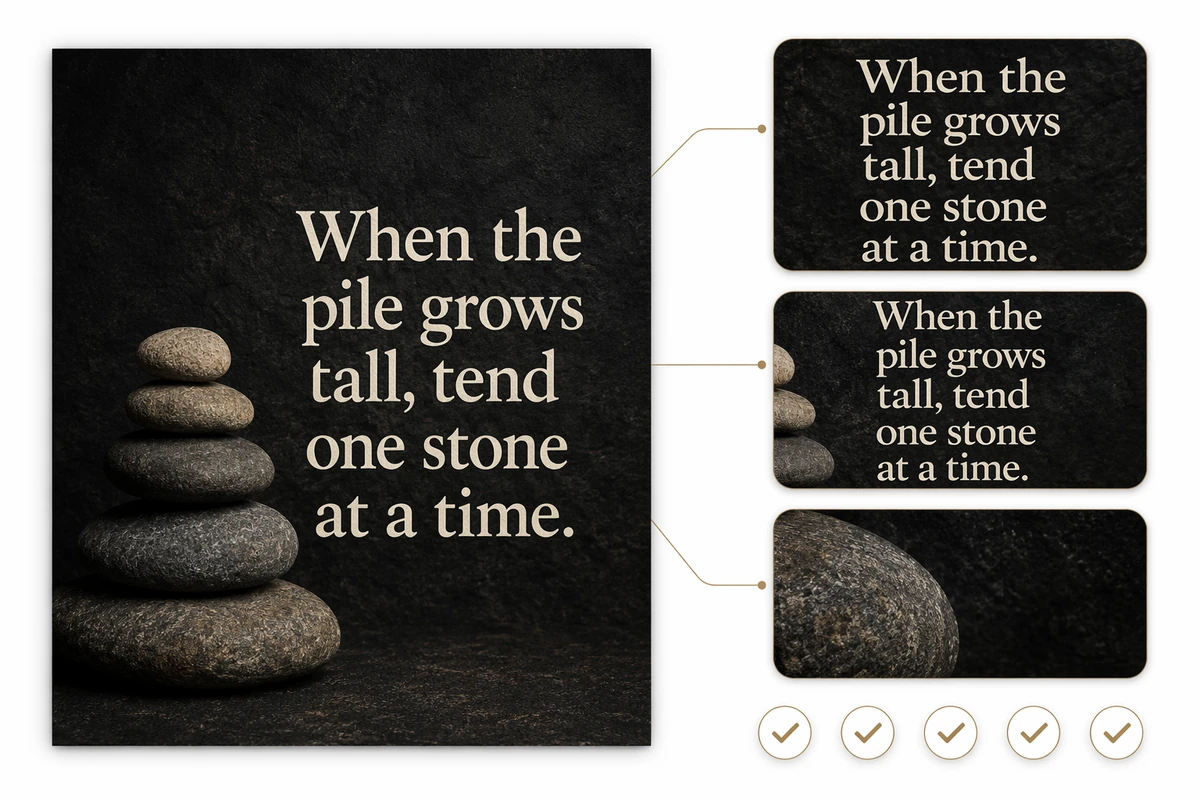
An attractive image can still contain a changed word, missing punctuation, awkward line break, weak contrast, or incorrect author. Compare it with the approved text and check readability at the size people will actually see.

A quote image with close-up review details and five completed checks

If quote graphics are going into a deck, compare the best AI presentation makers. For campaign and social workflows around the finished asset, see the best AI tools for marketing teams.

AI creation compared with a quote list or template maker

A random quote generator helps with discovery, while a template maker formats finished text. Ottermind supports a brief that needs original wording, visual direction, and review between them.

DecisionQuote list or template makerOttermind workflow
Starting pointBrowse existing lines or paste finished textDescribe a topic, audience, purpose, and optional visual direction
Original wordingMay retrieve existing quotes or require finished copyRequest original options, then choose and refine one
AttributionDepends on the collection or text suppliedKeeps original generation separate from sourced quotations
Visual continuationOften requires another editor or starts only after text is readyCarries the selected line and visual brief into Studio
RevisionsSearch again or edit the template manuallyContinue the conversation to adjust wording or visual direction
Final reviewUser checks the source or finished designUser checks both wording and image, including attribution when applicable

Ways to use the quote generator

Shape a line for a real channel and audience, then check the final words and visual in context.

Social posts and campaign graphics

Create a short line for a defined audience, then ask for a square, portrait, or other social direction. Check readability at feed size; the workflow does not publish the post or guarantee platform dimensions.

Presentations and speaking moments

Turn a verified quotation or original takeaway into a visual pause within a deck. Keep the speaker distinct from the quotation and check the result on a projected screen.

Cards, posters, and event materials

Explore concise wording for a card, poster, or event theme. Confirm dimensions, bleed, color mode, and export options before printing.

Brand voice and content ideation

Generate several expressions around a campaign idea and compare different tones. Review drafts against brand guidelines and never present generated language as a customer statement or famous quotation.

How the AI quote generator works

Move from a short request to reviewed wording and a visual you can inspect in Studio.

1

Describe the idea and context

Begin with a short request. Add tone, audience, purpose, length, or channel when useful. For existing wording, paste it exactly and include the author and source.

2

Review and refine the quote

Compare options for clarity, tone, and fit. Ask for a shorter, lighter, more direct, or less cliched variation. Select the line and remove unsupported attribution.

3

Create and check the quote image in Studio

Continue with a visual direction or reference image. Review the text, attribution, punctuation, line breaks, contrast, and spacing. Studio handles authentication, generation availability, and downloads.

Frequently asked questions

What to expect when creating, sourcing, and formatting quotes with AI.

What does an AI quote generator create?

It creates short original lines from a topic and context, then lets you continue from selected wording to a quote image in Studio.

Can I choose the tone, audience, and length?

Yes. State who the message is for, where it will appear, and whether it should feel calm, funny, reflective, or direct. You can continue refining the wording in the same conversation.

Can Ottermind turn the quote into an image?

Yes. Continue in Studio with the selected text and describe the typography, colors, background, composition, and use case. Add a supported reference image when useful, then compare the rendered words with the approved text.

Does it create real quotes from famous people?

No. Never assign an original AI-generated line to a famous person. For a real quotation, supply and independently verify the exact wording, author, and source.

How should I verify an existing quotation and author?

Prefer the original speech, book, interview, or another authoritative record. Quote collections and social images can contain altered or misattributed wording, so repetition is not proof.

Is this a free AI quote generator without sign-up?

This page does not promise free, unlimited, or no-sign-up generation. Authentication, plan eligibility, models, and any credit requirement are shown in Studio.

What can I download from Studio?

Use the download options shown for your account and method. Do not assume a specific resolution, file type, editable source, transparent background, watermark status, or print-ready output.

Turn one idea into a line worth sharing

Bring the topic, audience, purpose, and visual direction. Create or format the quote, then review the words and image before publishing.