Upload video

MP4, MOV, WebM · 200 MB · 2 minutes · up to 4K

Private video
Keep attention on the scene
Example scenario

Keep attention on the scene

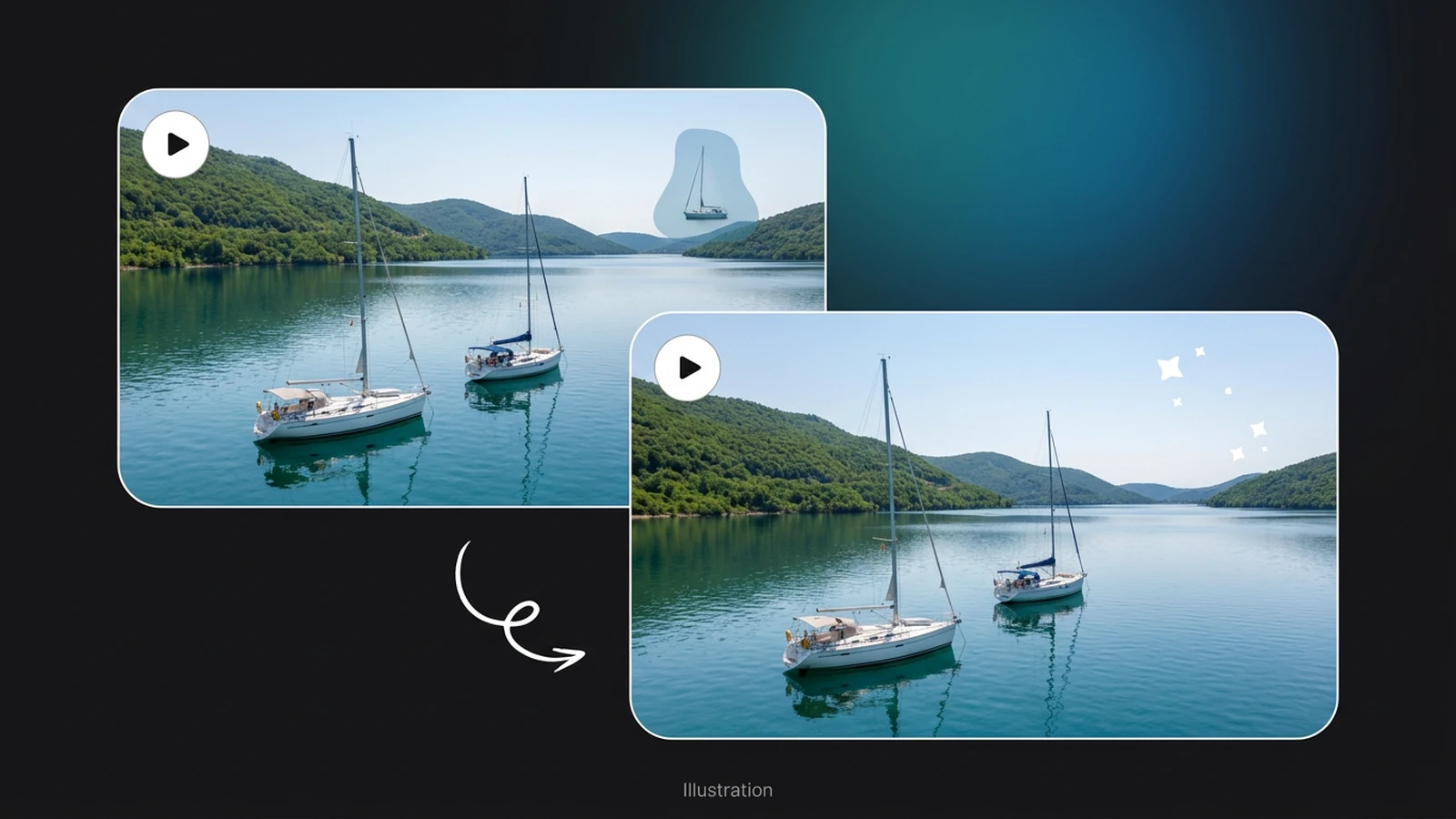
Composition reference: identify the distracting area and the surrounding detail to preserve.

Skincare jar shelf photo with clutter removed while the jar and tiles stay consistent
Illustrative reference, not a result from your upload. Review your own output against the source.

Explore the possibilities

Keep attention on the scene

Composition reference: identify the distracting area and the surrounding detail to preserve.

Shape the result

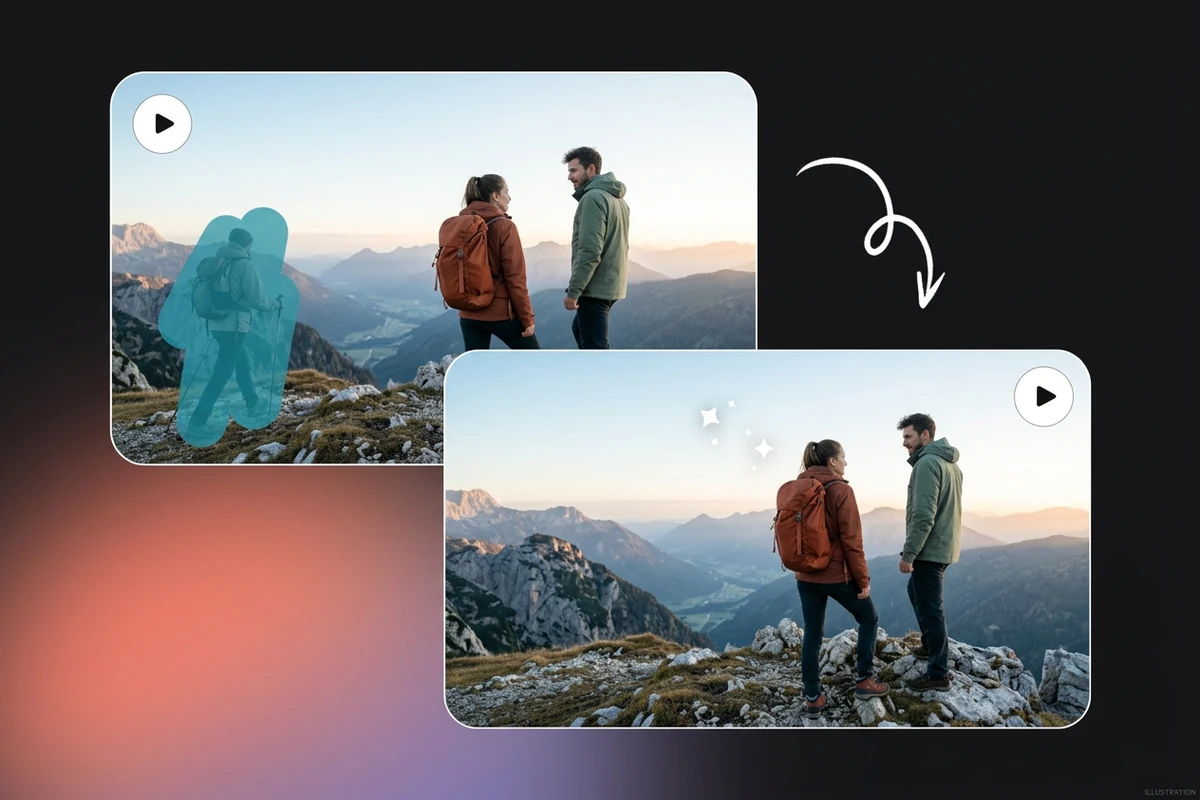
Describe the unwanted object and where it appears in the clip. Review the whole sequence, especially where the object crosses a subject or changes position.

Controls and output options depend on the selected tool and available model.

Back to the editor

What you can do with Ottermind

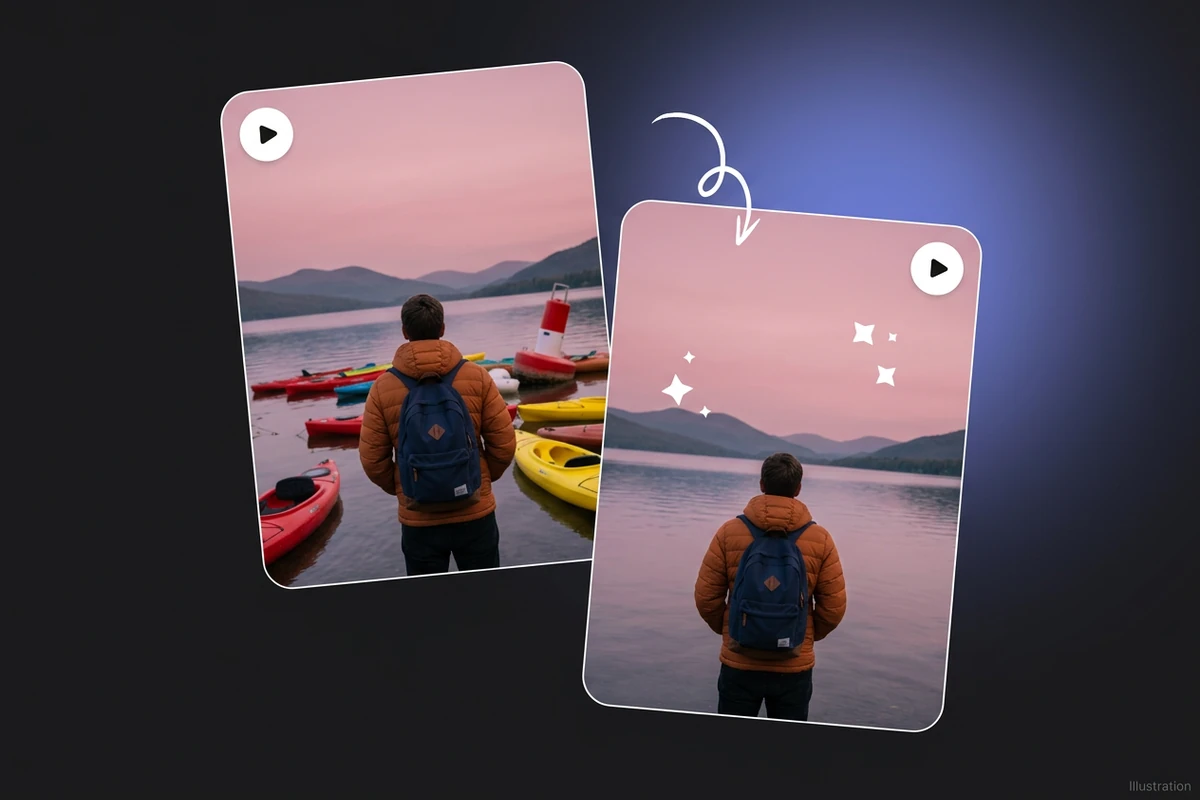
Side-by-side travel video frames showing a moving username overlay removed from a coastal clip.

Identify a distracting sign in a travel shot and describe the background that should remain.

Skincare jar shelf photo with clutter removed while the jar and tiles stay consistent

Plan removal of an unwanted prop from a product clip while retaining the product's shadow.

Offset before-and-after pottery video cards show a moving creator handle removed while the artist stays sharp.

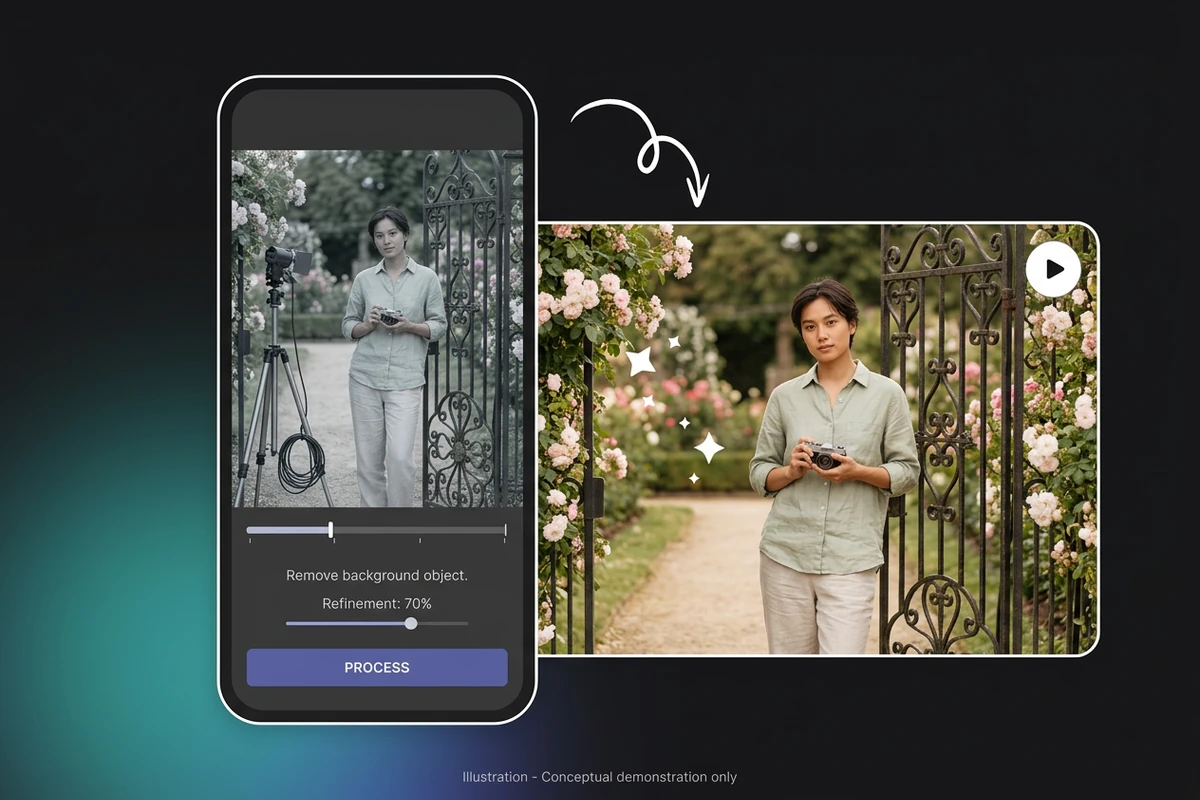
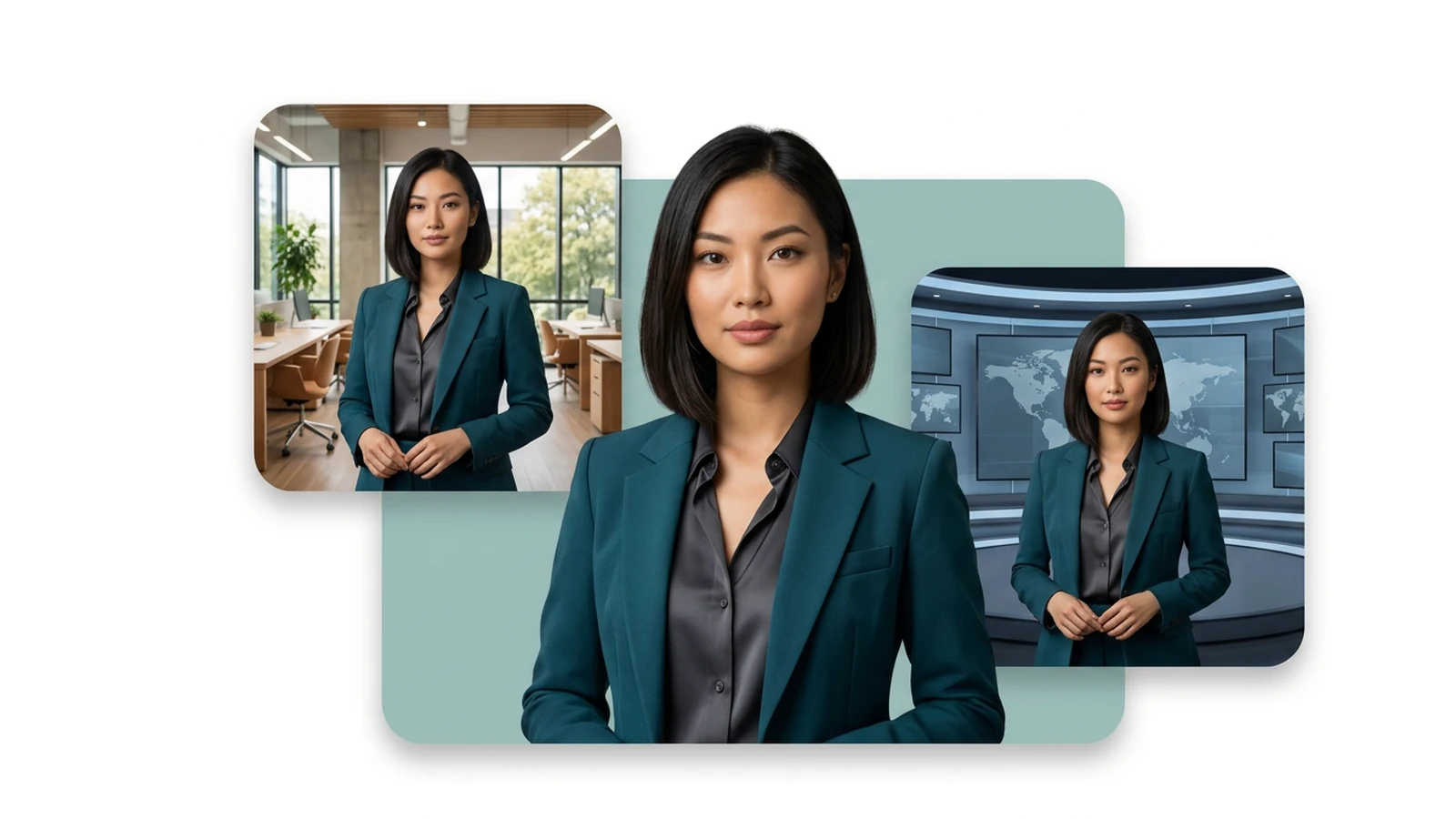
Prepare a scene cleanup around a presenter without changing clothing or facial features.

Staggered video cards showing a username, timestamp, and corner overlay removed from a pottery clip.

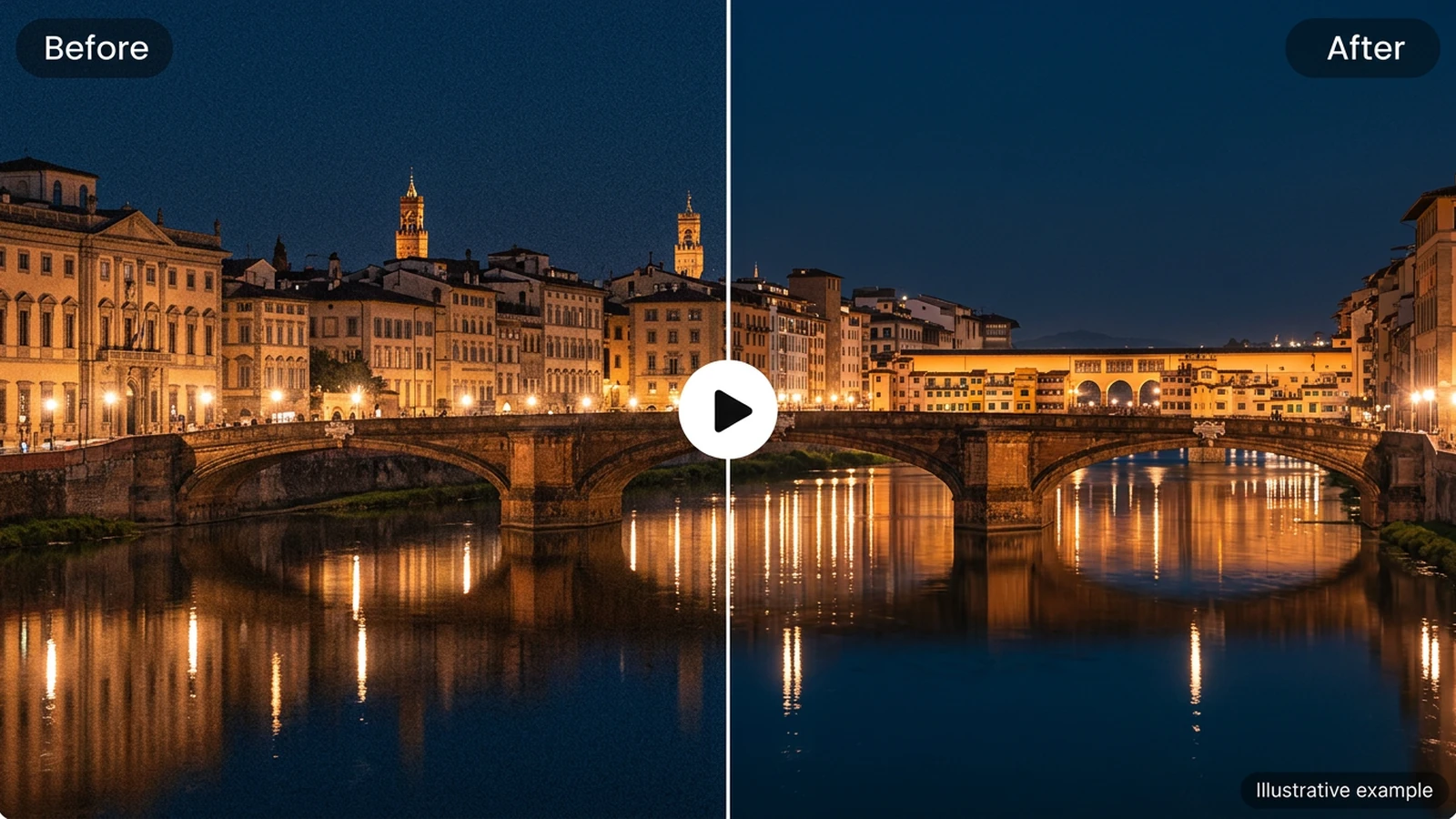
Describe an obstruction across a moving shot and check where it enters or leaves the frame.

From source to a finished edit

  1. Add your source

    Choose an image or video from your device. Start with the clearest original you have.

  2. Choose the edit

    Set the relevant controls, choose an available model and review the credits shown beside Generate.

  3. Compare and refine

    Inspect the finished result against the original. Check important details before downloading or starting another edit.

More video tools

Video tool questions

Can I process a video now?

Models marked available can process videos. Available tools and clip limits depend on the selected model.

Will video tools use my Ottermind credits?

Video tools use your existing Ottermind balance, including free credits. The Generate button shows the quoted cost before processing.

Where is my preview stored?

Local selections can be restored in this browser for up to 24 hours. Generating uploads the selected media to your private Library, where inputs and results remain until you delete them.