Upload video

MP4, MOV, WebM · 200 MB · 2 minutes · up to 4K

Private video
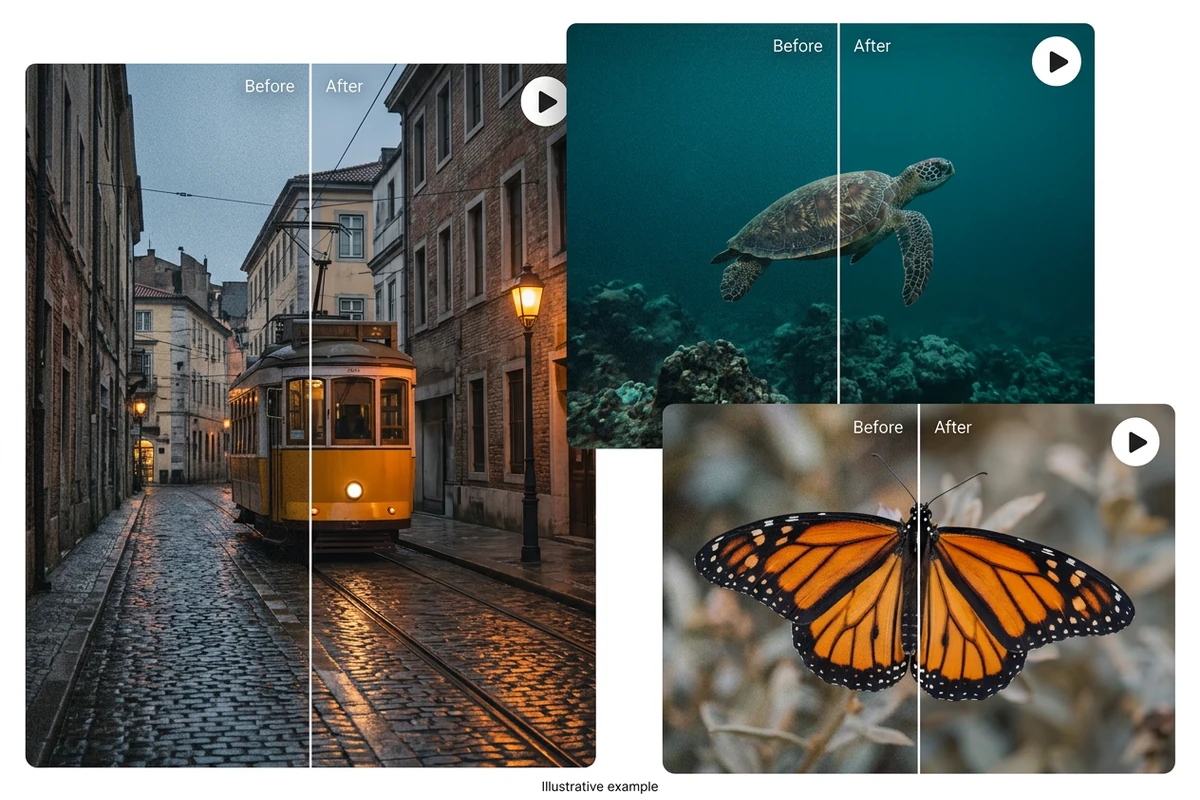
Cleaner texture in low-light footage
Example scenario

Cleaner texture in low-light footage

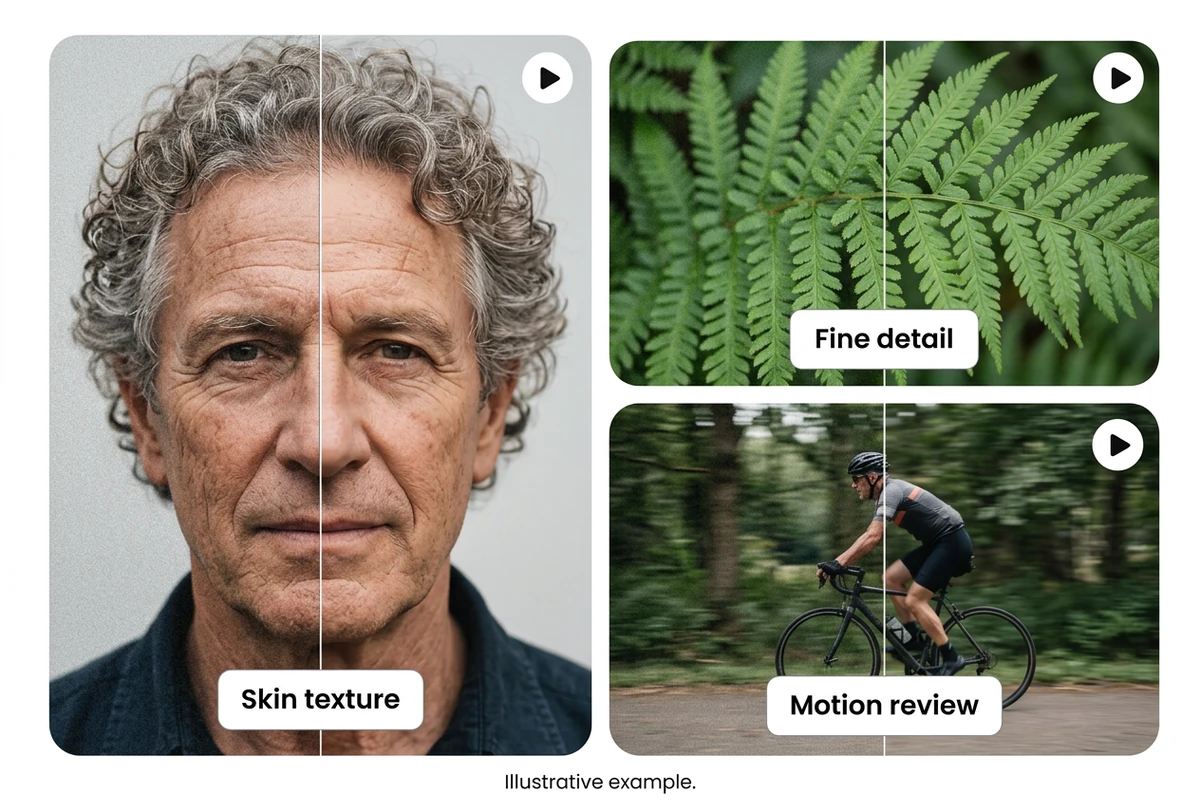
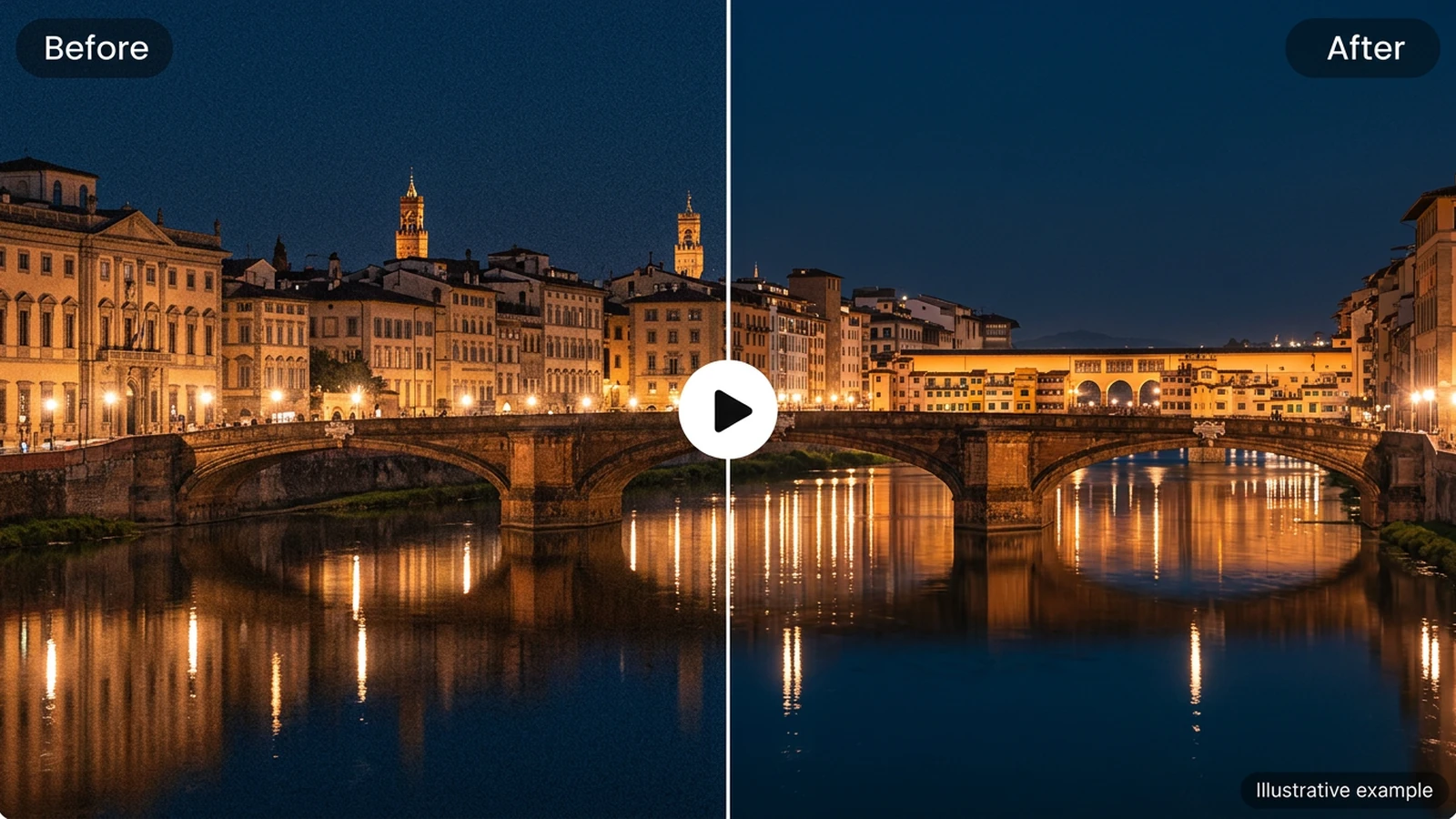
Detail reference: distinguish natural texture from noise when reviewing a restoration.

Before-and-after of a jazz saxophonist onstage, dark and noisy on the left and clear on the right.
Illustrative reference, not a result from your upload. Review your own output against the source.

Explore the possibilities

Cleaner texture in low-light footage

Detail reference: distinguish natural texture from noise when reviewing a restoration.

Shape the result

Adjust noise reduction gradually and choose whether to keep the original audio. Watch moving details as well as still frames for unwanted smoothing.

Controls and output options depend on the selected tool and available model.

Back to the editor

What you can do with Ottermind

Before-and-after of a jazz saxophonist onstage, dark and noisy on the left and clear on the right.

Plan gentle noise reduction for a dimly lit interview while keeping skin texture natural.

Before-and-after of a 1960s seaside amusement pier, faded and scratched on the left and restored in color on the right.

Prepare a compressed archive clip for cleanup without removing fine motion detail.

Before-and-after HD enhancement of a Venice canal at night with a pixelated left half and crisp right half.

Balance denoising and scale for night footage destined for a social feed.

A green sofa before and after enlargement, with a close-up of its fabric

Review grain in a product video so smooth surfaces stay clean and labels stay readable.

From source to a finished edit

  1. Add your source

    Choose an image or video from your device. Start with the clearest original you have.

  2. Choose the edit

    Set the relevant controls, choose an available model and review the credits shown beside Generate.

  3. Compare and refine

    Inspect the finished result against the original. Check important details before downloading or starting another edit.

More video tools

Video tool questions

Can I process a video now?

Models marked available can process videos. Available tools and clip limits depend on the selected model.

Will video tools use my Ottermind credits?

Video tools use your existing Ottermind balance, including free credits. The Generate button shows the quoted cost before processing.

Where is my preview stored?

Local selections can be restored in this browser for up to 24 hours. Generating uploads the selected media to your private Library, where inputs and results remain until you delete them.