
Mark the badge, not the frame
You box the watermark and nothing else, so faces, hands and background detail outside the box are never repainted. A tiled diagonal mark needs two or three boxes instead of one, and each box is handled on its own.
Import a Dola AI clip you made, box the watermark, and rebuild the area underneath. It cleans your own exports without cropping the frame or re-shooting the scene.
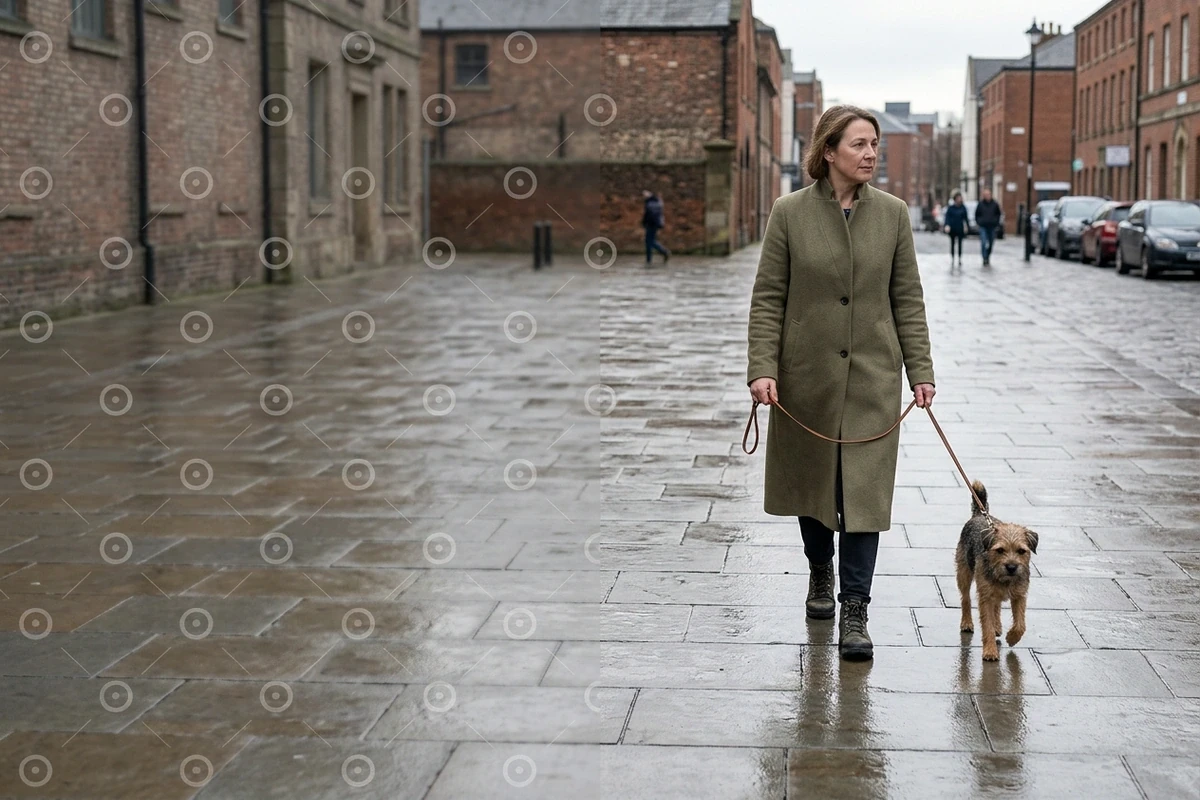


A watermark is burned into the pixels, so there is nothing to switch off. Answering how to remove the Dola AI watermark means rebuilding the patch it covered, and doing it on footage you exported yourself; a Video Upscaler can lift the result back to the resolution you need.
You box the watermark and nothing else, so faces, hands and background detail outside the box are never repainted. A tiled diagonal mark needs two or three boxes instead of one, and each box is handled on its own.
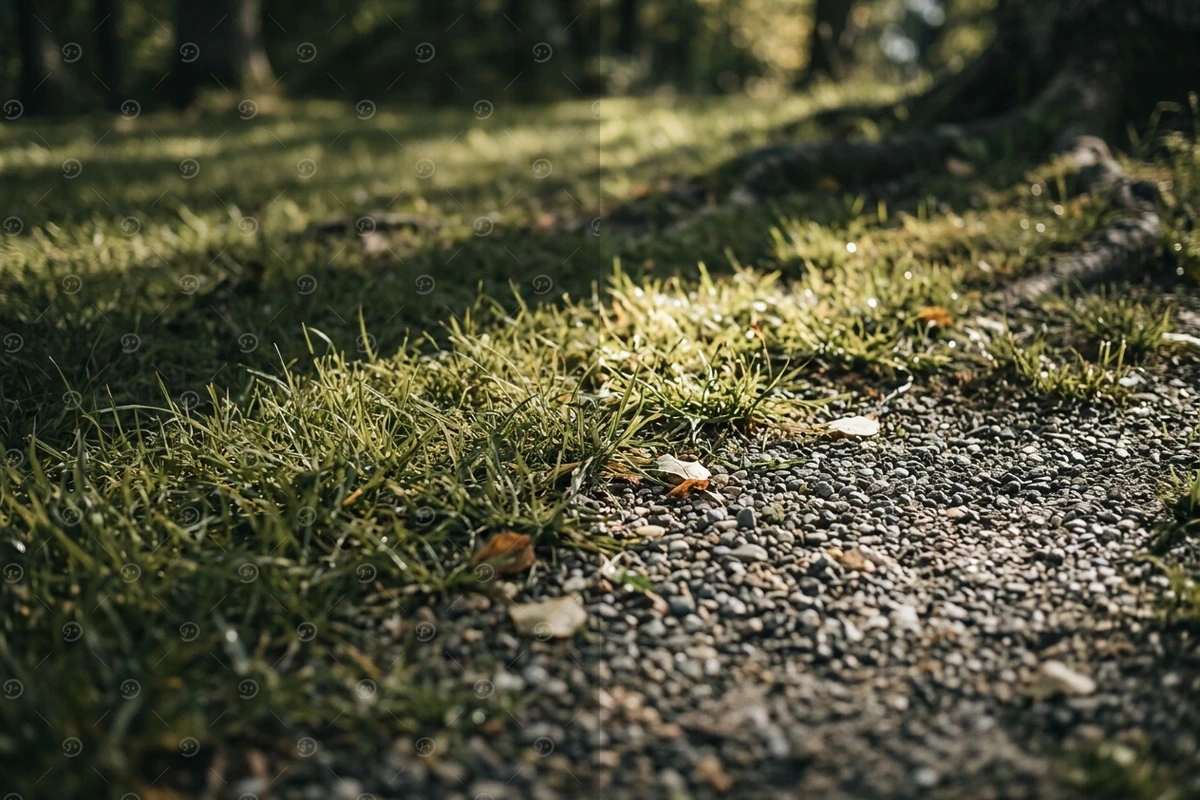
The model reads the surrounding texture and continues it through the covered area, so pavement, grass, fabric or a wall keeps its grain. Flat backgrounds recover cleanly; a mark over a face or busy text is the case to check by eye, especially when you plan to blow the result up later with a Video Upscaler.
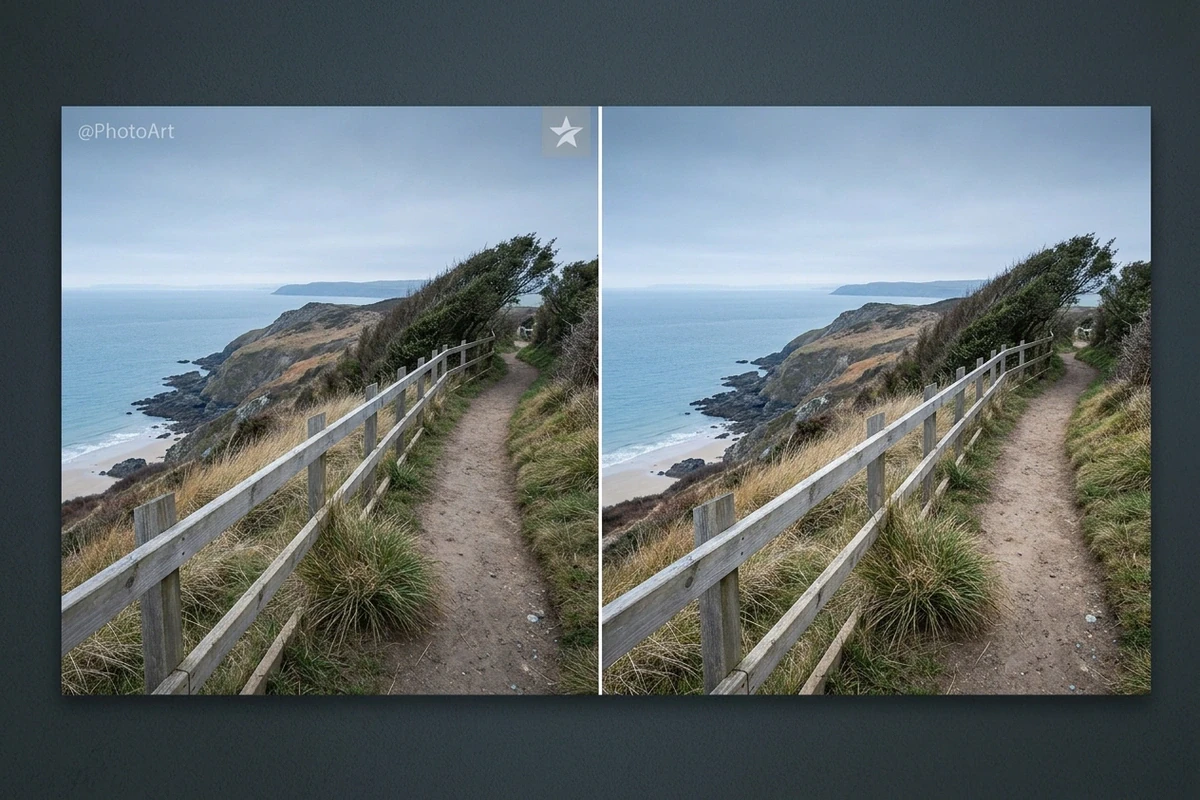
No crop, no zoom, no re-record: the frame stays 1080p and the composition stays as you shot it. That is the difference between repairing one corner and losing the edges of every shot to a zoomed crop.
Step 01
Bring in the file Dola AI produced for you. Check the watermark's position first, because a static badge in one corner and a moving mark need different selections before you start.
Step 02
Draw one box over each mark, keeping it as tight as the badge allows. Then describe what belongs underneath, such as pavement, wall or fabric, so the rebuild continues the texture instead of smearing.
Step 03
Compare the repaired corner against the original at the same moment and look for a soft edge or a repeated pattern. Then export from the same project, at the resolution you recorded.
The frame stays full width, so you never lose the edges of the shot to hide one badge.
Built for footage you generated or recorded; removing someone else's mark is a different, and usually disallowed, job.
The area under the mark is continued from its surroundings, so grain and paving lines stay believable.
The repair works at the resolution of the file you imported, with an upscale available afterwards.
Open the workspace without an account and clean one clip before you decide it is worth a full pass.
The cleaned clip sits beside the brief, ready for captions, crops and a second variant.
Yes, on footage you exported yourself. Box the badge, describe the surface underneath, and the model rebuilds that patch. It is a repair of the pixels, not a setting, so a very large badge over fine detail is the case that needs a careful check.
The repair runs at the resolution you imported, so a 1080p export stays 1080p after cleaning; nothing is downscaled and nothing is cropped. If you need a larger frame afterwards, run a Video Upscaler on the cleaned clip instead of zooming a low-resolution copy.
No. A downloader fetches a file the app still marks; this page repairs the mark on a file you already have. If your plan exports without a watermark, use that export and skip the step entirely.
Box it per position. A tiled diagonal mark usually needs two or three tight boxes, and a mark that drifts with the camera is easier to handle on a short clip than across a long one.
Flat or repeating surfaces such as pavement, grass and plain walls rebuild cleanly. Text, faces and strong patterns under the badge are the risky cases, so zoom to the corner at full size, and test one still with an Image Enhancer if you are unsure.
That is not what this is for. Stripping a creator's mark or a platform badge from footage you do not own usually breaks the terms you agreed to, and this page is written for your own exports only.
Import your own export, box the badge, and compare one repaired corner before processing the whole clip. If the texture still reads as pavement, run the rest.
Remove the watermark