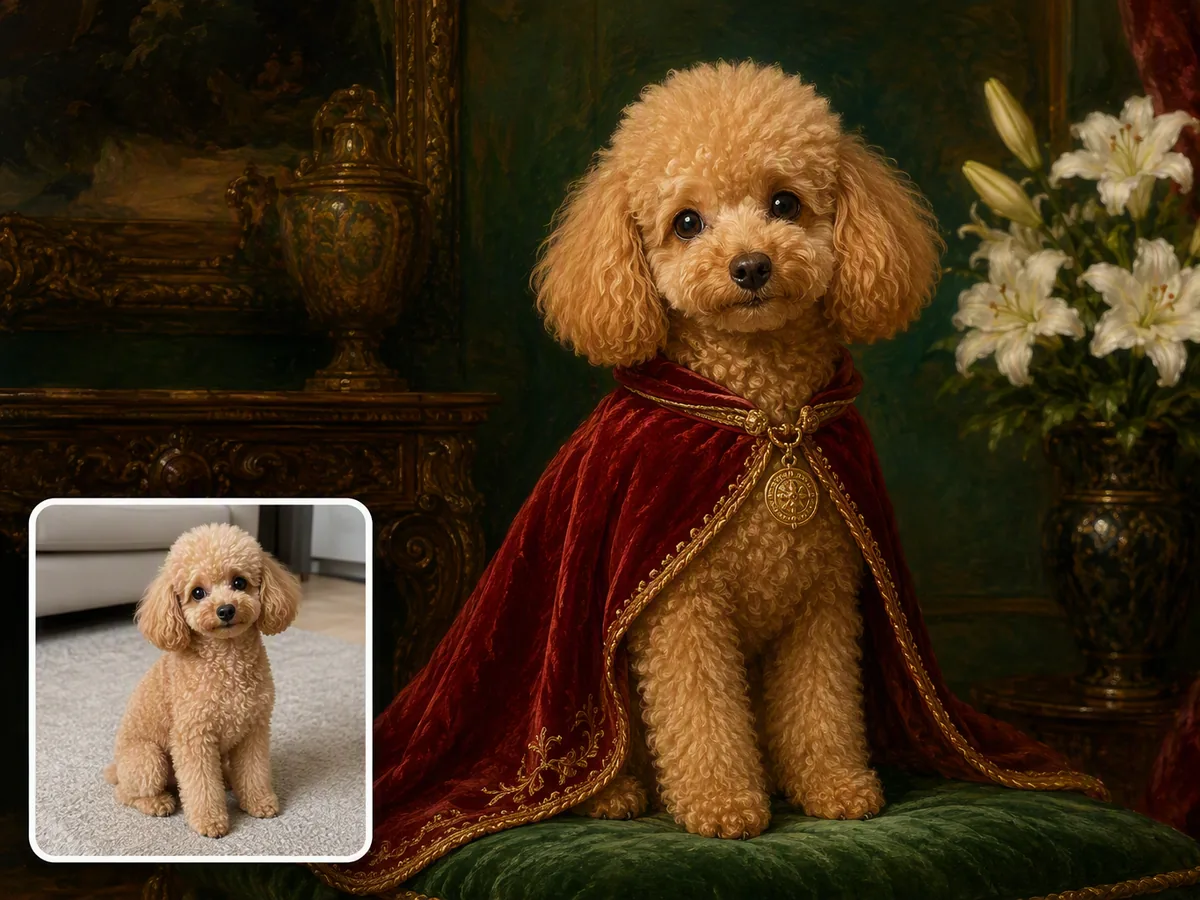
AI pet portrait generator
Upload one clear pet photo to create recognizable custom art you can compare with the source and continue refining in Ottermind Studio.
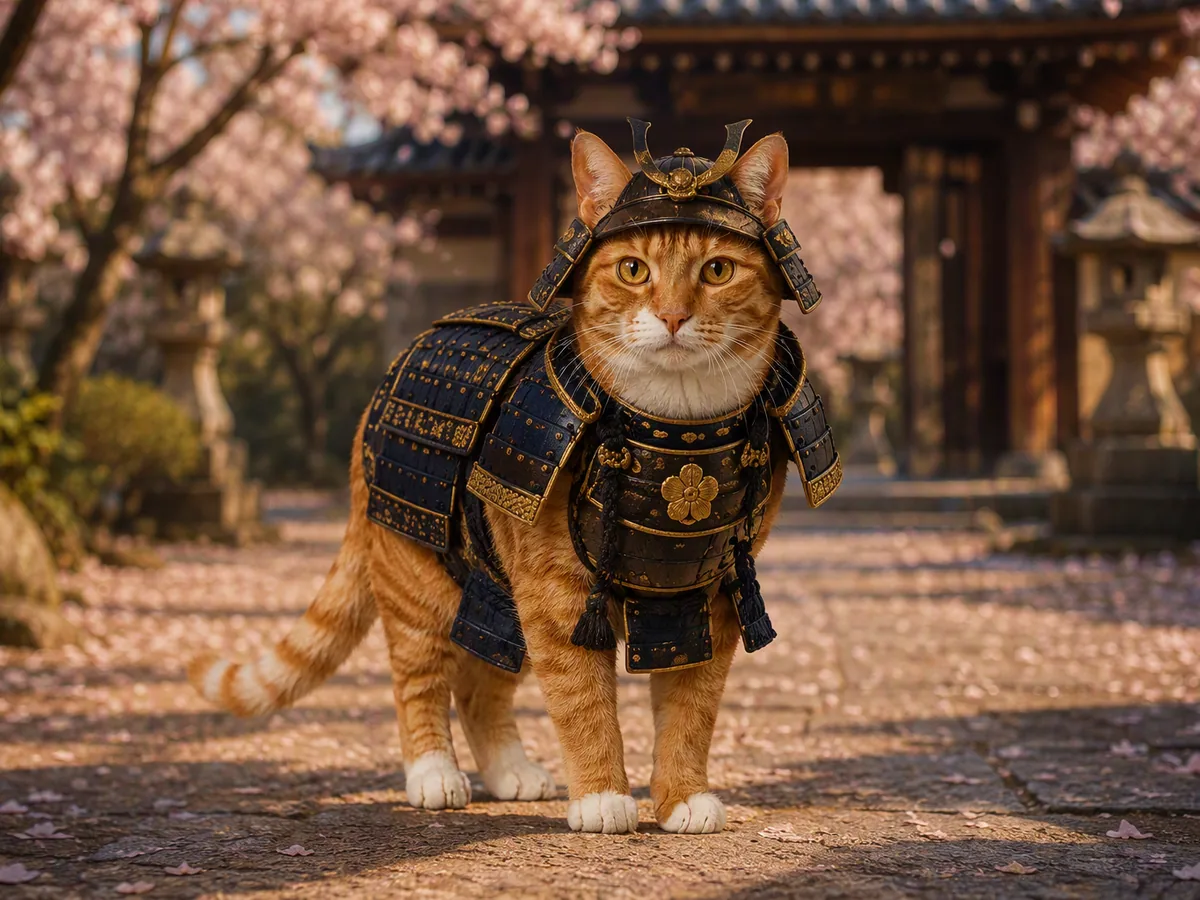
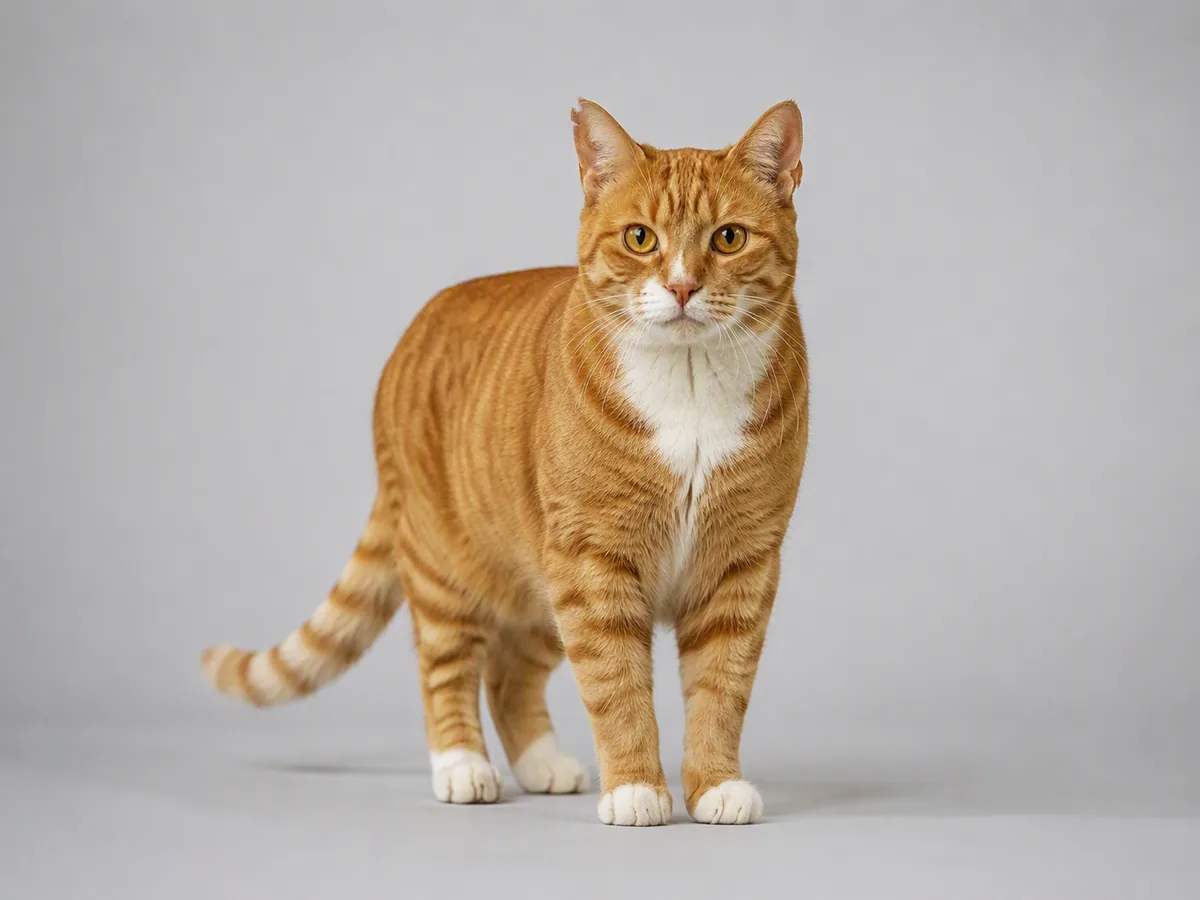
Drag an image here or click to upload












Explore image transformation styles
Explore a range of image transformations and find the look that fits your idea.
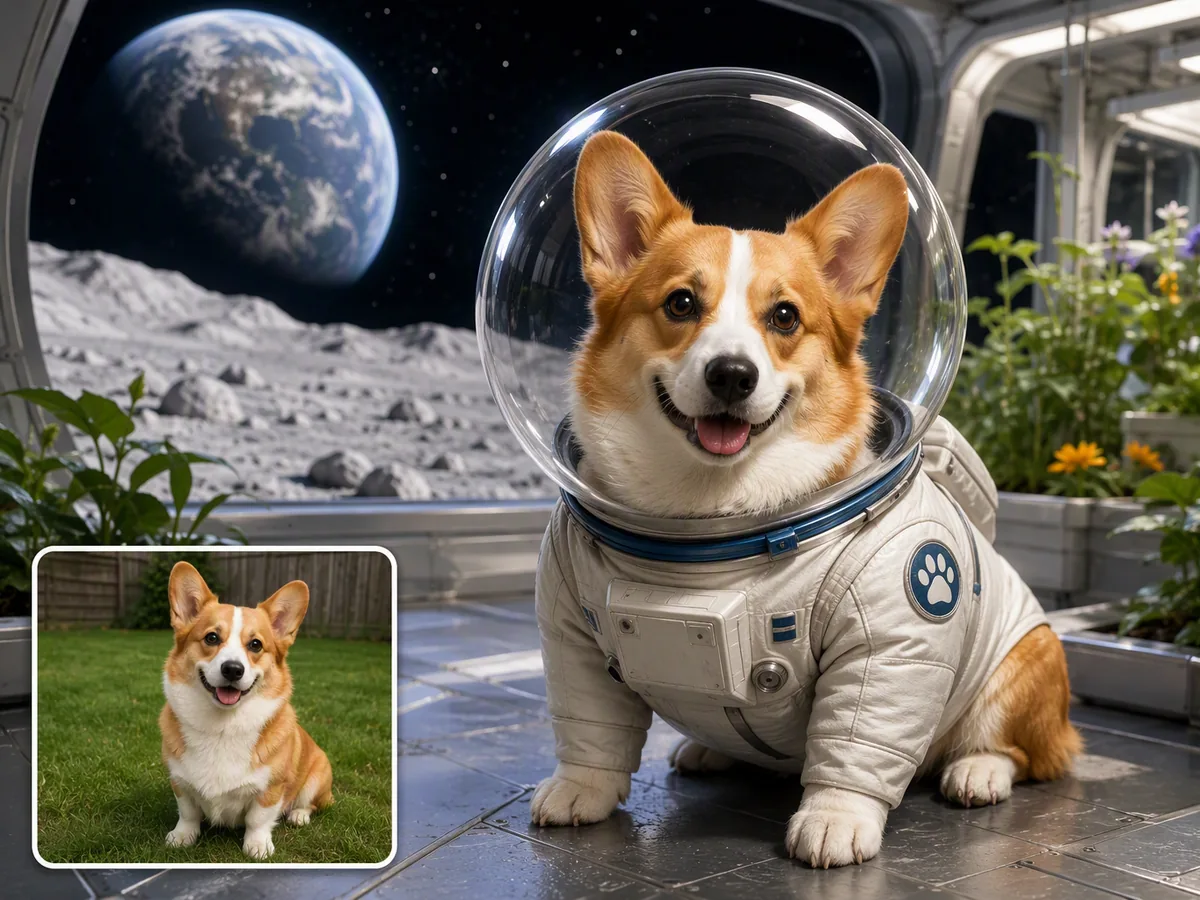
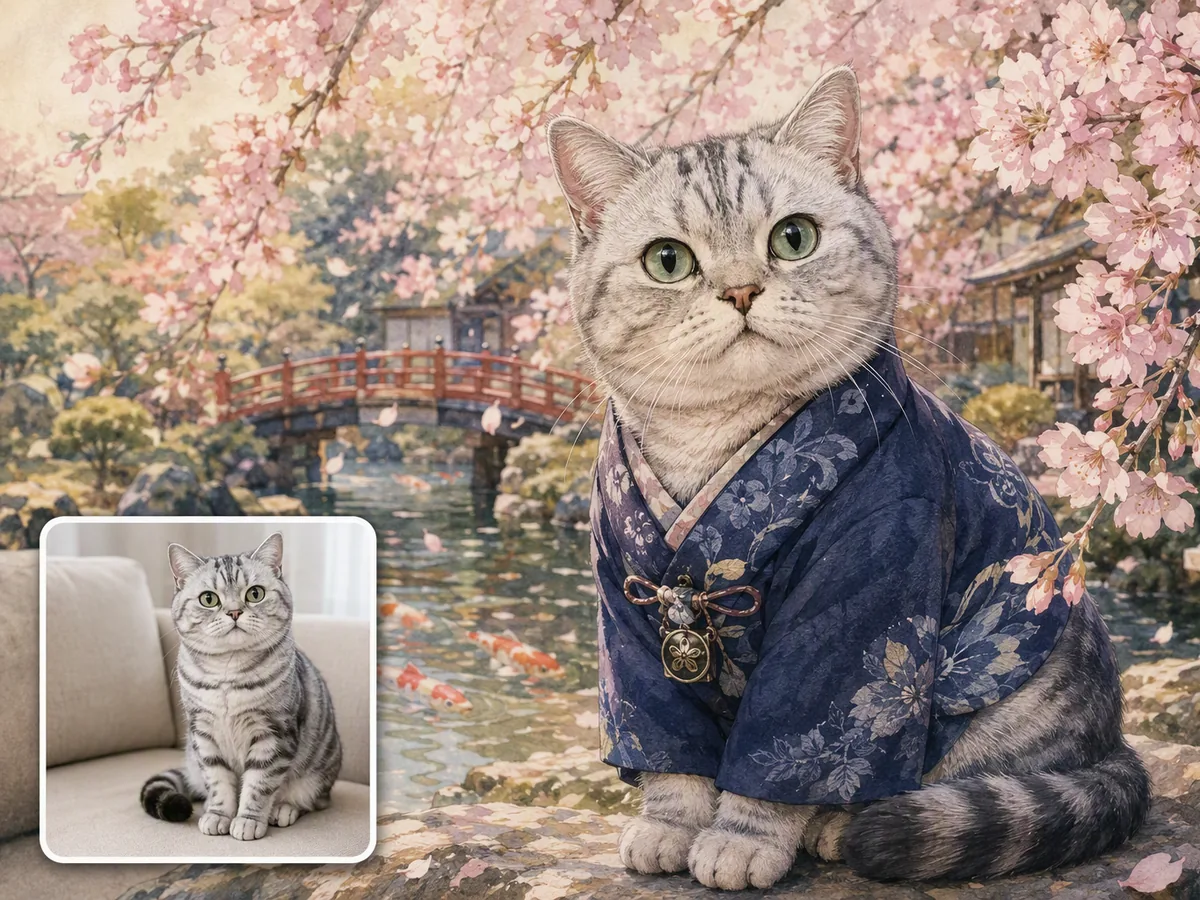
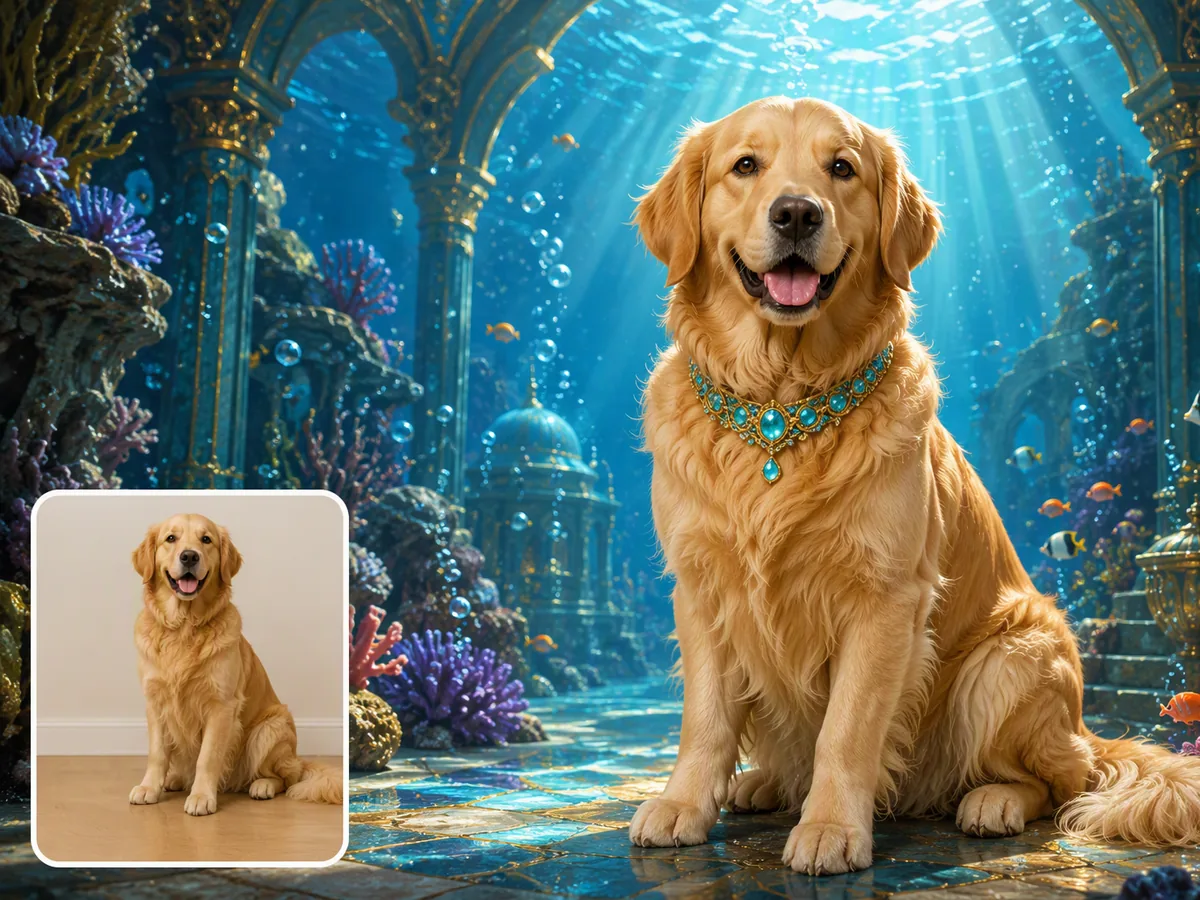
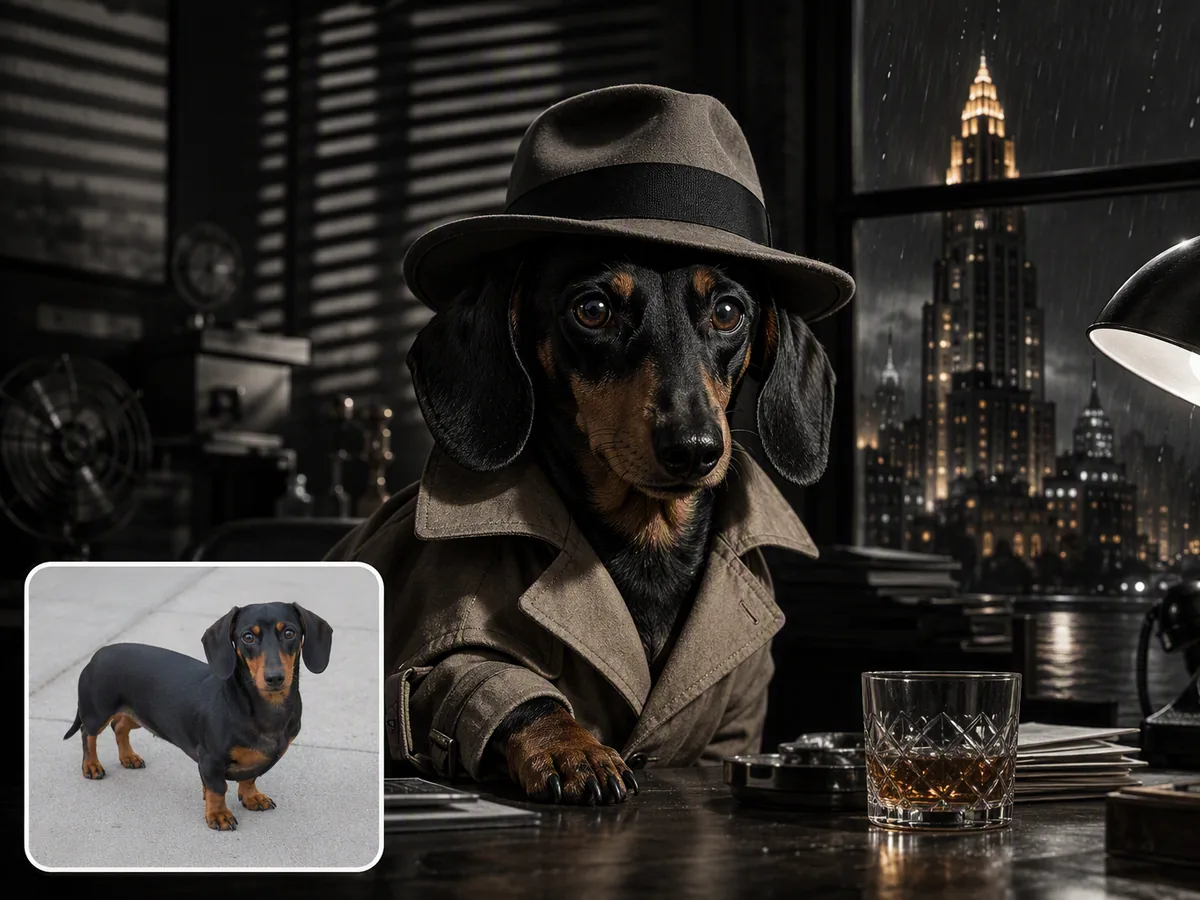
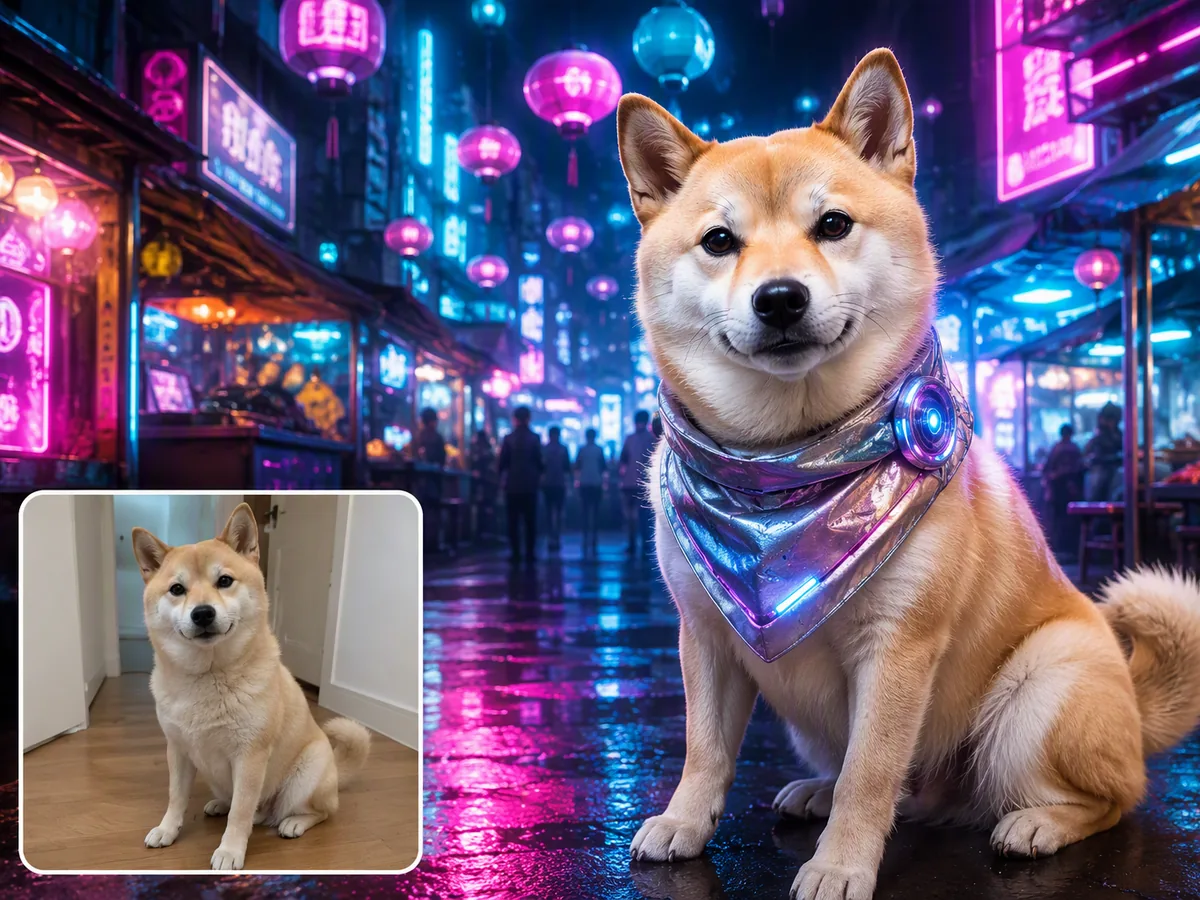
Keep the Pet, Change the World Around Them
A useful ai pet portrait generator should preserve the animal you know, not produce a generic version of the breed. Before uploading, note six identity anchors: coat pattern, eye color, ear shape, face shape, expression, and any familiar accessory. Compare those details with the first result side by side. Continue in Studio for focused corrections or a new art direction, with AI image generation available for a separate image task.
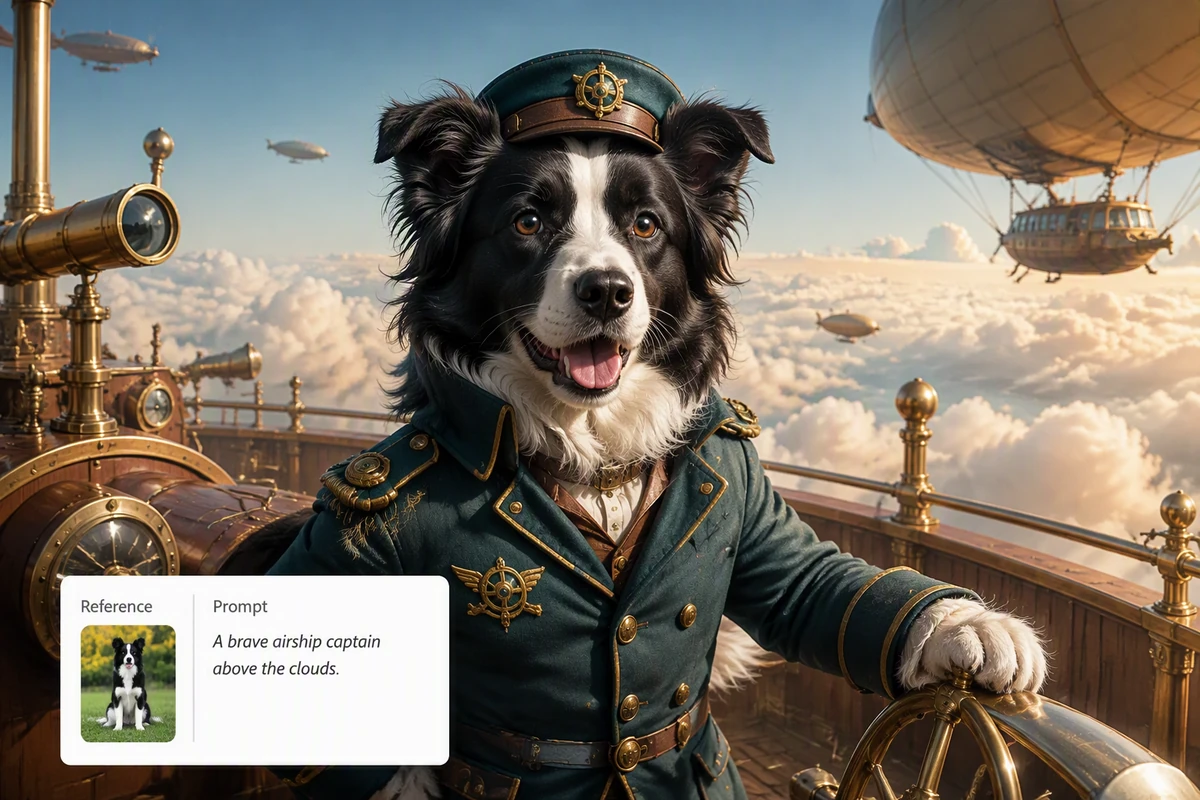
Build a Portrait Around Real Identity
The border collie becomes an airship captain, but the recognizable face, coat pattern, and alert expression still lead the image. Use the source photo to verify those anchors before judging costume, lighting, or setting. If the approved portrait needs another surface or color treatment, explore Image Effects as a separate step.
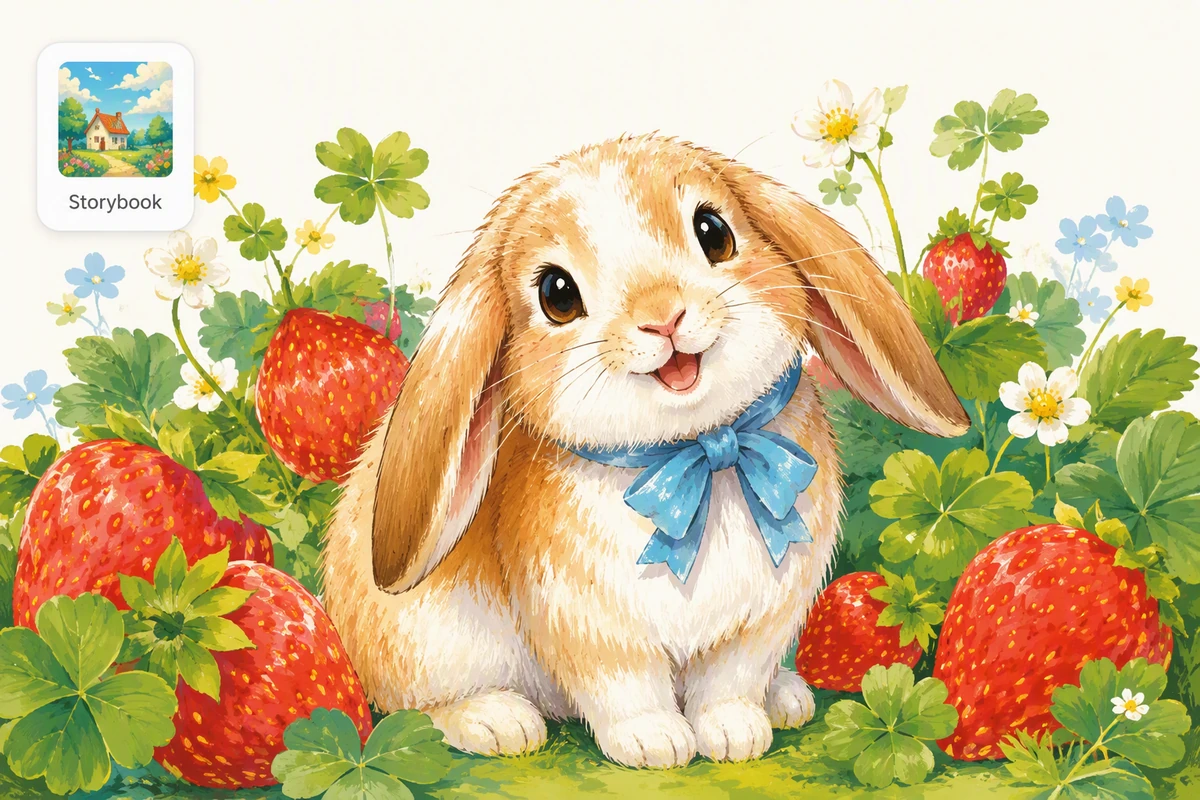
Choose a Style That Fits the Pet
A lop-eared rabbit suits the soft shapes and visible brush texture of storybook gouache. The gallery shows media, palettes, moods, and settings without making the upload step configurable. Review the first portrait as one prepared direction, then continue in Studio if another treatment would fit the pet better.
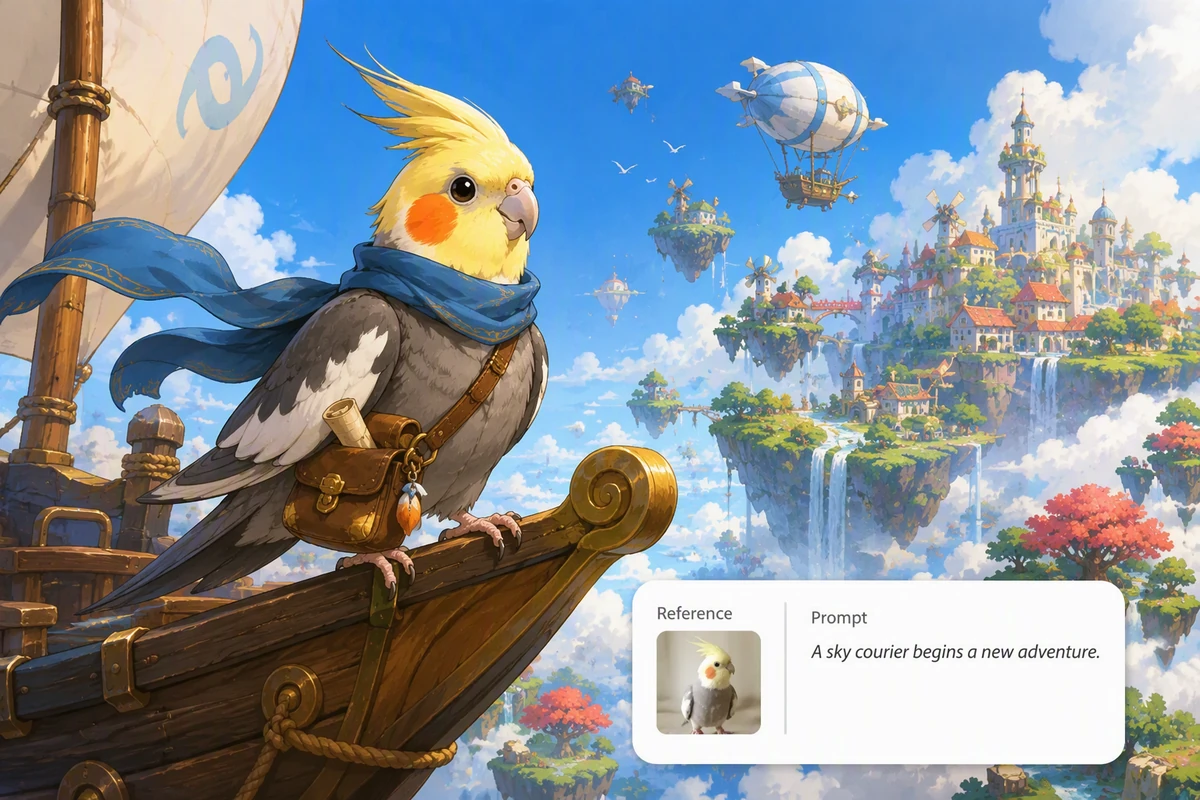
Turn a Familiar Pet Into a Character
The cockatiel keeps its crest, yellow face, and orange cheek patch while becoming an illustrated sky courier. The role, setting, prop, and emotional tone change without replacing the traits that make the bird recognizable. Once the character is approved, use an AI Story Generator to develop an original adventure around it.
What you can do with Ottermind
Create a memorial portrait
Turn a favorite pet photo into a respectful artwork that preserves recognizable markings, expression, and personality.
Make a playful character poster
Reimagine a pet as an explorer, monarch, astronaut, or story character while keeping identity cues intact.
Design a personalized gift
Create a print-ready portrait around the recipient’s preferred style, colors, setting, and meaningful pet details.
Build a matching pet series
Give several pets a coordinated visual world while checking anatomy, scale, and markings in every image.
Make a Recognizable Pet Portrait in 3 Steps
Step 01
Choose a Clear Reference
Upload a sharp, well-lit photo with visible eyes, ears, face shape, and coat markings. Avoid heavy filters, motion blur, blocked features, and extra animals that could confuse the subject.
Step 02
Review the First Portrait
After upload, Ottermind creates a starting portrait using the page's prepared direction. Compare its coat pattern, eyes, ears, face, expression, and proportions with the source.
Step 03
Refine in Studio
If the portrait feels generic or shows odd anatomy, continue in Studio and correct one concrete mismatch at a time while keeping the approved composition intact.
Why creators choose Ottermind
Identity Audit
Check coat markings, eye color, ear shape, face shape, expression, and accessories before approving.
Source Beside Result
Compare the original photo and AI pet portrait while checking every identity anchor.
Focused Corrections
Fix one changed marking, eye, ear, paw, or proportion without discarding a strong composition.
Distinct Art Directions
Explore oil, watercolor, storybook, cinematic, retro, or futuristic treatments for different personalities.
A Path Into Motion
Carry an approved portrait and its identity notes into Image to Video.
Visible Human Review
Inspect each result and approve the details that matter before sharing or printing the artwork.
Frequently asked questions
What Does an AI Pet Portrait Generator Do?
An ai pet portrait generator uses a reference photo and a prepared art direction to create a new portrait. After uploading, compare the generated image with the source, inspect the pet's identifying details, and continue refining in Studio when needed.
What Photo Makes the Best Pet Portrait?
Use a sharp, well-lit photo where the eyes, ears, muzzle, face shape, coat pattern, and paws are visible. Avoid motion blur, heavy filters, video screenshots, blocked features, and frames with several animals unless you identify one subject clearly.
How Do I Keep My Pet Recognizable?
Write an identity checklist before uploading. Record coat patches, eye color, ear position, face proportions, expression, scars, and a familiar collar. Audit those traits in the AI pet portrait generator result, then continue in Studio if one needs correction.
What If the Portrait Looks Generic or Has Odd Details?
Compare the result with the source from face to paws. Identify one concrete mismatch, such as a missing chest patch, changed eye color, merged toes, or an extra accessory. In Studio, request that correction before changing anything else.
Can I Animate the Finished Pet Portrait?
Yes, but approve the still portrait first. Then continue with Photo to Video AI Free for directed motion, or use the Ghibli Art Video Generator for an original warm, hand-drawn video direction. Carry the identity checklist into the motion brief.
Can I Print, Gift, or Share an AI Pet Portrait?
Use a permitted photo, disclose AI involvement where appropriate, and inspect the export size before printing. A custom AI pet portrait can support a gift, memorial, profile image, or story concept. For social content, continue with AI Reel Maker.
Discover more
AI Product Image GeneratorFix Blurry PicturesGemini Watermark RemoverImage Text EditorImage TranslatorPicture Outline MakerPhoto into WatercolorPhoto RetouchingPhoto to Anime ConverterReplace Color in ImageResume Photo EditorWatermark RemoverAI Resume BuilderAI Receipt TrackerPC Builder AIAI Logo Generator
More from the blog
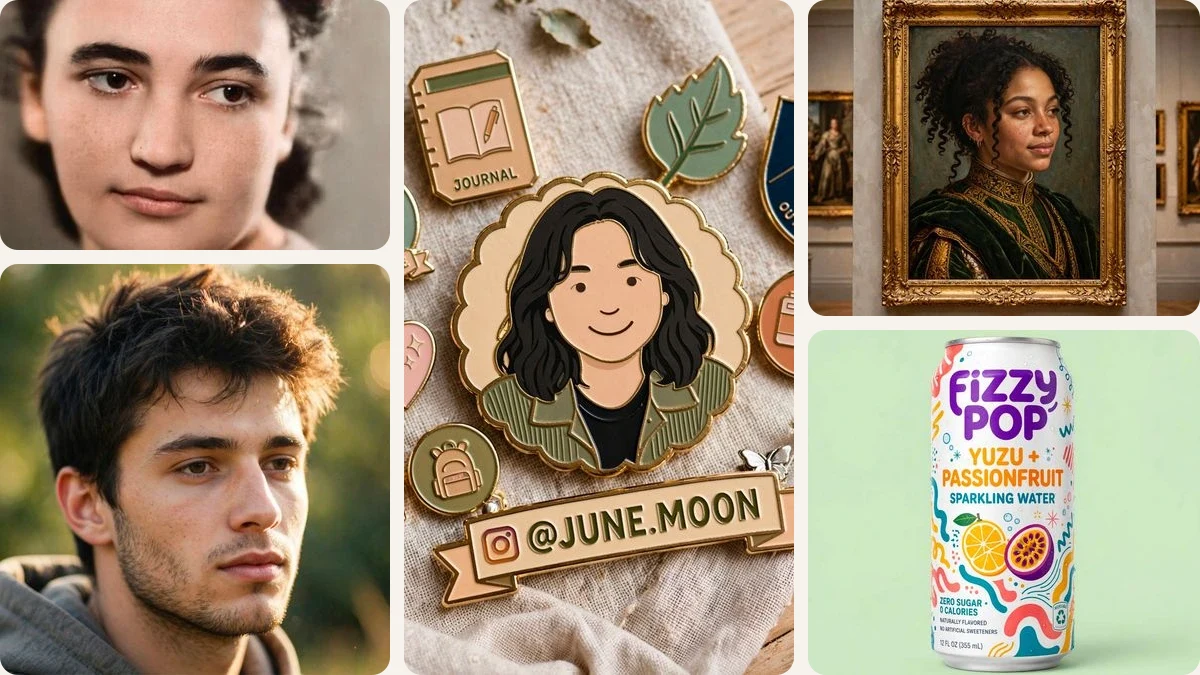
Create a Portrait That Still Feels Like Them
Upload a clear pet photo, compare the first result with its identity details, and use Ottermind Studio to refine a recognizable custom portrait when needed.
Create Pet Portrait