



AI Art Generator from Image

Upload a photo, describe the visual direction, and create an original artistic interpretation you can compare, refine, and continue developing in Ottermind.

Claude
GitHub
Google
Linear
Microsoft
Monday
Netlify
Notion
OpenAI
Sentry
Slack
Stripe
Supabase
Claude
GitHub
Google
Linear
Microsoft
Monday
Netlify
Notion
OpenAI
Sentry
Slack
Stripe
Supabase

How an AI Art Generator from Image Works

Use an uploaded visual as reference, then describe the style, atmosphere, lighting, palette, and format. Tell Ottermind which people, objects, proportions, and layout choices must remain recognizable and what may change. Compare several directions, inspect the differences, and refine the strongest result instead of accepting the first output.

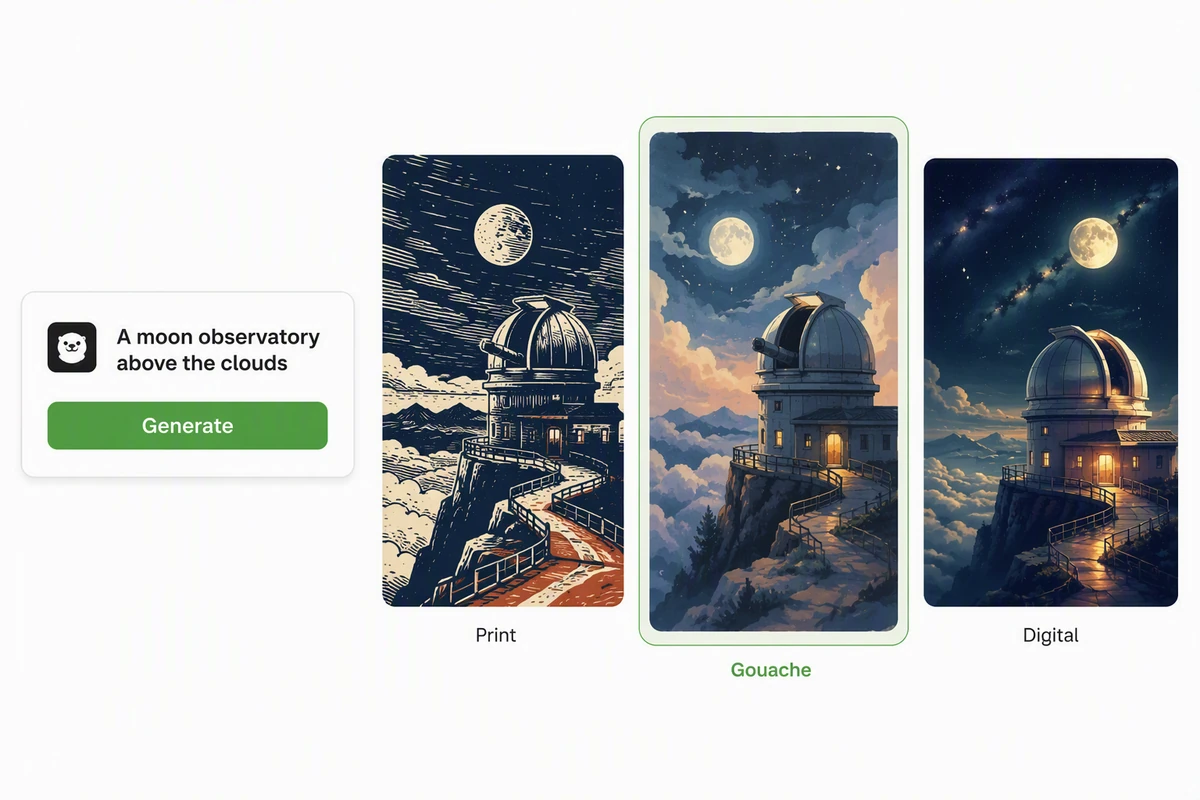
A moon observatory rendered as linocut, gouache, and cinematic digital art

Compare distinct art directions

The moon observatory appears as a linocut, gouache painting, and cinematic digital scene. Use AI image generation to test the same subject across clearly named styles, then compare shape language, texture, lighting, and emotional tone before selecting one direction.
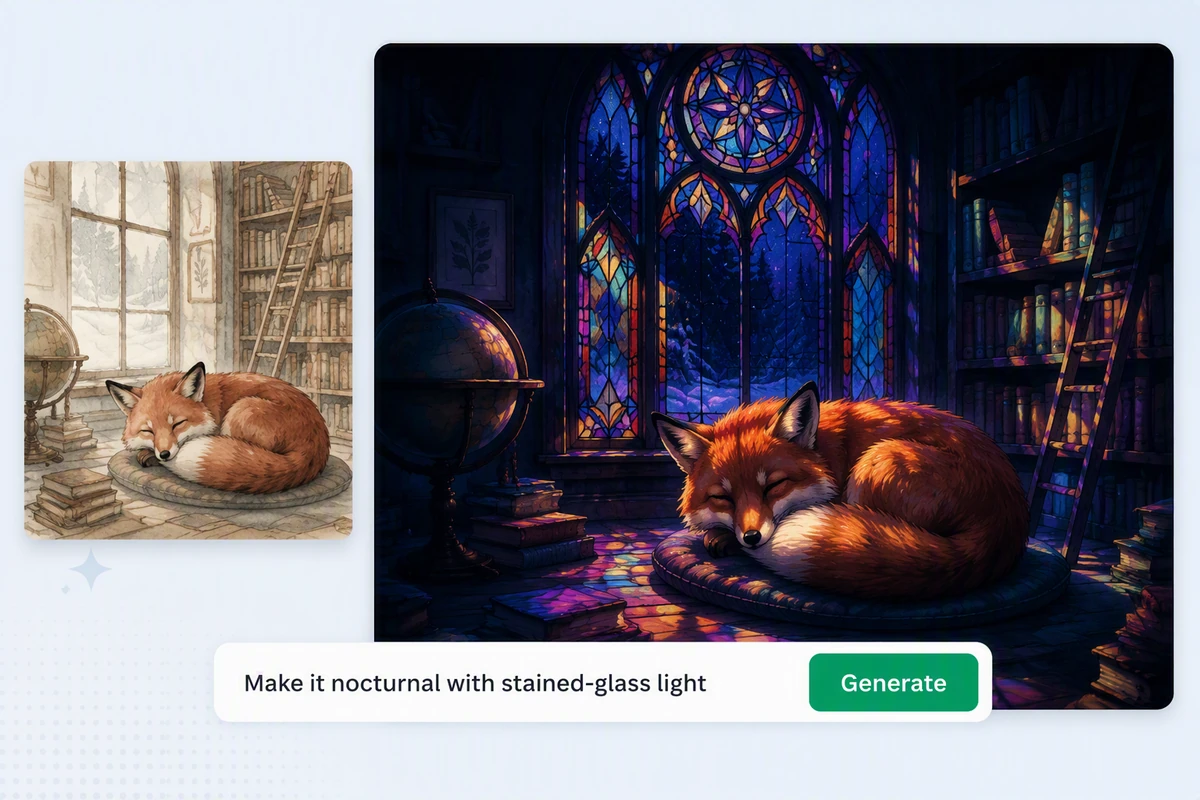
A watercolor fox library scene refined into nocturnal stained-glass art

Refine without losing the subject

The sleeping fox remains the focal point while a pale watercolor library becomes a nocturnal stained-glass room. Write follow-up instructions that separate locked details from requested changes, then check the subject, pose, important objects, and composition before approving the revision.

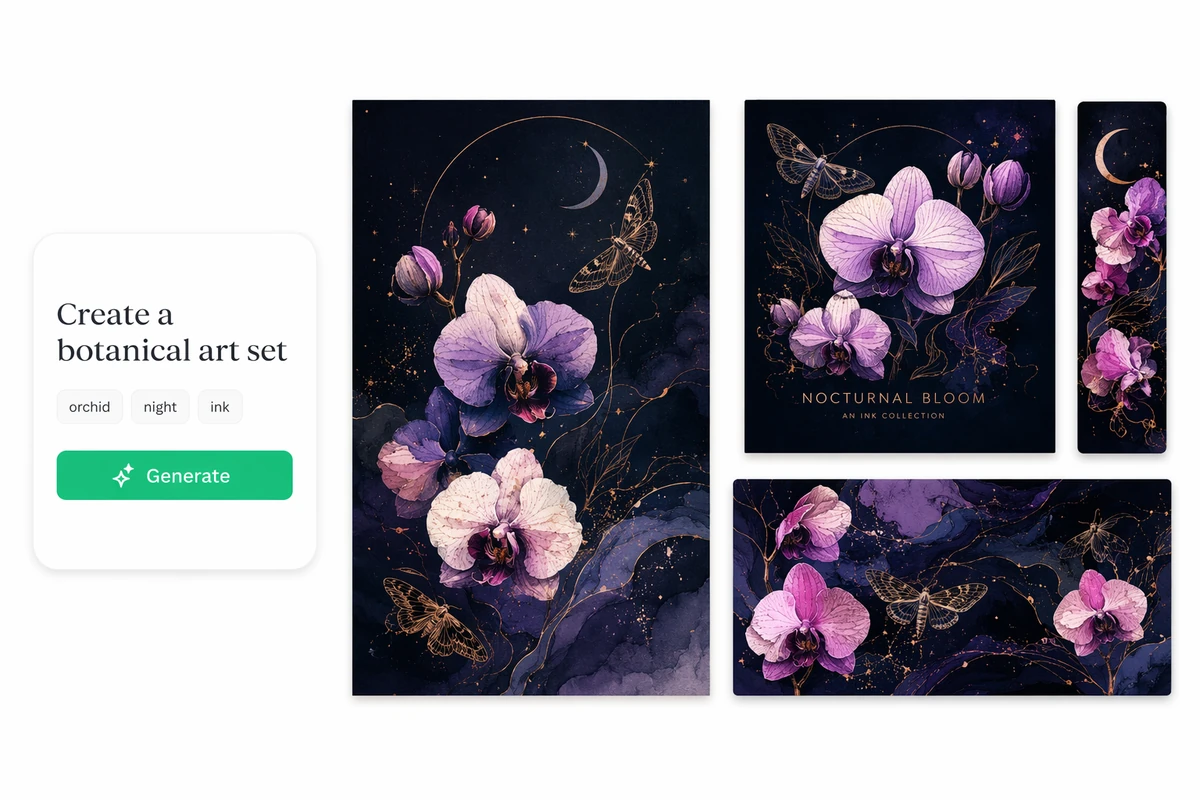
A coordinated botanical art set across a poster, album cover, bookmark, and banner

Build one coordinated visual set

The orchid, moon, ink, and moth motif carries across a poster, album cover, bookmark, and banner. Once the art direction is stable, define the crops and hierarchy each format needs. For a moving extension, continue with Image to Video without discarding the approved visual language.

How to Make AI Art from an Image

Step 01

Upload the reference

Choose a photo, sketch, or artwork you are allowed to use. Identify the subject, composition, colors, and small details that should remain recognizable in every result.

Step 02

Direct the transformation

Describe the desired medium, mood, lighting, palette, texture, and destination. State the changes separately from the details that must stay fixed, then generate several directions.

Step 03

Compare and refine

Review likeness, anatomy, edges, composition, and unintended text or objects. Select the strongest result and request focused corrections while keeping the successful art direction intact.

Why creators choose Ottermind

Reference-led starting point

Keep the source beside the conversation so every revision can be judged against the original visual intent.

Concrete prompt control

Separate subject, medium, mood, lighting, palette, and format instead of relying on one vague style label.

Comparable directions

Explore several treatments against one brief and choose with visible criteria, not a random first impression.

Focused revisions

Change one weak quality at a time while preserving the subject, composition, and decisions that already work.

Story-ready context

Develop the scene further with an AI Story Generator while keeping the visual reference and project goal connected.

Connected continuation

Move the selected image into Studio with its prompt, reference, review notes, and next requested change attached.

FAQ

What is an AI art generator from image?

An AI art generator from image uses an uploaded photo, sketch, or artwork as context for an interpretation. The source can guide subject, structure, or style; your prompt defines what to preserve or change. Review the result as new work, not a pixel-identical filter.

How do I keep a person recognizable?

Use a reference and name the identity cues, expression, pose, clothing, and framing. Ask for one change at a time and compare each result with the source. No generative workflow guarantees exact likeness, so inspect faces and hands.

Can I turn one image into several art styles?

Yes. Hold the subject and composition steady while changing the medium, palette, texture, or lighting in separate requests. The broader AI image generation workflow helps you compare outputs consistently instead of combining several style instructions in one ambiguous prompt.

Can I animate the generated artwork later?

Yes. After approving the still, use Photo to Video AI Free or Image to Video to describe movement and camera behavior. Review whether the animated version preserves the subject, art direction, framing, and important details from the still.

What images should I avoid uploading?

Do not upload material you lack permission to use, private images you should not share, or references intended to copy protected characters or artwork. Use your own materials or properly licensed sources, and check rights, consent, and destination requirements before publishing.

Why does the result differ from my source?

Generation interprets the reference rather than tracing it exactly. If the variation is too large, simplify the request and state the locked details more clearly. For an anime-led moving interpretation, Photo to Anime Video AI Free owns that next-step workflow.

Discover more

How people use Ottermind for images

I had a batch of mug photos shot on my kitchen table. I cleared the clutter, tried two cleaner backgrounds, and kept the one that still looked like my real product. It felt more like tidying up a shoot than starting over.

Lena Ortiz - Online Shop Owner

More from the blog

Turn Your Image into a Clear Art Direction

Bring one permitted reference, describe what must stay and what may change, compare the results, then refine the strongest interpretation with its full context attached.

Create AI Art