





AI Text Generator for Draft-Ready Copy You Can Revise

Describe the format, audience, and tone. Generate short-to-medium text from a prompt, compare directions, and revise the draft with the brief still attached.

AI writing
Claude
GitHub
Google
Linear
Microsoft
Monday
Netlify
Notion
OpenAI
Sentry
Slack
Stripe
Supabase
Claude
GitHub
Google
Linear
Microsoft
Monday
Netlify
Notion
OpenAI
Sentry
Slack
Stripe
Supabase
Format and audience brief card beside a generated text block on a soft document

Name the format before you generate

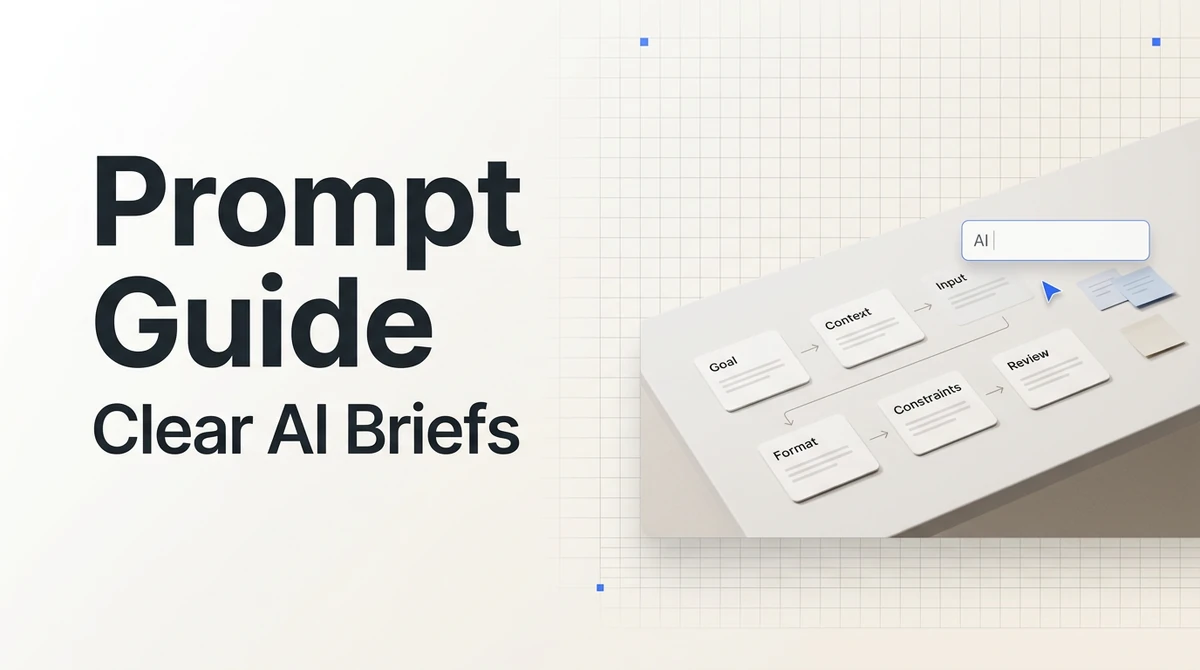
An AI text generator works best when you specify the output type—intro, caption, FAQ answer, or product blurb—plus audience, tone, and length. Vague “write something” prompts return filler. For one polished paragraph, use the AI Paragraph Generator; for a single line, try the Sentence Generator.

Bullet outline flowing into a polished text draft on a floating page above a white pedestal

Draft from a prompt or outline

Paste keywords, bullet notes, or a rough outline and ask for readable copy you can edit. Compare benefit-led, story-led, or direct versions when the angle is unclear. Keep prompts concrete with the How to Write AI Prompts That Actually Work, then verify facts before sharing.

Text draft with tone chips for clear, warm, and concise revisions on a document card

Revise tone without restarting

Request focused passes for clarity, warmth, or brevity while keeping approved claims intact. When the task becomes a structured academic paper, switch to the Essay Writer. For a complete email, continue in the AI Email Generator.

What you can do with Ottermind

Draft a blog section

Turn an outline, audience, evidence, and point of view into a focused section that fits the surrounding article.

Create product page copy

Explain features, benefits, proof, and limitations in clear language for shoppers comparing options.

Prepare an internal announcement

Write a concise update that explains what is changing, why it matters, and what employees need to do.

Adapt one idea across formats

Create versions for email, social posts, FAQs, and landing pages while keeping the central message consistent.

How to use this AI Text Generator

Step 01

State the brief

Name the output type, reader, tone, length, and any claims or terms that must stay accurate in every version.

Step 02

Generate the first draft

Ask for one draft or a few labeled directions built from the same notes so you can compare angle before you polish.

Step 03

Revise and verify

Run focused edits for tone or length, confirm facts and names, then carry the approved copy into Studio or your publish workflow.

Why creators choose Ottermind

Format-first drafts

The AI Text Generator starts from output type and audience—not a blank page and a vague keyword.

Notes to readable copy

Turn bullets, keywords, or a rough outline into text you can actually edit and reuse.

Comparable directions

Labeled variants help you pick an angle before you spend time polishing the wrong draft.

Focused revision passes

Tighten tone, length, or clarity on one approved draft without throwing away the brief.

Right scope for the task

For academic structure, use the Essay Writer. For one paragraph only, open the AI Paragraph Generator.

Continue in Studio

Keep the approved draft and its brief together when the next edit belongs in a longer project.

Frequently asked questions

What is an AI text generator?

An AI text generator creates short-to-medium copy from a prompt, outline, or keyword list. You describe the format, audience, tone, and length, then revise the draft in Ottermind. It is a general drafting tool—not a full article factory, academic essay writer, or image tool.

How is this different from an AI paragraph generator?

The AI Paragraph Generator focuses on one coherent paragraph. This page covers flexible text blocks—intros, blurbs, captions, FAQ answers, and similar copy—where length and structure may vary.

Can it write essays or long articles?

Use the Essay Writer for structured academic drafts with style and citation needs. This AI text generator is better for shorter marketing, product, or workflow copy you will verify before publishing.

What should I include in the prompt?

Include output type, audience, tone, length, and must-keep facts or terms. Paste bullet notes when you have them. Vague prompts usually return generic filler.

Will the generated text be factually correct?

No. Treat every draft as provisional. Verify names, numbers, product claims, and specialist terms before you publish or send. You remain responsible for accuracy.

Where should I use the approved copy next?

Paste it into the AI Email Generator, a social workflow, or a longer draft in Studio. Keep the brief attached so later edits stay consistent.

Discover more

More from the blog

Generate text you can actually edit

Bring the format, audience, tone, and must-keep details. Draft short-to-medium copy with this AI text generator, revise carefully, and continue in Ottermind.

Generate text