Extract Text from Image

Turn text inside a photo, screenshot, scan, or note into an editable brief you can check, organize, and carry into Ottermind Studio.

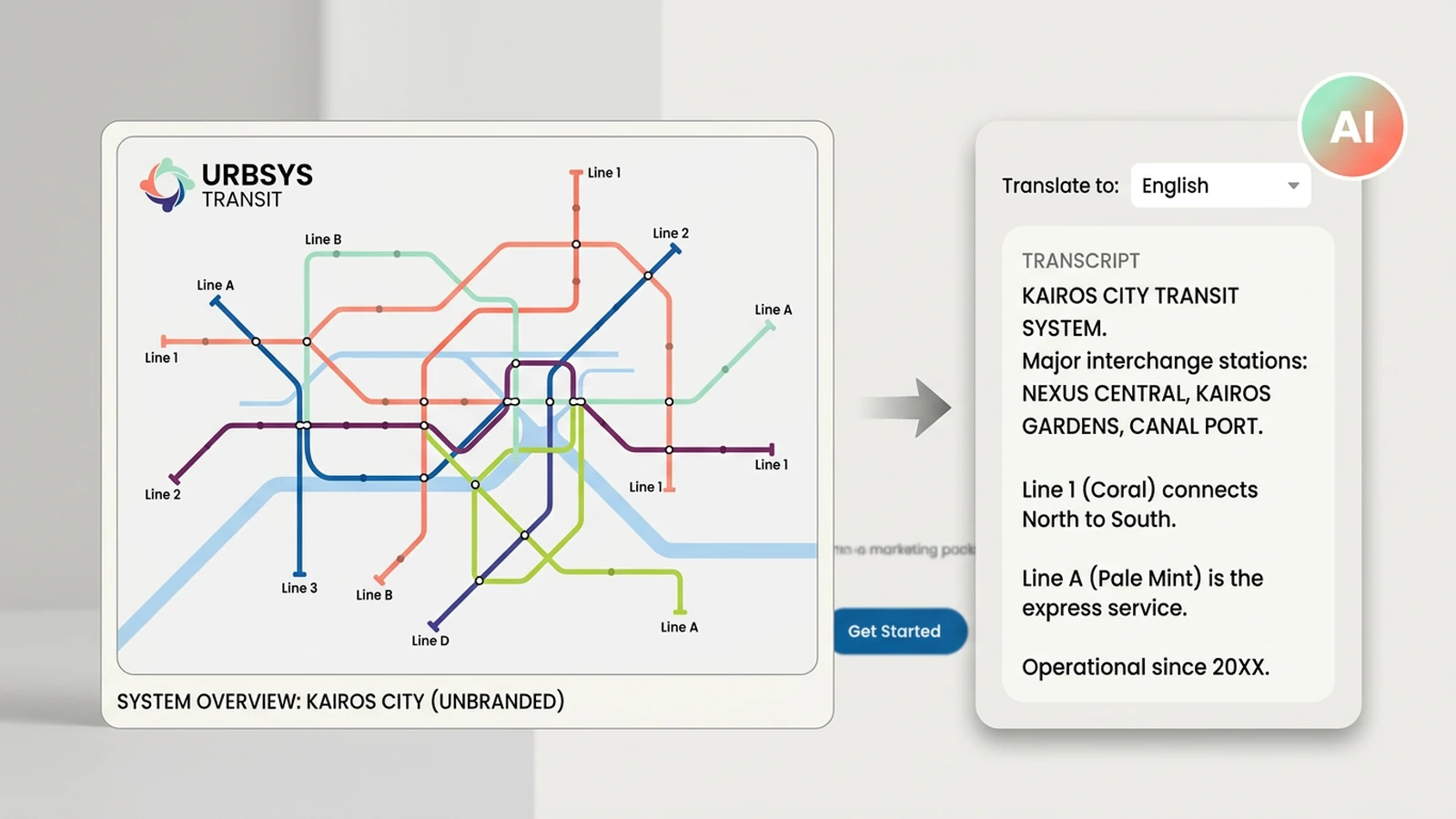
Fictional OCR workspace turns a photographed transit map into editable text

Extract the words, then check the meaning

Extracting text from an image is more useful when the output remains reviewable. Bring the source image, describe what must stay in order, and ask for uncertain characters or damaged regions to be called out instead of silently guessed. Ottermind keeps the source context, extracted text, and follow-up decisions together so you can turn a photo into searchable notes, a clean table, or a working document. For text that needs translation after extraction, continue with Image Translator.

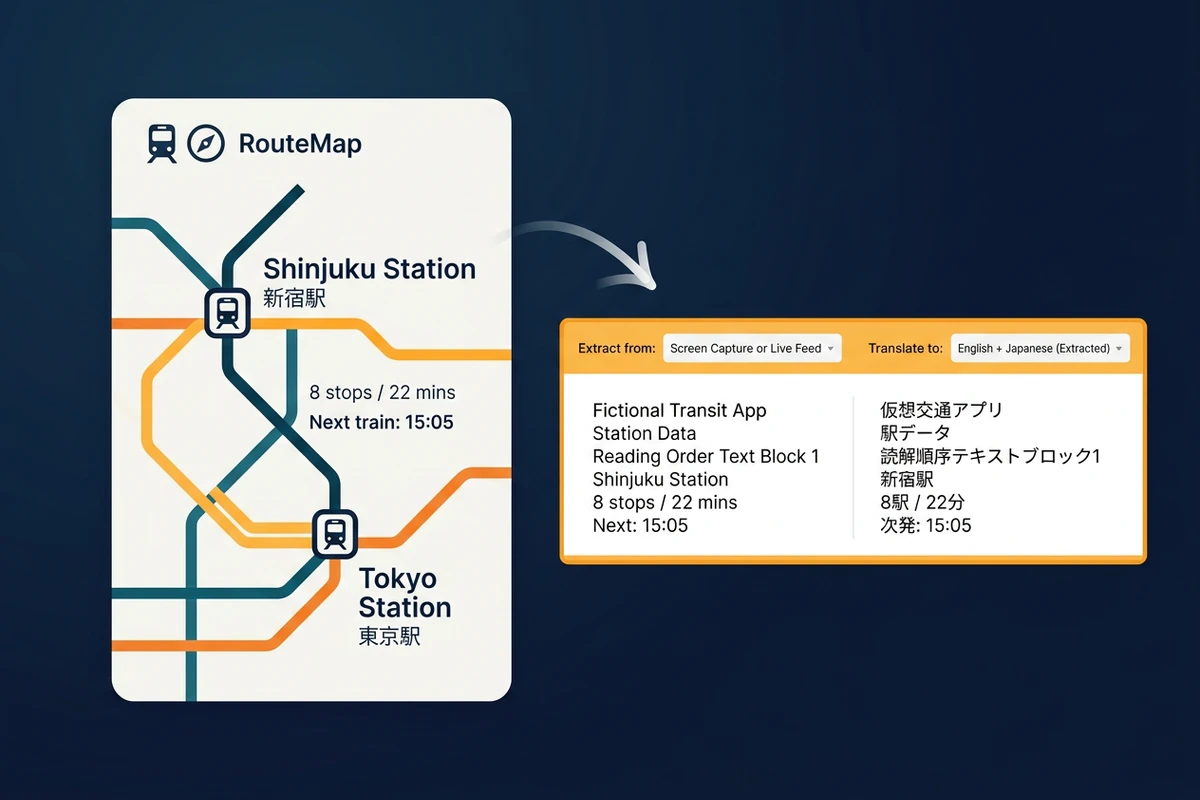
Fictional transit screenshot reorganized into a readable OCR transcript

Keep reading order in screenshots and posters

Screenshots mix headings, menus, labels, and distracting interface elements. Describe the intended reading order and ask for navigation chrome to be separated from the content you need. Review line breaks, URLs, numbers, and punctuation before copying the result. When the next task is correcting words inside the image itself, continue with Image Text Editor.
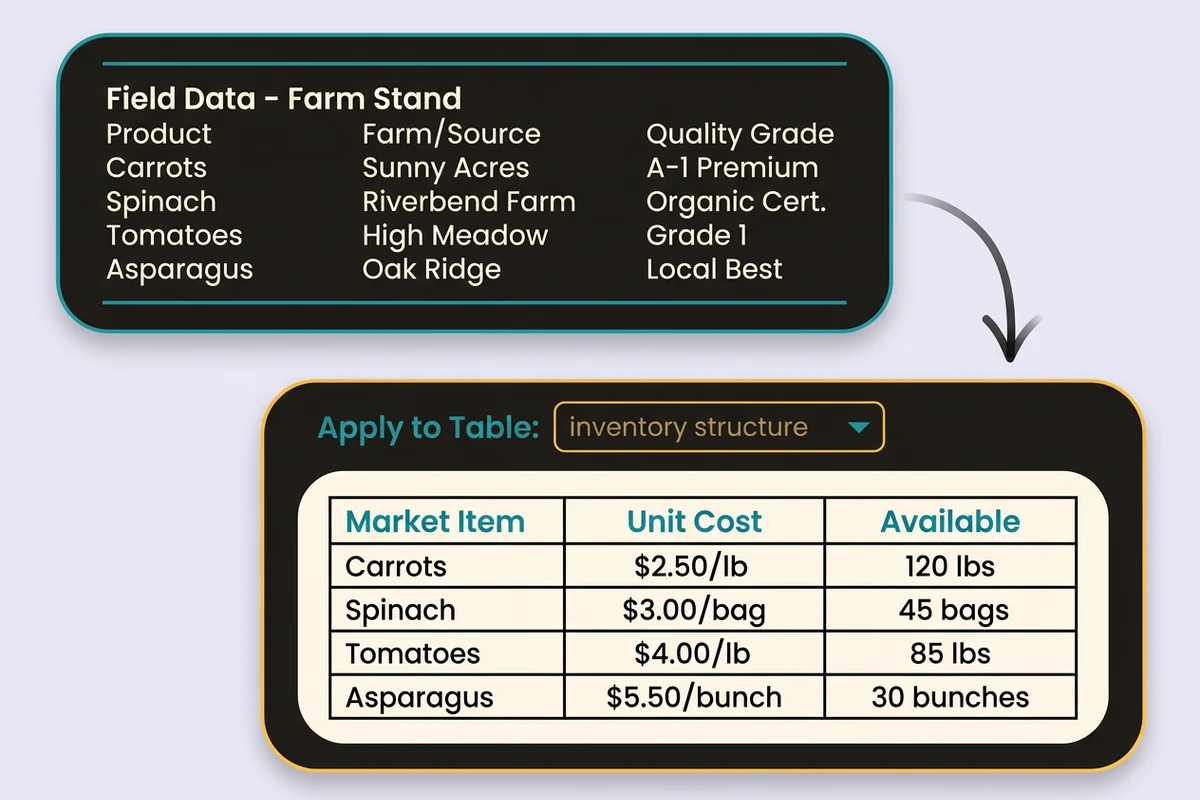
Fictional inventory scan converted into an aligned structured table

Turn scans into usable tables

A photographed receipt, invoice, or inventory sheet needs more than character recognition. Ask for column boundaries, row relationships, currency symbols, and missing values to be preserved. Compare totals and identifiers with the source before sending the structured text into a report or spreadsheet workflow. When a scan needs a larger source first, continue with HD Photo Converter.

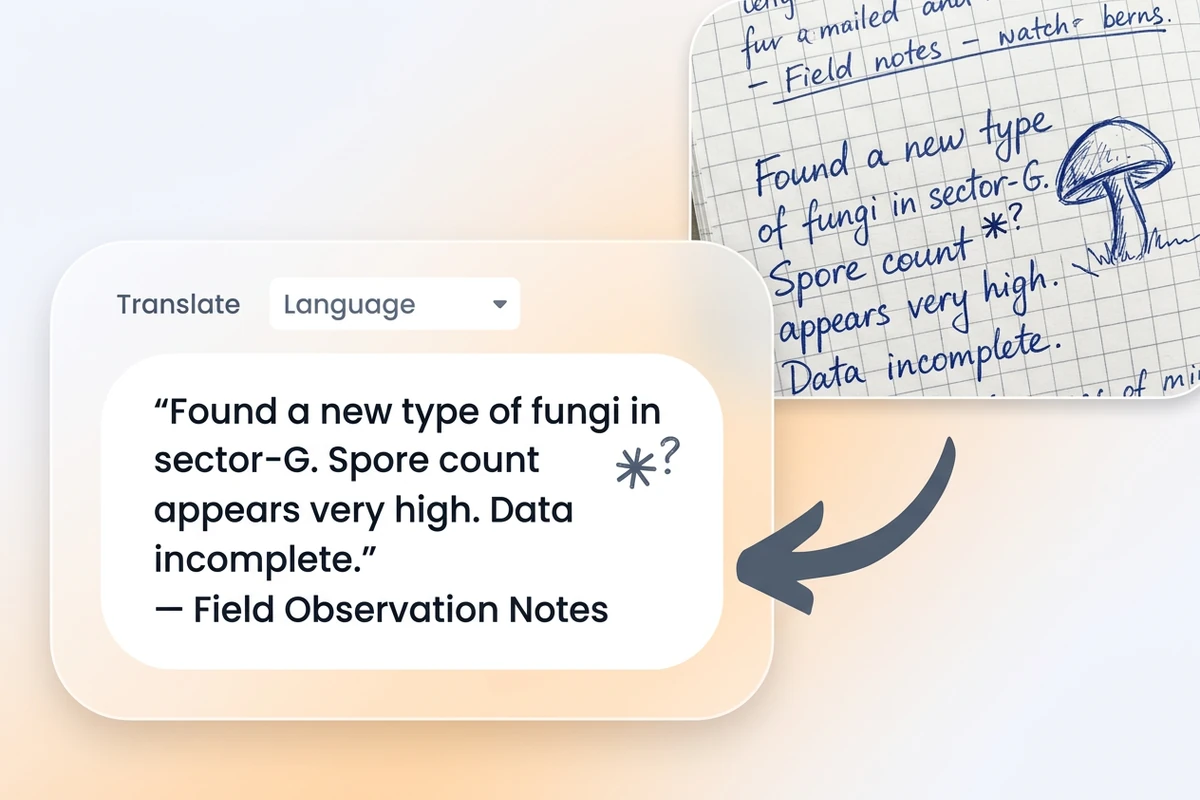
Fictional handwritten field note transcribed with an uncertainty marker

Make handwriting and low-contrast notes reviewable

Handwritten notes and shadowed scans often contain characters that are genuinely ambiguous. Ask the workflow to preserve the writer's wording, mark uncertain readings, and keep a link to the original crop for checking. Once the transcript is sound, continue in Studio to summarize, tag, or assign the work it describes; AI Note Taker can help turn notes into follow-up items.

What you can do with Extract Text from Image

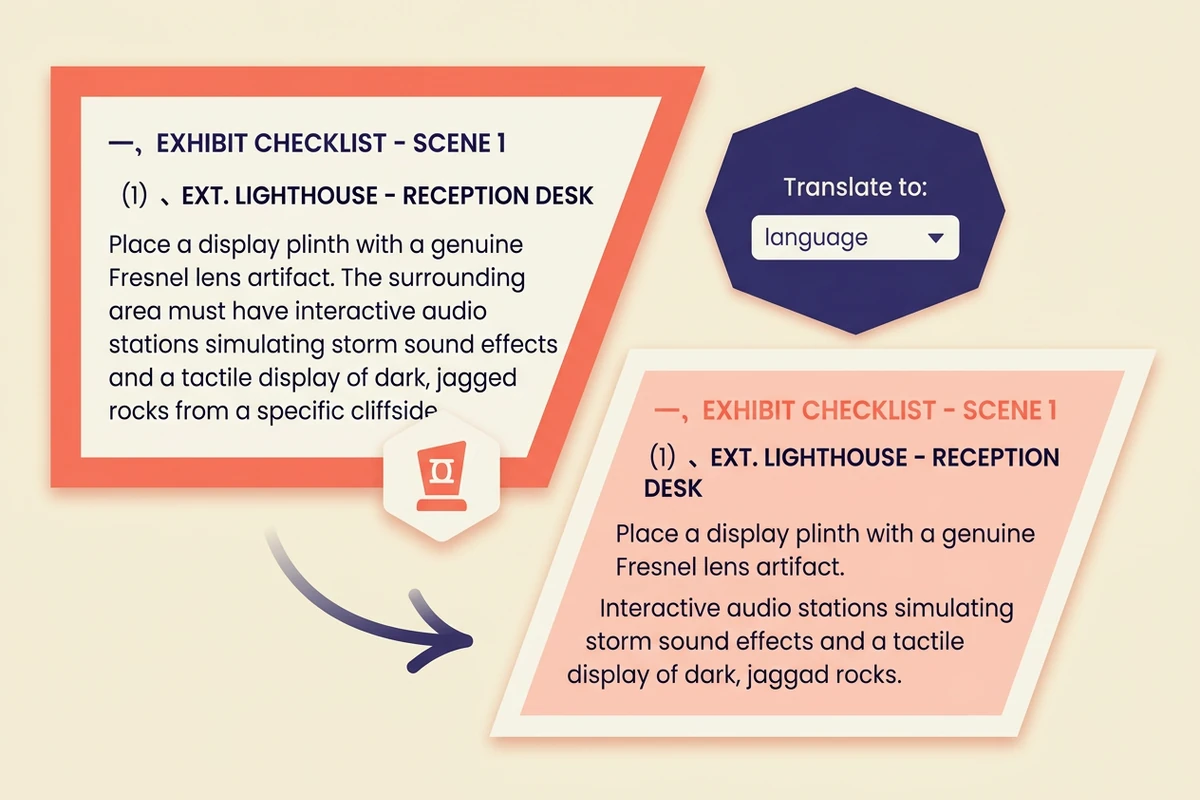
Fictional scanned exhibit checklist converted into ordered text

Digitize a scanned PDF page

Extract headings, paragraphs, and page text from a scanned script or PDF image while keeping reading order. Compare names, punctuation, and line breaks before turning the transcript into an editable draft. For a longer document, continue with PDF Summarizer.

Extract text in Studio

A reliable three-step image-to-text pass

Give the OCR workflow enough context to preserve what matters.

1

Upload the photo, screenshot, scan, or note. Name the language, page orientation, and any region that is cropped, shadowed, or hard to read.

2

Ask for paragraphs, headings, reading order, or table columns to be preserved. Tell the workflow which names, numbers, dates, and symbols need exact checking.

3

Compare the transcript against the source at normal size and close up. Resolve uncertain characters, totals, URLs, and line breaks before sharing or summarizing the text.

Extract text in Studio

Why creators choose Ottermind

A useful OCR result is readable, traceable to its source, and ready for the next piece of work.

Source-aware extraction

Start with the actual crop, orientation, and image quality.

Prompted structure

Specify paragraphs, headings, rows, or fields before extraction.

Visible uncertainty

Flag ambiguous characters instead of hiding a risky guess.

Context in one place

Keep the image, transcript, and review notes together.

From words to work

Turn extracted text into notes, tasks, or a focused follow-up.

Continue in Studio

Carry a checked brief into the wider Ottermind workspace.

Frequently asked questions

What does Extract Text from Image do?

It helps turn visible words in photos, screenshots, scans, and handwriting into editable text. The workflow can also organize reading order or table structure so you can review the result before reusing it.

Which images should I try first?

Use the clearest original you have, with the text in focus and as little glare, shadow, or perspective distortion as possible. Screenshots, document scans, receipts, labels, and handwritten notes are all useful starting points.

How do I reduce OCR mistakes?

Tell the workflow what must be exact, such as names, dates, prices, URLs, or serial numbers. Ask it to flag uncertain characters, then compare those regions against the source at the final reading size.

Can it preserve tables and columns?

It can help reconstruct a table when the rows and columns are legible. State the column order and verify totals, currency symbols, and blank cells because a visual layout may not map perfectly to plain text. For study material, continue with Study Guide Generator after checking the transcript.

What about handwriting or curved packaging?

Handwriting, curved labels, glare, and low contrast can make characters ambiguous. Keep the original crop beside the output, request uncertainty flags, and treat the transcript as a draft until the important words and numbers are checked.

What can I do after extracting the text?

Use the checked result as searchable notes, a structured record, a summary input, or a follow-up task. Continue in Ottermind Studio when the extracted content needs organizing, analysis, or collaboration.

Discover more

More from the blog

Bring a difficult image into a clearer workflow

Describe the source, protect the details that matter, and carry a checked image-to-text brief into Ottermind Studio.

Extract text in Studio