AI Image Editor

Name the region to change, lock the layout and brand details that must stay true, and carry a reviewable image-editing brief into Ottermind Studio.

AI image editor cleans a cluttered kitchen carafe still into a sage campaign product shot

Change the region, not the whole asset

An AI image editor is most useful when the edit is local and the constraints are explicit. Start from the source still, name the single change you need for the destination layout, and list logos, type, product edges, palette, and crop anchors that must remain true. Ottermind keeps the brief and comparison notes together so you can reject a global restyle before the asset ships. For portrait-first photographic cleanup, use AI Photo Editor instead.

Skincare jar shelf photo with clutter removed while the jar and tiles stay consistent

Edit one element without restyling the board

Describe the prop, person, or object to remove or replace and what should continue behind it. Inspect edges, repeated textures, shadows, and reflections before accepting the pass. When the only change is a color shift inside an otherwise finished frame, continue with Image Effects.

Desk lamp moves from a cluttered workspace into a clean marble campaign scene

Swap the scene while locking brand details

State the new backdrop or surface, then protect silhouette, material, blank label zones, and lighting direction. Compare contact shadows and edge contrast so the subject still belongs in the scene. Use Image Text Editor when the next job is correcting type already inside the image.

Tight citrus tart crop expands into a wide banner with linen table setting

Fit the edit to the destination crop

Name the platform and final aspect ratio before asking the model to extend or reframe. The useful check is whether perspective, texture, and negative space continue naturally beyond the original frame. Pair the pass with AI Image Resizer when you already know the exact pixel size.

What you can do with an AI image editor

Wireless earbuds ad cleans from a cluttered desk into a gradient studio still

Clean a social ad creative

Remove stray cables, cups, or competing props from a product ad while keeping the product finish and silhouette fixed. Compare the result at the feed crop before publishing. For fully new product scenes rather than a careful edit, use AI Product Image Generator.

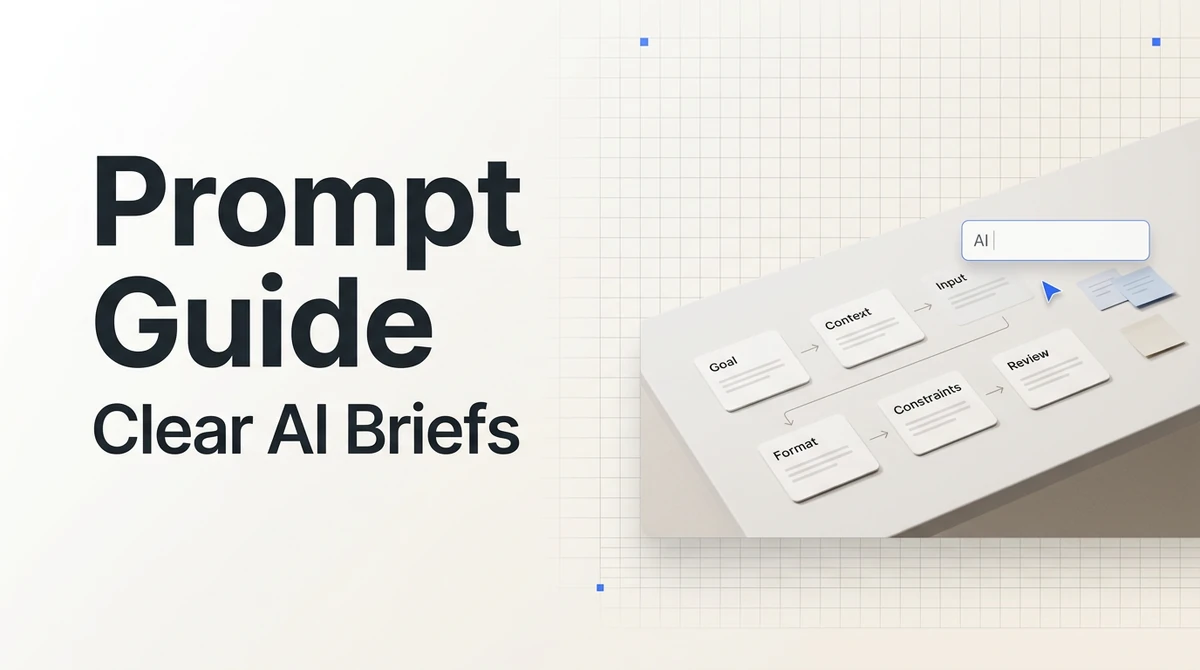
A three-part check for an AI image edit

Scope the change, lock invariants, then compare at destination size.

1

Upload the still and note subject, layout anchors, lighting, texture, type zones, and brand colors that must remain unchanged for the campaign.

2

Describe the region to edit, the intended replacement, and the destination crop or platform. Avoid stacking unrelated style requests in the same pass.

3

Review edges, shadows, repeated patterns, blank label areas, and layout balance against the original at the final viewing size before choosing a direction.

Edit image in Studio

Why creators choose Ottermind

Keep the edit local, the constraints visible, and the destination crop reviewable.

Scoped edit planning

Start from the asset's real crop, layout, and limits.

Prompted local changes

Describe the region to change and the intended placement.

Protected brand details

Call out silhouette, palette, type zones, and edges to keep.

Variant comparison

Review alternative interpretations before shipping the frame.

Connected image tasks

Move from cleanup into AI Image Resizer, text, or clarity work.

Continue in Studio

Keep source notes and approvals with the project context.

Frequently asked questions

What is an AI image editor?

It is a workflow that uses AI to interpret a scoped change to an existing visual asset, such as removing a prop, swapping a backdrop, reframing for a new placement, or staging a product into a campaign board. The reliable result still requires comparing the interpretation with the source.

How is this different from an AI photo editor?

An AI image editor here focuses on campaign and layout assets—ads, banners, and product stills—where region scope and brand locks matter. An AI photo editor is the better starting point for portrait-first photographic cleanup and identity-preserving retouching.

How do I keep an AI image edit from restyling everything?

Name one change and list invariants such as product silhouette, blank label zones, palette, lighting direction, and crop anchors. Avoid stacking a full style transfer into the same pass as a local cleanup, and review the result at destination size.

Can I protect logos and packaging text?

You can call out blank label areas, packaging edges, and brand colors that must stay true. Complex logos and dense type may still need a dedicated text pass; continue with Image Text Editor when lettering inside the frame is the main job.

What should I check before exporting?

Check edges, shadows, repeated textures, blank type zones, perspective continuity after an extend, and the final crop for the channel. An edit that looks fine at full size can fail when reduced for a feed or banner.

Can I use AI-edited images commercially?

Use only assets and references you have permission to edit, and review privacy, brand, and platform requirements. Keep the source and approved version together so the decision can be revisited.

Discover more

More from the blog

Bring the asset and the details that must stay true

Describe the scoped edit, identify brand and layout locks, and continue the reviewable image workflow in Ottermind Studio.

Edit image in Studio