AI Photo Editor

Describe the change you need, keep the details that must stay true, and carry a reviewable image-editing brief into Ottermind Studio.

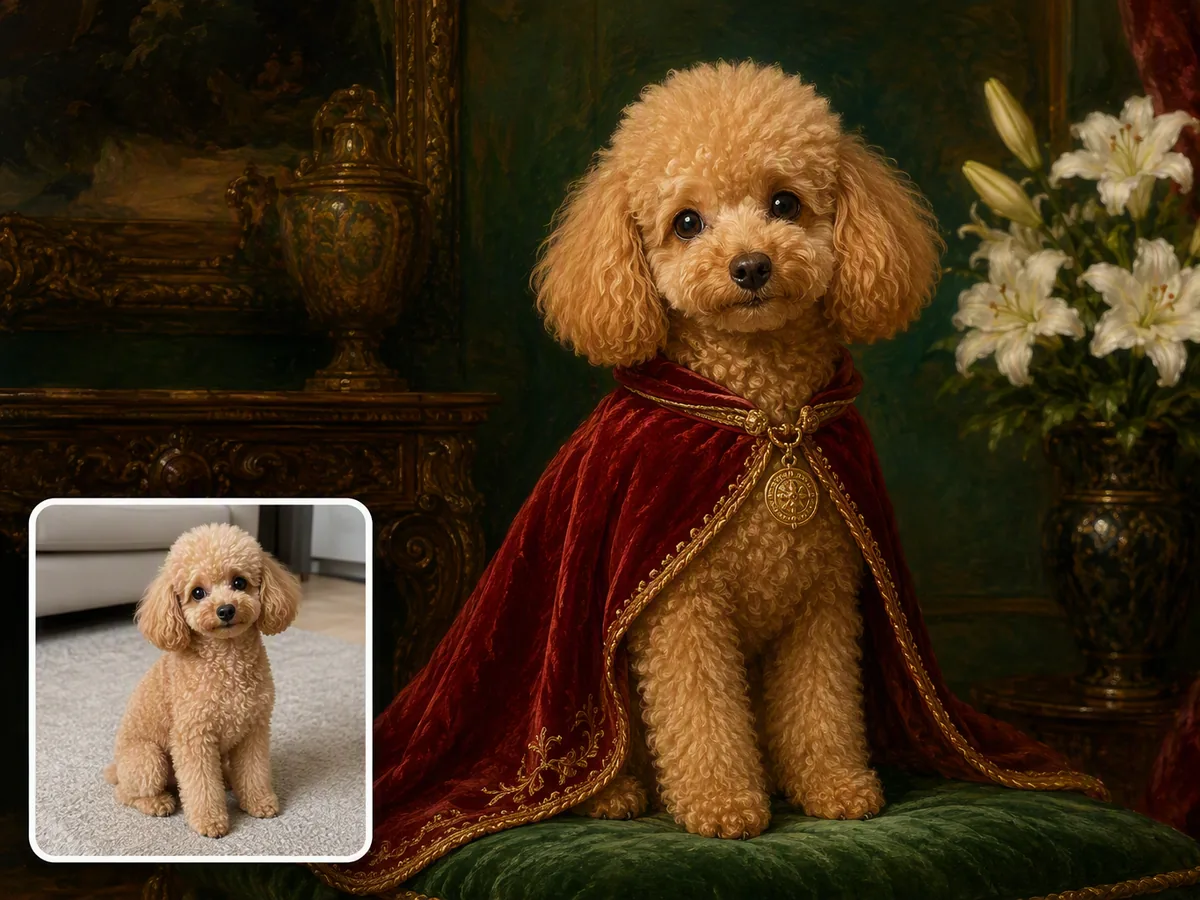
AI photo editor transforms a street photographer portrait while keeping his identity consistent

Edit the intent, not just the pixels

An AI photo editor is most useful when the requested change is specific and the details that must remain unchanged are explicit. Start with the source image, name the target outcome, and call out faces, labels, edges, lighting, and texture that need protection. Ottermind keeps the brief and review notes together so you can compare an interpretation with the source before using it. For a dedicated still-image clarity pass, continue with Fix Blurry Pictures.

An urban portrait shifts into a neon illustrated style while the person stays recognizable

Remove distractions while keeping the scene believable

Describe the object, person, or text to remove and explain what the surrounding background should look like afterward. Inspect edges, repeated patterns, shadows, and reflections before accepting the edit. Use Photo Retouching when the task is specifically to clean up a portrait.

AI image extender expands a tight fox crop into a wide snowy mountain scene

Prepare product photos without changing the product

Create a clear product-editing brief for background removal, scene replacement, lighting balance, or a realistic shadow. Keep packaging shape, color, label text, and material detail fixed while comparing variants. Continue with AI Product Image Generator when you need new product scenes rather than a careful edit of the source.

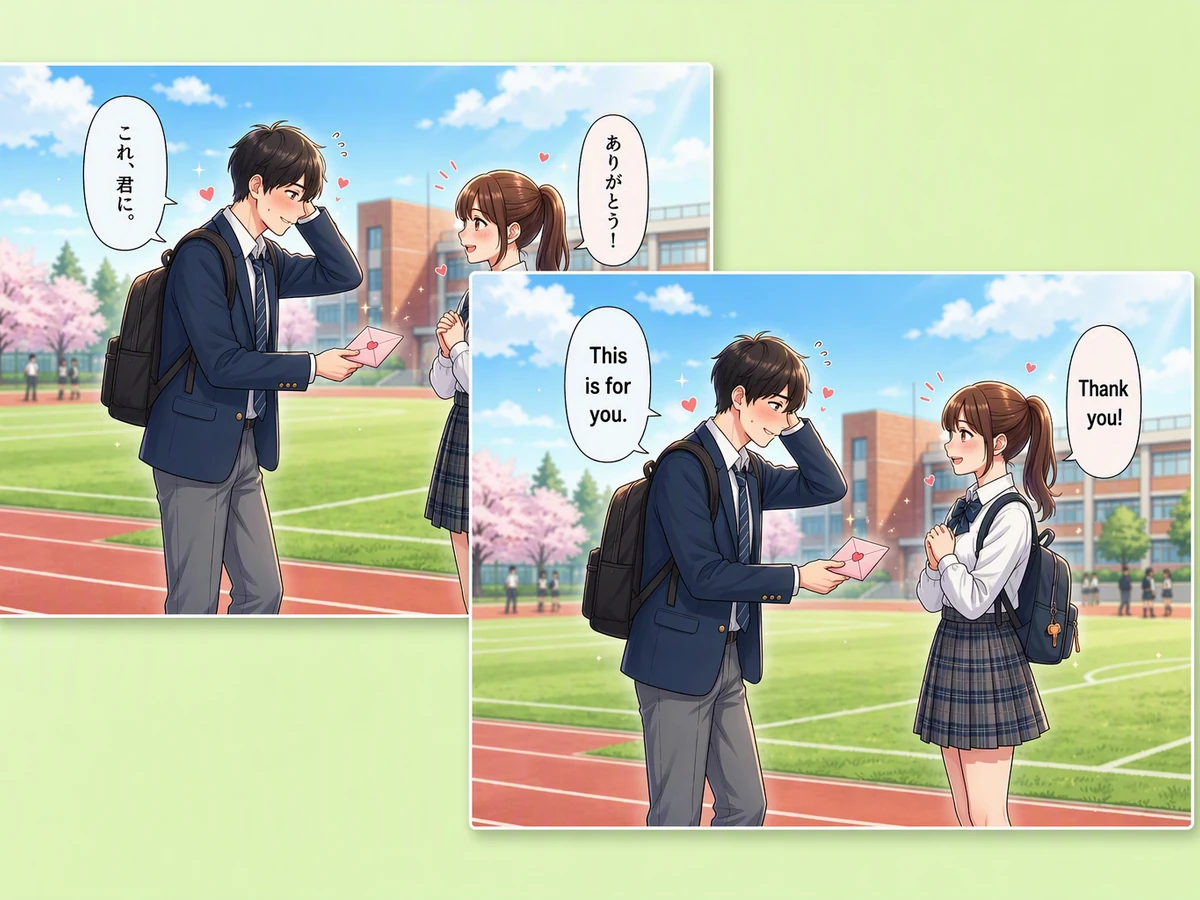
Batch AI editing applies one consistent enhancement across varied photo sets

Extend the frame for the destination

State the final crop and platform before asking for an expanded image. The useful check is whether perspective, lighting, texture, and horizon continue naturally beyond the original frame. Use Image Text Editor when the next task is correcting or replacing text inside the image.

What you can do with an AI photo editor

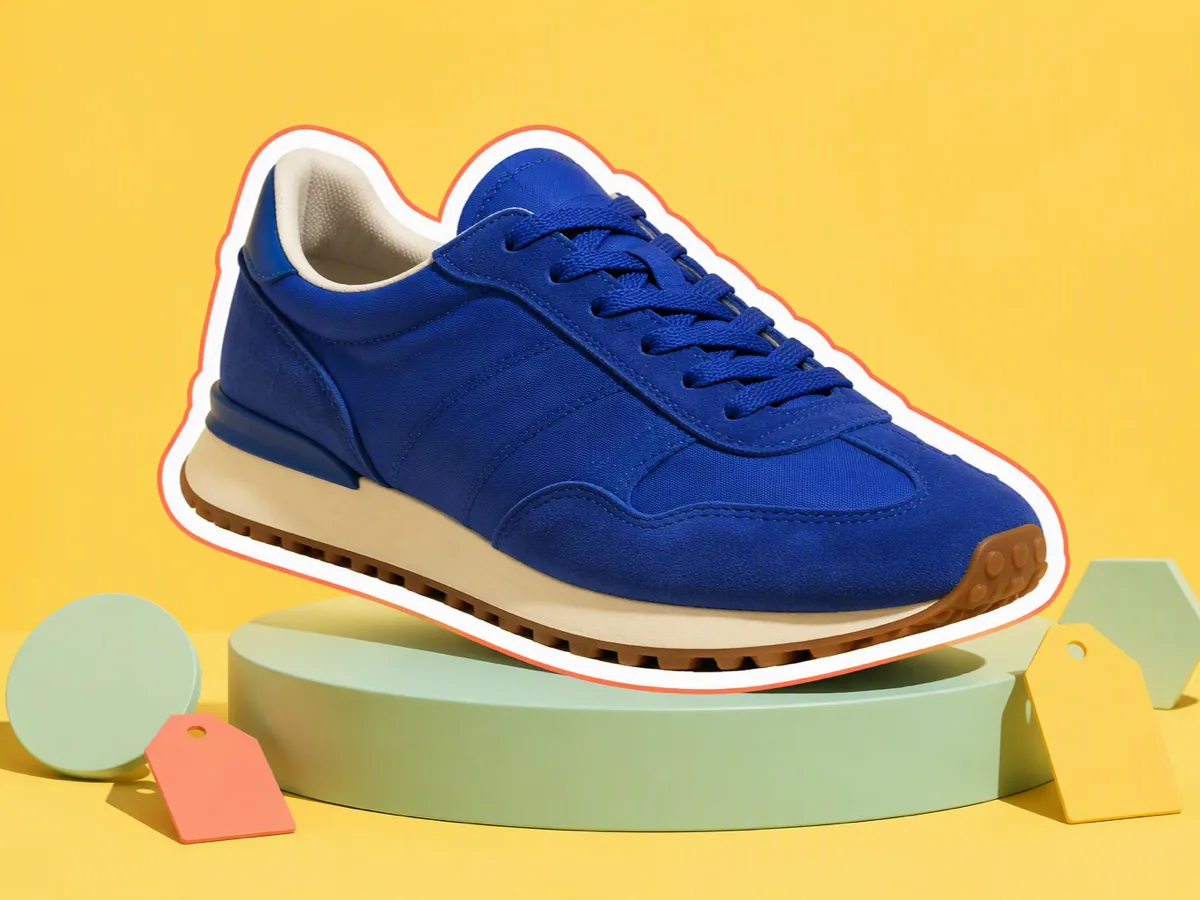
Running shoe photo transformed from a lifestyle shot into a clean product cutout

Prepare a product listing

Remove a distracting background, add a restrained studio scene, and balance light while preserving the product's silhouette, packaging color, and label. Compare the result at the marketplace crop before publishing. For fully new campaign scenes, use AI Product Image Generator.

A four-part check for an AI photo edit

Define the change, protect the invariants, compare the output, then export.

1

Upload the image and note its subject, crop, lighting, texture, text, and any identity or brand details that must remain unchanged.

2

Describe the object to remove, background to replace, color to balance, or frame to extend. Include the intended use and output crop.

3

Review faces, hair, product edges, labels, repeated patterns, shadows, and fine textures against the original before choosing a direction.

Continue in Studio

Why creators choose Ottermind

Keep the request specific, the source visible, and every important detail reviewable.

Source-aware planning

Start from the image's actual crop, texture, and limits.

Prompted edits

Describe the target change and the intended destination.

Protected details

Call out faces, labels, edges, and colors that must stay true.

Variant comparison

Review alternative interpretations before settling on one.

Connected image work

Move from cleanup to a focused next image task.

Continue in Studio

Keep source notes and approvals with the project context.

Frequently asked questions

What is an AI photo editor?

It is a workflow that uses AI to interpret a requested change to an existing image, such as removing an object, replacing a background, balancing light, retouching a portrait, or extending a crop. The reliable result still requires comparing the interpretation with the source.

How do I keep a photo edit natural?

Name the exact change and list invariants such as identity, product shape, label text, lighting direction, and texture. Review edges, repeated patterns, shadows, and small text at the final viewing size before accepting a result.

Can an AI photo editor remove people or objects?

It can help plan and generate an object-removal interpretation, but complex backgrounds may need review and another pass. Keep the original image, describe what should fill the area, and inspect the transition around edges and shadows.

Can I edit product photos with AI?

Yes, a product workflow can cover background cleanup, scene changes, lighting, and shadows. Protect the product silhouette, packaging, colors, and label text, and compare the output with the source before using it commercially.

What should I check before exporting?

Check faces and identity, product edges and labels, fine texture, repeated patterns, gradients, shadows, perspective, and the final crop. An edit that looks plausible at full size may fail when reduced for a listing or profile.

Can I use AI-edited photos commercially?

Use only images and references you have permission to edit, and review privacy, brand, and platform requirements. Keep the source and approved version together so the decision can be revisited.

Discover more

More from the blog

Bring the image and the details that matter

Describe the edit, identify what must stay true, and continue the reviewable image workflow in Ottermind Studio.

Continue in Studio