
Gemini AI Photo Prompt
Copy a Gemini photo prompt that names one change and the thing that must not change, then render the edit in Ottermind.
Three Gemini Photo Prompts You Can Copy
Three edits that cover most of what people ask Gemini for: relight a portrait, restyle it into a decade look, and swap the wardrobe or the setting. Each one is written as an edit instruction with a preservation clause, so the person in the photo survives the change.
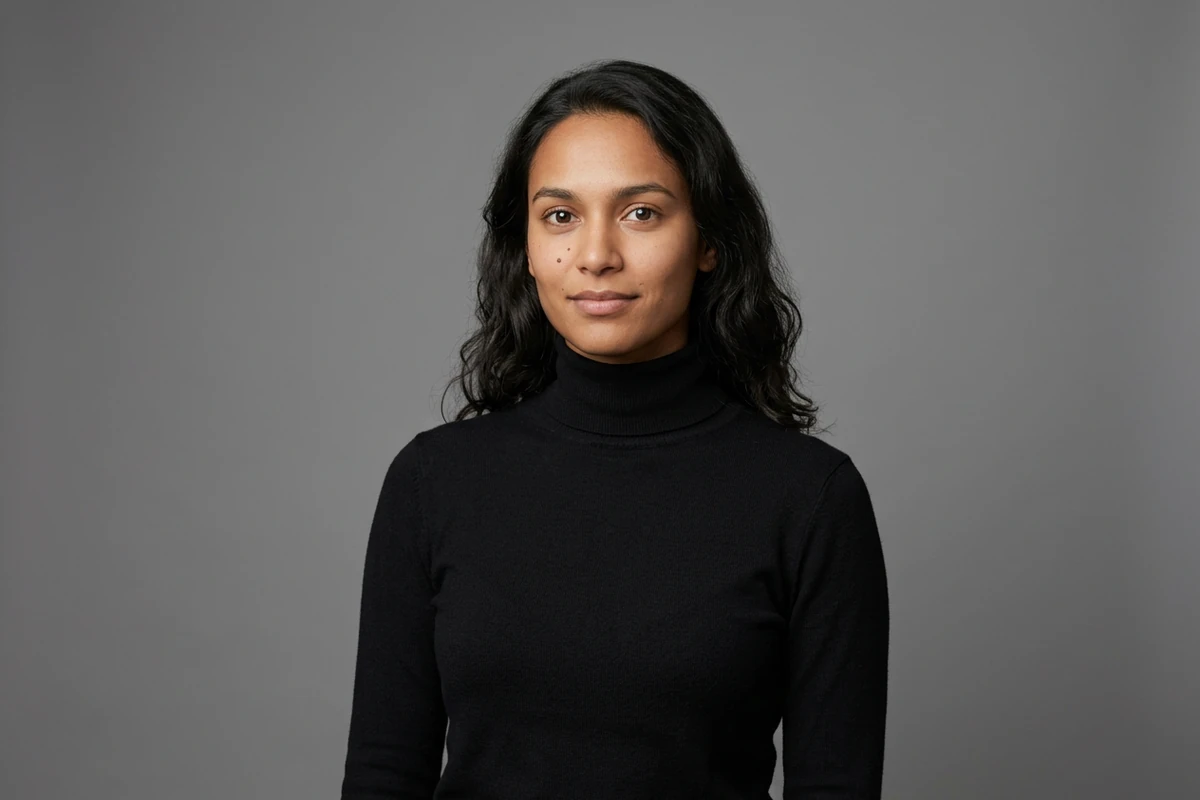
The studio relight
Edit the photo I attach. Keep the person's face, hair, hairline and skin tone exactly as they are, and change only the light and the background. Relight the subject with one large softbox from the front-left at about 45 degrees and add gentle fill from the right so the shadow side still holds detail. Replace the background with a seamless mid-grey that falls off softly behind the shoulders. Keep real skin texture, visible pores and fine lines rather than smoothing them away. Neutral white balance, natural colour, sharp focus on the eyes, and no beauty-filter finish.
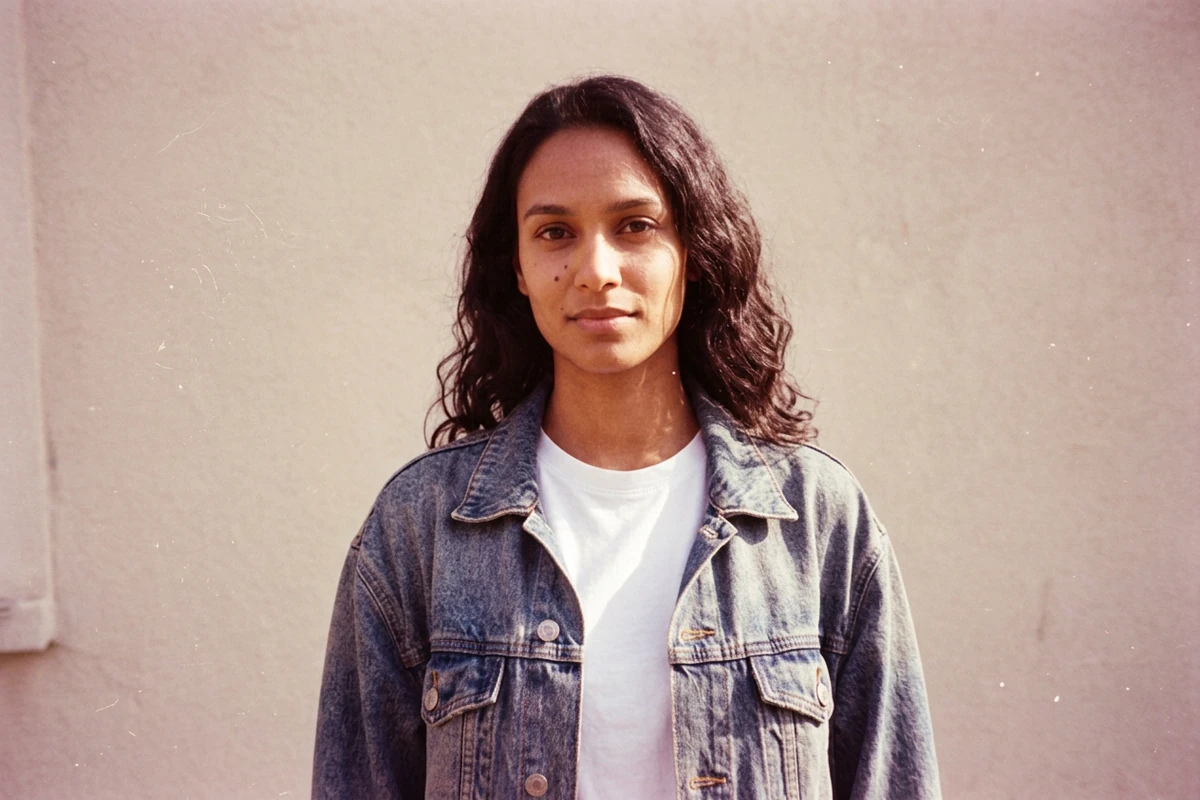
The decade restyle
Edit the photo I attach into an ordinary 1990s consumer-film snapshot. Keep the face, the hair and the pose recognisable, and change only the capture. Use warm faded colour with a slight magenta cast, heavy visible grain, a few dust specks and light scratches, a soft vignette and gently blown highlights, like a cheap 1990s point-and-shoot rather than a modern digital photo. Move the setting to a plain sunlit wall that sits slightly out of focus, and let the framing rest a little off level. Do not change who the person is.
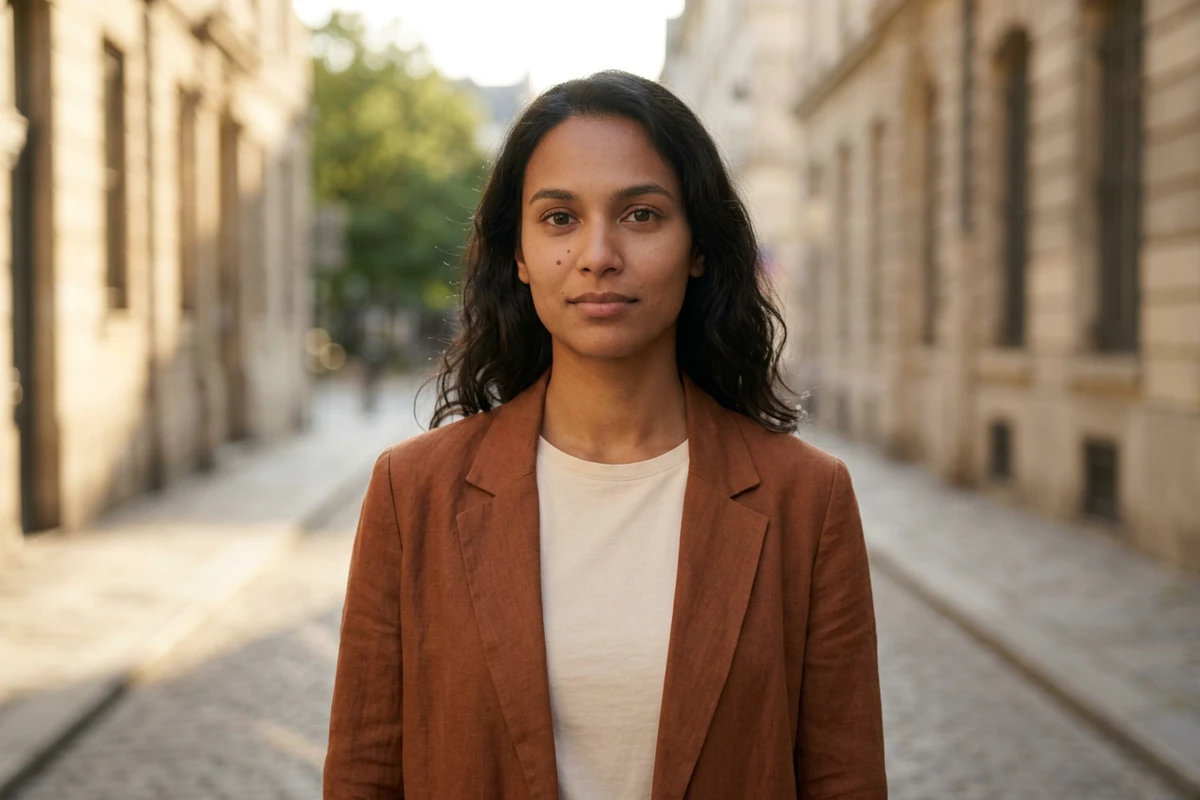
The outfit and setting swap
Edit the photo I attach and change only the wardrobe and the surroundings. Keep the face, the hair, the skin tone and the expression exactly as they are. Put the person in an unstructured rust-brown linen blazer over a plain cream shirt, and move them to a quiet city street at golden hour with warm low sun from the left, long soft shadows and stone facades falling out of focus behind. Keep the skin looking like skin, with visible texture rather than a retouched, plastic finish.
Why Copied Gemini Photo Prompts Come Back Wrong
Most published lists were written for a different kind of model. Paste one of those comma-separated style stacks into Gemini and you get a brand-new picture that ignores the photo you attached.
A style stack is not an edit instruction
Those lists describe a look: lighting, mood, film stock, all in one line. Gemini works on the photo you attach, so a stack says almost nothing about what to do with yours. Write the instruction instead, and say what changes and where. AI Photo Editor applies it to the file you uploaded.
Name the one thing that must survive
Describe only what you want and the model may redraw everything; the usual casualty is the face. Add a short preservation clause to every prompt — the face, the hairline, the skin tone, the product edges. Photo Retouching holds that detail when the wording alone is not enough.
Change one clause per round
Rewriting the whole brief between attempts makes it impossible to tell which line did the work. Move one clause at a time — light first, then background, then wardrobe — and keep the rest identical so the results are comparable. Image Effects compares treatments while the subject stays put.
How to Write a Gemini Photo Prompt That Edits Your Picture
Step 1: Attach the photo, then name one change
Start from the picture rather than from a look, and say in one sentence what should be different. AI Prompt Generator expands a short note into that instruction.
Step 2: Add the preservation clause
Name the one thing that has to survive the edit, whether that is the face, the hairline or the edge of a product. Photo Retouching protects that detail when the wording alone is not enough.
Step 3: Move one clause and compare
Generate, change a single clause, then generate again with everything else untouched. AI Image Editor holds both versions so you can see which line moved the result.
Where a Gemini Photo Prompt Earns Its Keep
A written edit instruction pays off whenever the same person or product has to keep its identity while the look around it changes.
Profile and dating photos
A well-lit portrait that still looks like you is the whole job, so the preservation clause matters far more than the styling. Avatar Maker from Photo is a quick way to check that the face survives before you spend attempts on a look.
Product and listing shots
Marketplace photos need the exact object, the exact colour and the exact edges, with a calmer background around them. Keep the preservation clause pointed at the product and change only the light and the setting; AI Product Image Generator produces that clean source shot first.
A recurring look for one client
When the same person needs the same treatment every month, keep the prompt as a fixed block and treat the one clause you change as a setting. Image Effects compares the treatments while the subject stays put.
Gemini AI Photo Prompt FAQ
Why did my pasted prompt ignore my photo?
Because it describes a look rather than giving an instruction about your picture. A style stack leaves the model to decide what changes. Rewrite it as one sentence naming the change and the thing that must stay, then run it in AI Photo Editor.
How do I stop the face changing in a Gemini edit?
State a preservation clause instead of hoping the model infers one: the face, the hairline and the skin tone stay as they are, in every round. When the result still drifts, Photo Retouching holds that detail while you re-run the look.
Should I rewrite the prompt between attempts?
No. Change one clause at a time and leave the rest identical, so you can tell which line caused the difference. AI Image Editor keeps the versions side by side, turning the comparison into something you can see.
Can I reuse a Midjourney or ChatGPT prompt in Gemini?
You can, but expect a redraw rather than an edit: those lists describe a look and rarely say what must not change. Keep the styling words, then add your own change and preservation clauses. Face to Drawing shows how much of a look survives a restyle.
Is this free to try?
Ottermind's public experience can be used without signing in and includes a limited number of free trial rounds; account-based credits and plan limits may still apply. Test one photo first to see whether the prompt works, then take the look further in AI image generation.
Is Nano Banana the same as Gemini, and is this page official?
Nano Banana is the community name for the image model inside Gemini, so a Nano Banana prompt and a Gemini photo prompt are written the same way. This page is not affiliated with Google, and the images are generated originals. If a Gemini export left a watermark, Gemini Watermark Remover handles that.
More Prompt Topics You Might Like


Run the Same Prompt on Another Image Model
Turn the Edit You Described into a Result
Attach the photo, keep the preservation clause in place, and move one clause at a time until the result is one you would actually post.