Prompt Guidance
Can ChatGPT Make Videos: What It Finishes and What Needs a Renderer
A chat writes the shot; something else has to render it. Paste the motion brief below, add the still it describes, and you have the whole handoff this guide explains — no video model required inside the conversation.
Optional
JPG / PNG / WebP
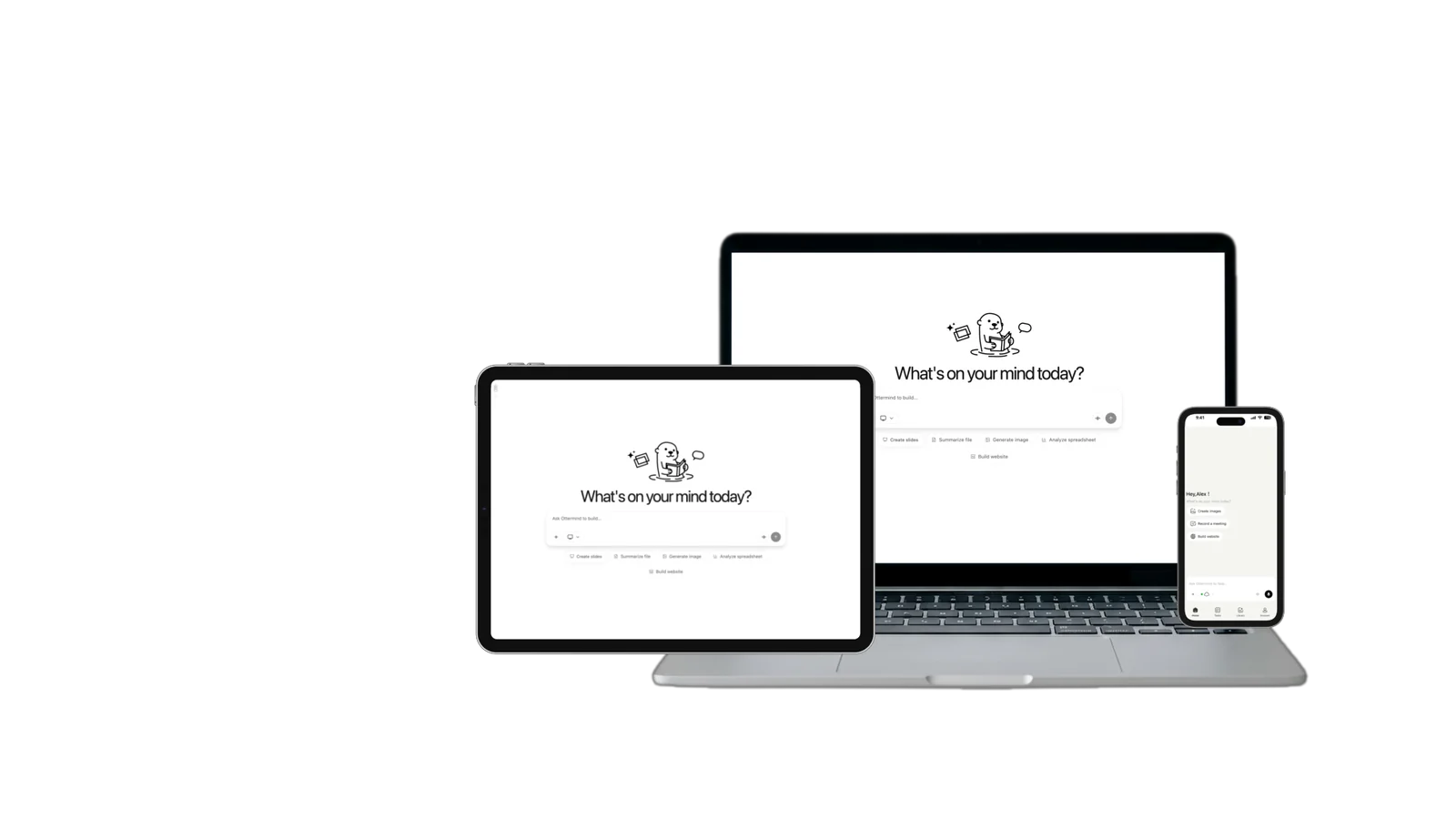
This is Ottermind's composer. Filling the brief and sending are separate actions, and nothing is generated until you continue in Studio.
November 14, 2026 · 11 min read
Not by itself, and yes with something attached to it. ChatGPT can write the script, the shot list and the motion brief, and it can produce the still image that a shot starts from. What it cannot do, on its own and as of November 14, 2026, is render a playable video file: there is no first-party video model in the chat, because OpenAI's Sora web and app experiences were discontinued on April 26, 2026, and the Sora API followed on September 24, 2026.
ChatGPT Images is also rolling out looping GIFs. If that feature is available in your account, it can animate a still in chat. For a video file such as MP4, use a video renderer. (OpenAI Help Center)
That single fact reshapes the whole task. The useful question is not "can ChatGPT make a video" but "which part of the video does ChatGPT finish, and what has to render the rest". People get stuck because they ask for a finished clip in a text box, or because they paste a one-line idea into a generator and hope the missing decisions fill themselves in. Both failures are about the handoff, not about the model.
What this article is based on: OpenAI's help centre pages "What to know about the Sora discontinuation" (updated November 6, 2026) and "Plugins in ChatGPT" (updated late October 2026) were read on November 14, 2026 for the dates and for how plugins are installed and paid for. The Pika plugin announcement dated October 16, 2026 and Runway's plugin listing on OpenAI's site were read the same day. Ottermind publishes this article and offers the renderer used in the workflow below. The cover, the desk scene and the three-frame strip were generated with GPT Image 2.5 Flare for this article; they are illustrations and an example source, not output from any renderer and not a screenshot of ChatGPT. The composer at the top of this page is real and can be used.
Why most answers you find are out of date
Search the question and you will still land on pages that describe a chat that makes video directly, or that list "ChatGPT video generator" as a product. Many were written while Sora existed or while a custom GPT stood in for it. The dates are worth knowing, because they decide which instructions are still runnable:
| Date | What ended | What it means for you |
|---|---|---|
| April 26, 2026 | Sora web and app experiences | The standalone experience is gone; existing content was exportable at sora.chatgpt.com/sunset |
| September 24, 2026 | Sora API | No new Sora renders through the API either |
| October 2026 | Plugin directory continues to grow | A video in ChatGPT now means a vendor's renderer, called from the chat |
OpenAI's discontinuation page also notes that purchased ChatGPT or Sora credits can still be used for Codex. Nothing on OpenAI's help pages describes a first-party video model in ChatGPT as of November 14, 2026, so treat any page that promises one as describing something you should verify in your own account first.
Four different jobs hide behind "make a video"
The phrase covers at least four tasks with different inputs, costs and failure modes. Pick yours before you write anything, because only one of them starts with a photo.
| The video you want | What ChatGPT does alone | What has to render the file | The catch |
|---|---|---|---|
| A short clip from an idea or a still — a shot | Writes the brief, the continuity notes, the timing | A text-to-video or image-to-video renderer, inside a plugin or outside the chat | Motion is the hard part, and the words for it are not the words people normally use |
| A talking presenter or avatar | Writes the script and the delivery notes | An avatar tool, usually a paid vendor account | The face is licensed by the vendor, and the plan decides your minutes |
| A narrated explainer from notes, a PDF or a document | Turns the source into slides, narration and a diagram plan | A plugin or an explainer service | You get typed slides, not footage; nobody appears on screen |
| An edit of footage you already filmed | Writes the cut list and the captions | An editor, often one that accepts chat instructions | The material has to exist before the conversation helps |
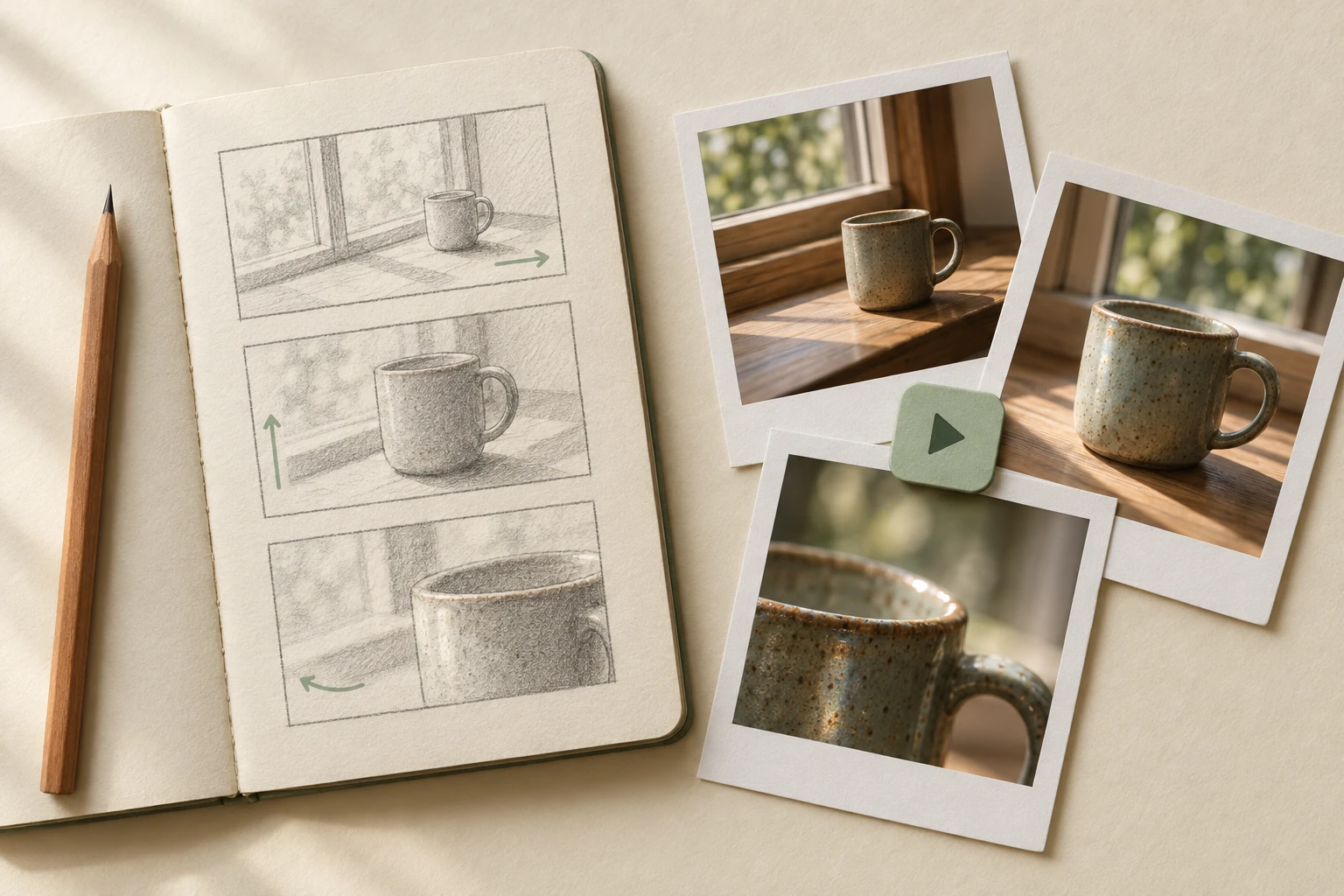
Three jobs in one photograph: the writing on the left, the frames on the right. The notebook is the part a chat can fill in — shot size, motion, what must not change. The prints are the part something else has to produce. AI-generated illustration for this article, not a screenshot and not a rendered result.
Most people asking the question mean the first row: a short shot, often from a product photo or a portrait. That is also the row where the handoff is easiest to get right, because an image-to-video renderer accepts exactly the two things a chat produces well — a still and a written brief.
What the chat is genuinely good at here
Writing the brief is not a consolation prize. It is where most bad clips are decided, and a chat model with your material in front of it is good at four things:
- Naming what must not change. "Keep the handle on the right, keep the glaze, keep the coffee level" is a sentence you would otherwise forget to write, and it is the sentence that stops a product from drifting.
- Breaking one idea into beats. A six-second shot with one action and one camera move survives; a six-second shot with three actions does not, and a chat will happily write either until you ask for the shorter version.
- Budgeting time. Twenty seconds of narration is roughly 45 to 55 spoken words at a natural pace. A chat can hold that arithmetic while it rewrites.
- Making the brief portable. The same paragraph has to work in whichever renderer you use next week. A chat can compress it without dropping the identity lock.
It can also make the still. ChatGPT's image generation is a first-party capability — see what changed in Images 2.5 — so a reader with no photograph can produce a reference frame in the same conversation and then hand that frame to a renderer. That is a genuinely useful chain, and it is the one this guide builds.
What the chat cannot do is see your render. It does not watch the take and tell you which frame broke; you have to describe the fault. Every prompt below is written for that reality: you report, it rewrites.
A prompt is not a shot brief
"Make a video of my product" fails for a boring reason: it leaves eight decisions to the renderer, and the renderer makes them all invisibly. A shot brief fixes them in a stable order, and the order matters more than the wording.
| Slot | What it settles | What happens if you skip it |
|---|---|---|
| Source | Whether the frame is a still you supply or a scene invented from text | The renderer invents a product that is not yours |
| Identity lock | The two or three details that must survive — label, handle side, coffee level | The most common failure in image-to-video: the subject quietly changes |
| Action | The one movement inside the frame | Several small motions compete and the clip looks unstable |
| Camera | Push, pull, pan, orbit, static, and how far | The shot moves too fast to read, or does not move at all |
| Light | Direction, quality, and whether it changes | The mood drifts between takes and takes stop matching |
| Time | Duration, and what happens at the start and the end | The last frame is unusable, so the clip cannot be cut |
| Frame | Aspect ratio and what must stay inside the safe area | The handle or the caption gets cropped on the destination |
Eight briefs follow. Each one controls a single property, so a difference between two takes can be traced to a sentence. All eight use the same subject — a speckled stoneware mug on a wooden windowsill — because comparing two attempts is only possible when the subject is fixed.
1. The motion brief: one source, one move
Animate this photograph of a speckled stoneware mug on a wooden windowsill into a four-second shot. Keep the mug exactly as photographed: same silhouette, same glaze speckles, same handle on the right-hand side, same coffee level inside the cup. Add steam that rises slowly from the surface and curls slightly to the left. Push the camera forward by about ten percent over the four seconds — no pan, no orbit, no zoom out. Window light stays soft and cool; no colour shift, no change of background, no new objects, no hands, no text, no logo.This controls the action and the identity lock at once. Judge it by freezing the first and last frame: the mug should be the same mug in both, with only distance changed.
2. Camera only: nothing in the frame moves
Same image, same moment: the camera is the only thing that moves. Start on the full windowsill with the mug slightly right of centre, then drift left and slightly down for four seconds, as if an operator leaned forward to look at the mug, ending with the mug in the left third of the frame. The mug does not move, the steam keeps its pace, and the branch shadow on the sill does not change shape. No zoom, no rack focus, no text.This controls camera behaviour alone. If a take made with brief 1 wandered, running brief 2 tells you whether the fault was the camera or the subject.
3. Three beats, one subject
Write a three-beat storyboard for a six-second clip of one speckled stoneware mug on a wooden windowsill at nine in the morning. Beat 1, 0 to 2 seconds: wide, mug still, steam just starting, cool flat window light. Beat 2, 2 to 4 seconds: same framing, steam rising, morning sun entering from the left and warming the glaze. Beat 3, 4 to 6 seconds: closer view of the same mug, steam curling, a soft branch shadow moving across the sill. For each beat give the shot size, what moves, what must stay identical, and one sentence of motion direction I can paste into an image-to-video tool. The mug's shape, glaze, handle side and coffee level must be identical in all three beats.This controls continuity across shots. The test is whether beat 3 still shows the same handle on the same side — if a renderer changes it, the brief is where you fix it, not the render.
4. The shot list that fits a duration
Turn this idea into a shot list for a fifteen-second vertical product clip and output a markdown table with five columns: shot number, duration in seconds, shot size, what happens, what is locked. The subject is the same speckled stoneware mug on a wooden windowsill, the light moves from cool morning to warm sunlight, and the vertical frame must keep the handle and the coffee surface visible at all times. Five shots, durations adding to exactly fifteen seconds, no shot shorter than two seconds. After the table, list the three details a renderer is most likely to break, and the sentence I should add to each shot to protect them.This controls the time budget and produces the guard rails in the same pass. A shot list that adds up to 15 seconds is the difference between a clip you can cut to music and a pile of spare frames.
5. Narration that fits the cut
Write a fifteen-second voiceover for the mug clip in no more than thirty-eight spoken words, so it fits at a natural pace. Split it across the five shots from the table above, and for each line give the start time in seconds and its word count. Voice: calm, concrete, no adjectives about quality, no exclamation marks. Then give me the same script as on-screen caption cards of no more than six words each, and tell me which line to drop first if the render comes back a second short.This controls pacing and gives you a fallback. Ask for the drop-order explicitly; without it you will shorten the wrong line while editing under time pressure.
6. The repair brief for a failed take
Here is what the last take did wrong: the mug's handle moved to the left side, the steam turned into a solid white streak, and the push-in overshot so the rim was cropped at four seconds. My brief said "keep the mug exactly as photographed", "steam rises slowly", and "push in about ten percent". Rewrite the brief so each fault is answered by its own sentence, without adding any new instruction. Put the corrections in this order: identity lock, steam behaviour, camera distance. Then tell me which single sentence to change first if the next take can only fix one of the three.This controls revision hygiene: one fault, one sentence, no new ideas smuggled in. Adding a fourth instruction while fixing the first three is how a take gets worse while looking more detailed.
7. The portable paragraph
Take the approved mug brief and rewrite it as a single paragraph that a different video generator can read without the original conversation. It must state, in this order: what the source image is, what must not change, the one action, the camera move, the light, the duration, the aspect ratio, and what must not appear. No tool names, no more than one hundred and ten words. Then output a second version at sixty words that still keeps the identity lock and the action.This controls the handoff itself, and it is the most useful prompt on the page. A brief that only exists inside one chat cannot be reused, compared, or moved to a renderer that suits the shot better.
8. Frame variants from one approved shot
From the approved widescreen mug brief, produce two variants: a vertical 9:16 version for a social post and a square 1:1 version for a feed. For each variant, restate only what changes — the framing, where the mug sits, how much headroom stays, and how far the camera pushes. Keep the light, the steam and the identity lock identical to the widescreen brief. Do not change the duration.This controls the export shape. Restating only the differences keeps three versions of one shot from becoming three unrelated shots.
The button fills brief 1 into the composer at the top of this page. It only fills; sending is a separate action, and nothing is generated until you continue in Studio.
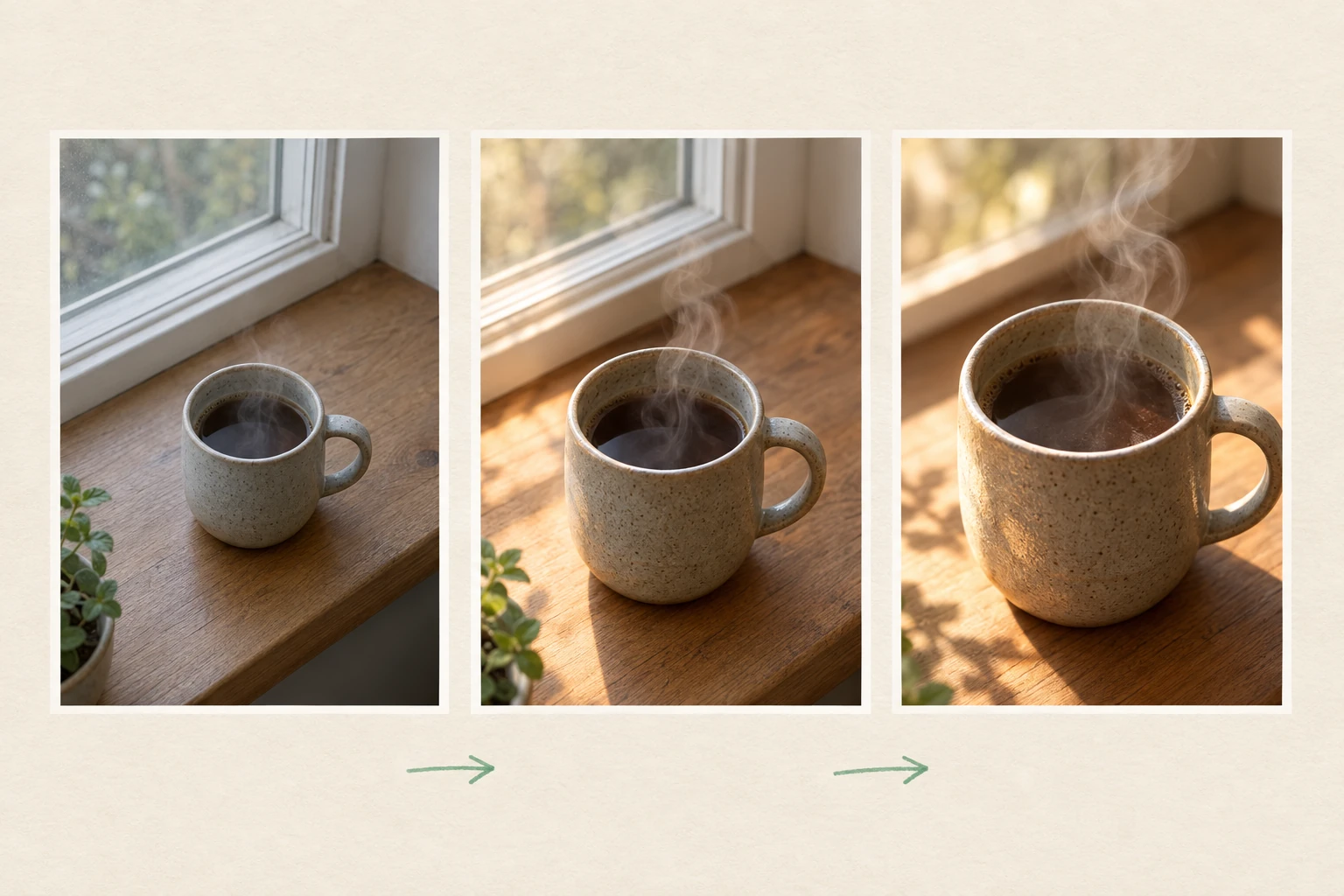
A shot that holds: wide and cool, then warm as the sun enters, then closer with the same mug. Three frames, one subject, one camera direction. AI-generated illustration for this article; the frames show what a brief should protect, not what any specific renderer returned.
Where it goes wrong
Nine failures cover most of the bad clips people blame on the model. Seven of them are brief errors, which is good news: a brief is editable in a minute.
| What you see | Why it happens | Fix |
|---|---|---|
| The product quietly changes — handle side, label, proportions | The identity lock was implied, not written | Name two or three details and repeat them in every take's brief |
| Steam, smoke or hair turns into a solid streak | The brief described a result, not a behaviour | Describe the movement curve: rises slowly, curls left, thins near the top |
| The camera overshoots and crops the subject | "Push in" had no distance and no end frame | Give a percentage and an end position: about ten percent, mug in the left third |
| Several things move at once and none reads | Two actions were requested in one sentence | One action per shot; move the rest into the next shot |
| The clip looks fine but the last frame is unusable | Nobody wrote what happens at the end | State the end frame, and hold it for half a second |
| Text appears in the frame — a price, a word, a watermark | The brief left empty space and text was seen elsewhere in the conversation | Add "no text, no logo, no watermark" and keep on-screen type for the edit |
| The vertical export cuts the face or the handle | Aspect ratio was decided after the render | Decide the frame before the brief and keep the subject inside the middle of it |
| A talking head was expected from a plain clip generator | The job was one of the other three rows in the table | Use the avatar or explainer route and budget its account cost |
| The chat describes steps instead of returning a file | No renderer is attached to the conversation | Install a plugin, or take the brief to an image-to-video tool — see below |
The ninth row is the one that makes people think they did something wrong. They did not: a text conversation has no renderer until something is installed or opened. OpenAI's plugin help notes that installing or using an individual plugin depends on your plan, workspace, role and region, so the plugin you read about may not be available in your account at all.
What you should not expect, from any of these routes
- No fixed generation time. Neither a plugin nor a renderer promises that a clip finishes in a set number of seconds.
- No fixed output spec. Duration, resolution and audio support depend on the tool you use and, for a plugin, on the vendor's own service.
- No credit math you can rely on second-hand. A plugin renders through the vendor's account and credits — Pika's own announcement, for example, ties plugin generations to Pika credits — so the cost belongs to that vendor's current pricing, not to ChatGPT.
- No rights shortcut. A generated clip is not clearance for a product, a face, a logo or a piece of music. Check those separately before publishing.
- No substitute for watching it. Someone still has to play the take and check the product, the edges, the last frame and the audio.
From brief to a rendered clip
Once the brief exists, the renderer is a tool decision, and two Ottermind routes cover the common cases:
- Image to Video — you upload a reference image and describe the motion, camera feel, mood and format. The page's own description is that you review each take and refine it, which is exactly what the repair brief above is for. Use this when you already have the still: a product photo, a portrait, approved artwork.
- Photo to Video AI Free — the photo-led variant for the same job, with a free trial the page currently describes as 60 credits at sign-up and 20 credits a day, and watermark-free downloads. Read the terms on that page before planning around them; allowances change.
Two things worth knowing before you send anything. First, this site does not promise a fixed generation time, a fixed resolution or a fixed credit cost, and you should treat any article that does as describing a different product. Second, the brief you carry over should be the version from prompt 7 — the portable paragraph — not the chat transcript. A renderer reads the paragraph; it does not read your reasoning.
If the still does not exist yet, make it first: ChatGPT's image generation can produce the frame, and the ChatGPT image prompt patterns cover the lighting and reference decisions that make that frame usable as a source. If you would rather start from a still you already trust, the image-to-video prompt patterns go deeper on camera language, and faceless reels covers what to do with the clips once you have five of them that match.
Questions worth answering
Does ChatGPT still have Sora?
No. OpenAI's help centre states that the Sora web and app experiences were discontinued on April 26, 2026, and the Sora API on September 24, 2026. Existing content could be exported from sora.chatgpt.com/sunset, and purchased ChatGPT or Sora credits can still be used for Codex.
Can ChatGPT make a video from a photo?
Not render one by itself. It can read the photo, write the motion brief and keep the identity details straight, and then a renderer turns the photo and that brief into a clip. On this site that step is Image to Video.
Can I do it for free?
Partly, and not in one place. The chat side of the job — the script, the shot list, the brief — is part of whatever ChatGPT plan you already use. The render side is where free allowances live, and each one has its own terms: a plugin's free tier belongs to the vendor, and a renderer's trial belongs to that renderer. Read the current page before you count on a number.
Do I need a plugin at all?
No. The plugin route keeps everything inside one conversation, which is convenient when the material is already there. Taking the brief to a dedicated image-to-video tool is often the better fit when you have a reference image and want to compare takes of the same shot — and it works when a plugin is unavailable on your plan or in your region.
The honest summary: the chat writes, something else renders. Write the brief with the identity lock and the end frame in it, keep it portable, and judge every take against the same two or three details. That sequence is what separates a clip that looks like your product from one that only resembles it.