Model Guide
ChatGPT Images 2.5: What’s New and What to Try First
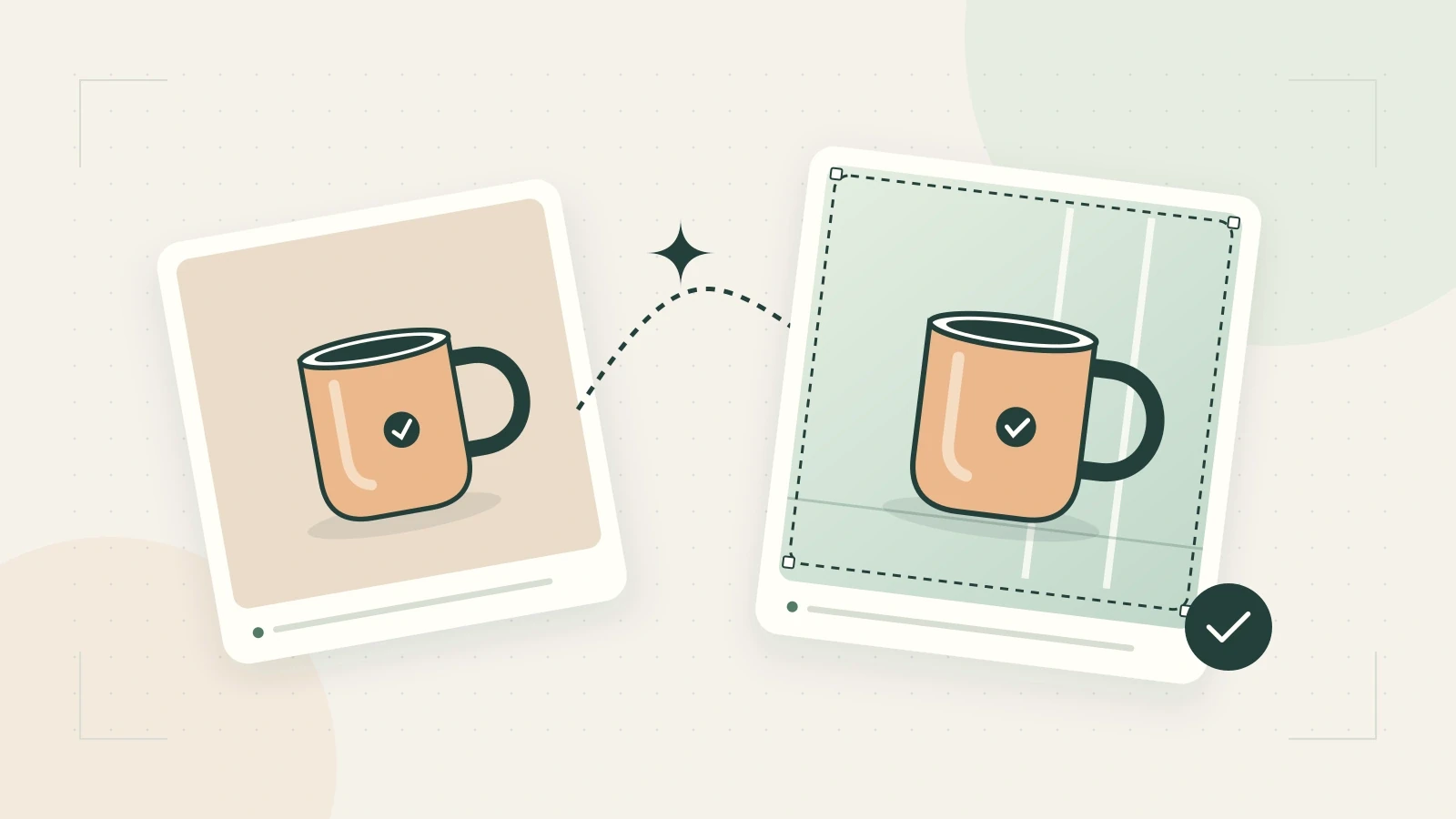
ChatGPT Images 2.5 is OpenAI’s September 8, 2026 update to image creation and editing. It introduces improvements to visual detail, reference preservation, and iterative edits, alongside new creative controls in ChatGPT. For marketers and content teams, a useful first project is revising one existing asset and checking whether the changes meet a specific brief.
Sources: Official reference 1. Reviewed September 11, 2026.
OpenAI’s launch announcement is the source for the release date and reported improvements. The evaluation worksheet below is our suggested approach, not an account of a completed benchmark.
What changed in Images 2.5?
OpenAI reports more convincing lighting and textures, more reliable retention of reference subjects, and better control over successive edits. It also reports image generation latency reductions of up to 50% compared with Images 2.0. That is a vendor comparison, not a promise that every request finishes twice as quickly.
The practical question is whether you can revise an asset without spending the next three attempts repairing unrelated changes. A product photograph with the wrong label is still unusable, however attractive its lighting.
For an initial evaluation, choose something you know well. An existing campaign image gives you an original composition, approved wording, and a recognizable subject to compare against. A completely new fantasy scene gives you fewer objective checks.
The model update and the ChatGPT interface are different things
The release also adds Sketch, templates, image comments, and prompt sharing in ChatGPT. These are application features. A separate product using an image model does not automatically offer the same interface or tools. The launch also introduces the Flare and Sunburst API variants; our companion selection guide focuses on that decision.
Before trying a workflow on another platform, check what it actually exposes: image uploads, editing, output settings, and a way to retain previous versions. A model name alone does not answer those questions.
Start with one existing asset
Here is a small project for a content team: turn a square product announcement into a landscape blog illustration, keeping the product recognizable and leaving room for a headline.
Prepare a brief before generating anything:
| Decision | Example requirement |
|---|---|
| Destination | Landscape header for a product article |
| Source | Approved photograph of the actual product |
| Requested change | Extend the surrounding scene and reposition empty space |
| Protected details | Product shape, cap, label wording, and color |
| Text treatment | Add the final headline separately in the page layout |
| Acceptance | No cropped product, invented accessories, or altered branding |
This worksheet is an original planning template. Its purpose is to make review concrete. Replace the example requirements with your own, especially the protected details.
Use the first output to assess composition. Then make one targeted correction. If the product changes, return to the approved source rather than treating the damaged result as the new reference.
Decide whether the update helps your work
Keep a short record of the first attempt, revision requests, and final selection. Compare the time spent reviewing and repairing with the time you normally spend on the same task.
A useful outcome might be a draft that needs only layout work. An unsuccessful outcome might look impressive but require recreating the product label by hand. Both results tell you more than a collection of unrelated showcase images.
Evaluate the exported file where it will actually appear. A header that looks balanced at full size may crop badly on mobile. A small caption that looks plausible in a preview may contain the wrong letters.
Your next creative brief
Before opening an image tool, write three lines: what the asset is for, what should change, and what must survive. Save those lines with the source and selected output so someone else can continue the work.
For more visual directions, see our GPT Image 2 use-case collection. The examples there belong to the earlier model; they are inspiration, not evidence of Images 2.5 performance.
Continue your image workflow
For a focused next step, use our Flare and Sunburst comparison or image editing walkthrough.
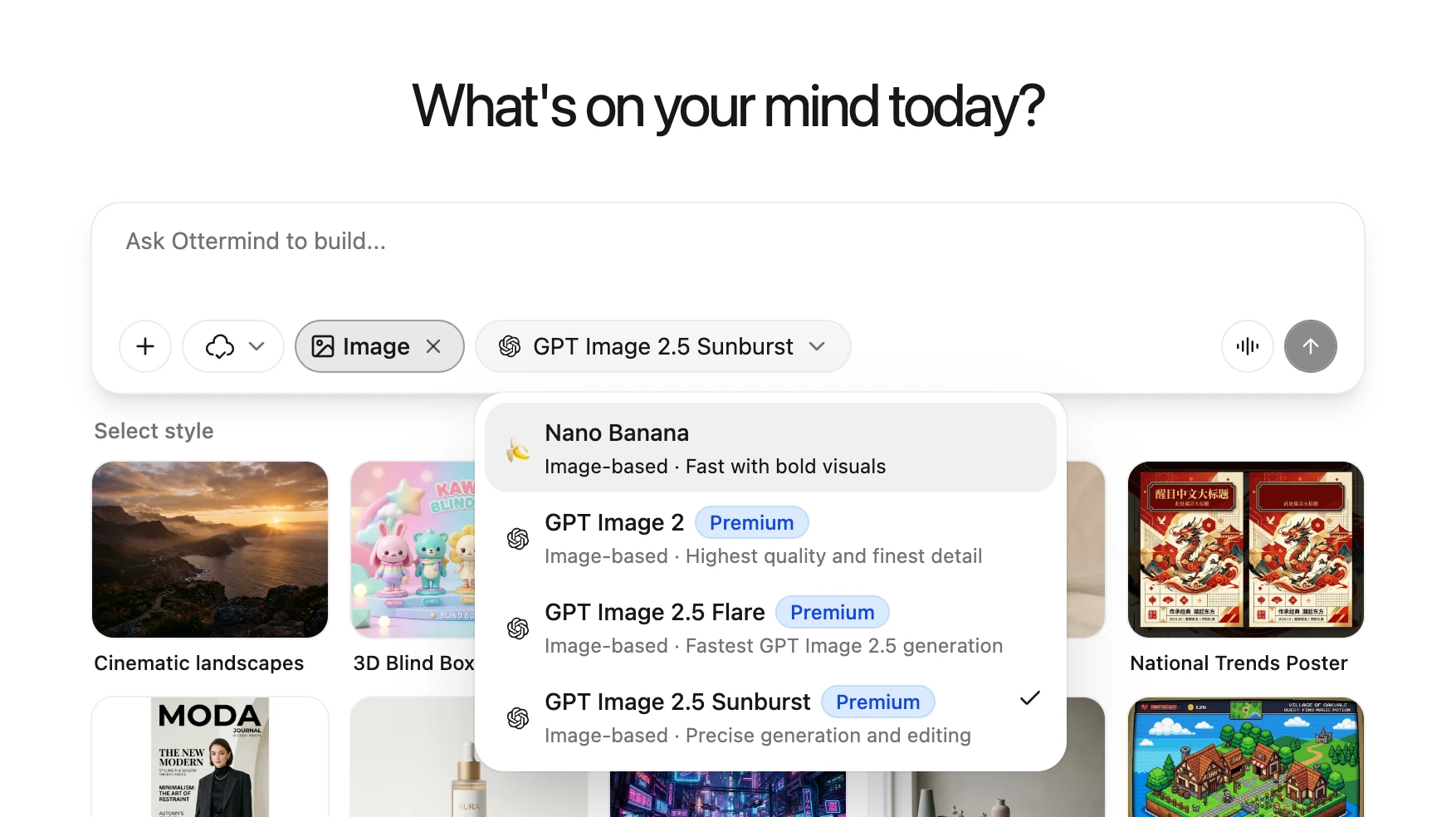
Take your brief to Ottermind’s image workspace and check the models currently available there. The supplied Ottermind screenshot shows Flare and Sunburst in the model menu, both marked Premium, with Sunburst selected.