Workflow Guide
How to Edit Images in ChatGPT: A Practical Workflow for Images 2.5
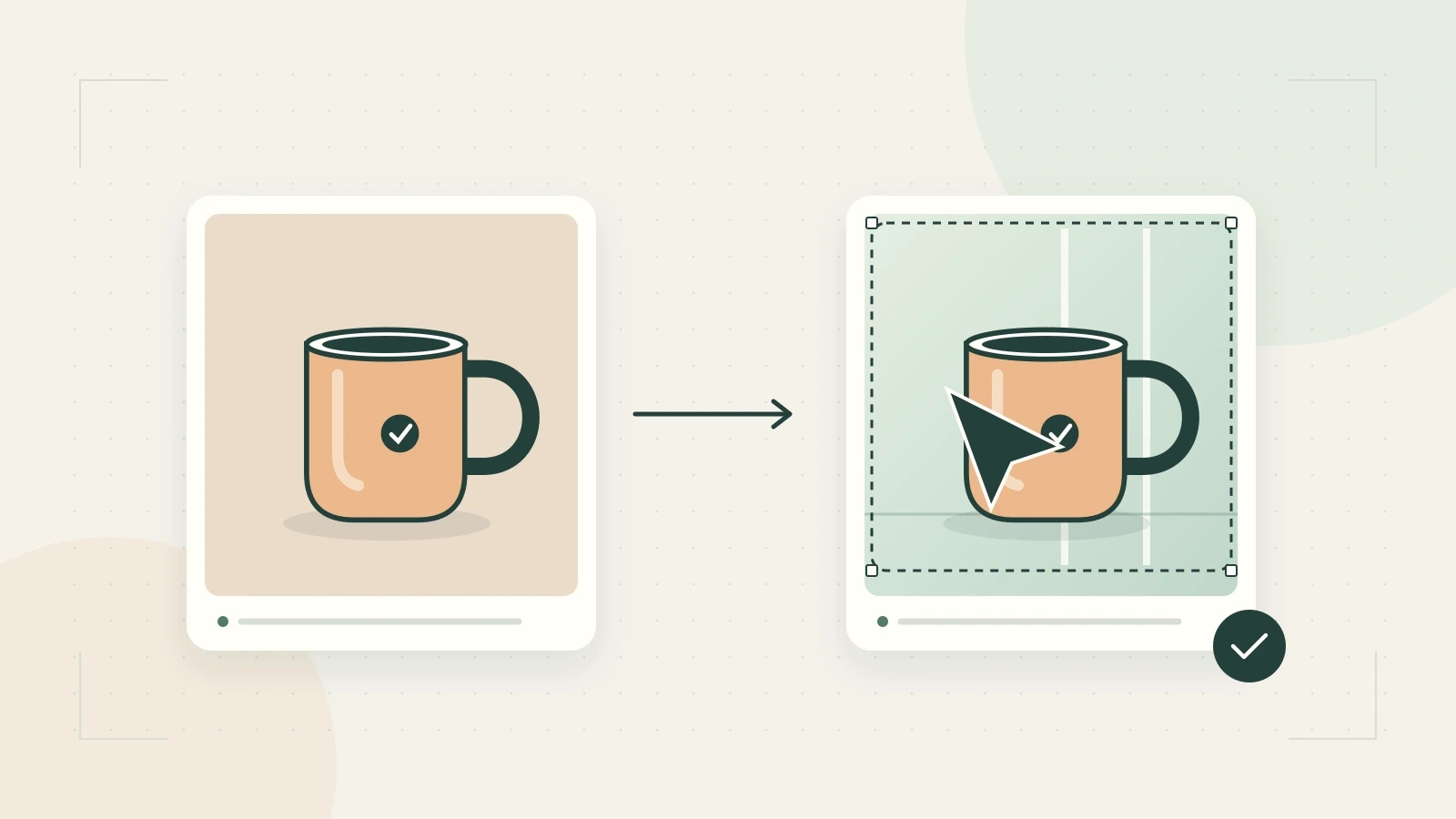
To edit an image in ChatGPT, upload the picture or open a generated image, then describe the change you want. You can also use the selection tool to indicate an area. For a controllable workflow, begin with one change, identify what should stay intact, and inspect the result against the original before requesting another revision.
Sources: Official reference 1. Reviewed September 11, 2026.
These basic operations are documented in OpenAI’s Images in ChatGPT help page. The prompts and review process below are original templates, not tested output examples.
1. Start from the right source
Choose the clearest available version of the image. If you are editing a product photo, use the approved product rather than a similar generated object. If you are editing an existing design, retain a separate copy of the original.
Decide whether you need a new visual direction or a small correction. Those are different briefs. “Make this more premium” invites broad changes. “Replace the orange background with a pale gray background” gives the model a narrower job.
For this walkthrough, imagine an approved photograph of a ceramic travel cup. The assignment is to place it in a quiet café scene while preserving the cup itself.
2. Write the change and the protected details
Upload the image and adapt this request:
Use the uploaded photograph as the product reference.
Place the ceramic travel cup on a small café table beside a window.
Keep the cup's silhouette, handle, glaze color, lid, and printed mark.
Do not add a second cup or invent accessories.
Leave open space to the right for text that I will add separately.
Use soft morning light and a simple, unobtrusive background.
The prompt describes an intended result; it does not guarantee exact preservation. Keep the list of protected details short enough to review. If every element must remain pixel-identical, a conventional layer-based edit may be more appropriate.
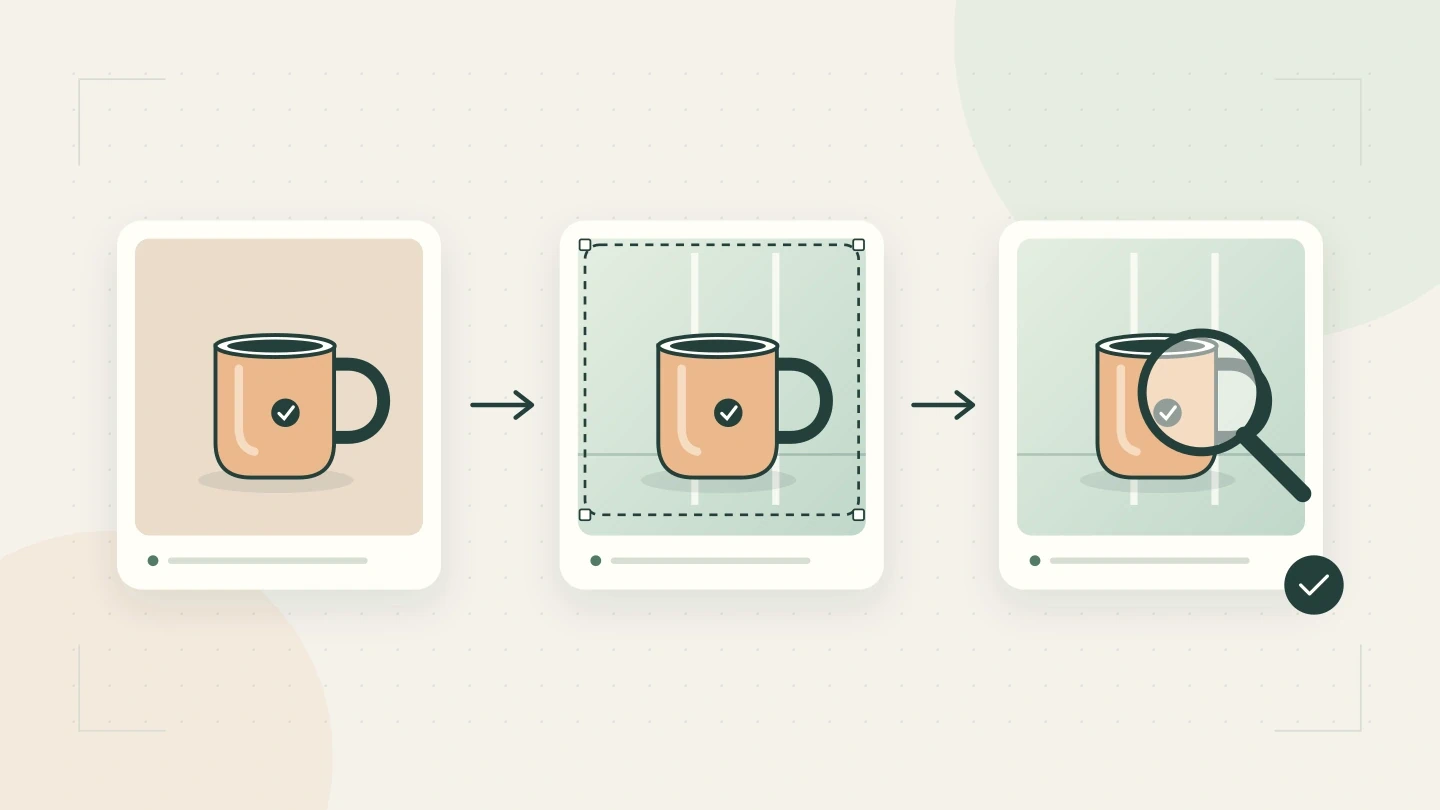
Original workflow illustration, not a model output or benchmark.
3. Inspect the product before the atmosphere
Review the protected subject first. Attractive lighting can distract from a changed shape or invented lettering.
Use this checklist for the cup example:
| Check | Pass condition |
|---|---|
| Silhouette | Same cup and handle shape as the source |
| Surface | Glaze and printed mark have not been redesigned |
| Contact | Cup sits on the table without floating |
| Composition | Product is fully visible and leaves the requested text space |
| Additions | No extra product, accessories, or unexplained text |
These are proposed acceptance criteria. Adjust them to your assignment. A stylized editorial illustration may tolerate changes that a product listing cannot.
4. Revise one specific problem
If the product is acceptable but the background is distracting, request a focused revision:
The cup is approved in this version.
Simplify the café background by removing the wall decorations.
Keep the current cup, table position, framing, and lighting.
Do not introduce new text or objects.
If the product itself has changed, return to the original reference and restate the failed constraint. Repeatedly editing a damaged version can make it harder to recover the original details.
Where available, use the selection tool to indicate the relevant area. OpenAI notes that selections may not be precise and edits can extend beyond the selected region, so inspect the surrounding image too. Editing guidance
5. Keep versions that you can compare
Save the approved intermediate image before continuing. Give versions meaningful names such as cup-cafe-background-approved and cup-cafe-background-simplified rather than keeping a folder of indistinguishable downloads.
Retain the prompt beside each version. If a colleague asks why the final image is missing a prop, the brief should answer that question without reconstructing the conversation.
After downloading, review at the size where the image will be used. Check the crop, subject edges, and any lettering. Put exact marketing copy into your layout editor if you need reliable spacing or editable text.
Turn one edit into a reusable process
For the next image, reuse the structure rather than blindly reusing the words: source, requested change, protected details, output context, acceptance criteria.
Start with one photograph and one change today. Keep the original, prompt, selected result, and a short note about any repair. That small record becomes a much more useful template than a prompt saved without its outcome.
Continue your image workflow
Read the Images 2.5 overview for release context, or choose another task from our image prompt collection.
Take your brief to Ottermind’s image workspace and check the models currently available there. The supplied Ottermind screenshot shows Flare and Sunburst in the model menu, both marked Premium, with Sunburst selected.