How Do You Turn a Script into Video with AI?

Paste your script into Ottermind Studio. Review how each line becomes a shot, then generate clips from the storyboard you approve.

Your script

See how a script becomes a video

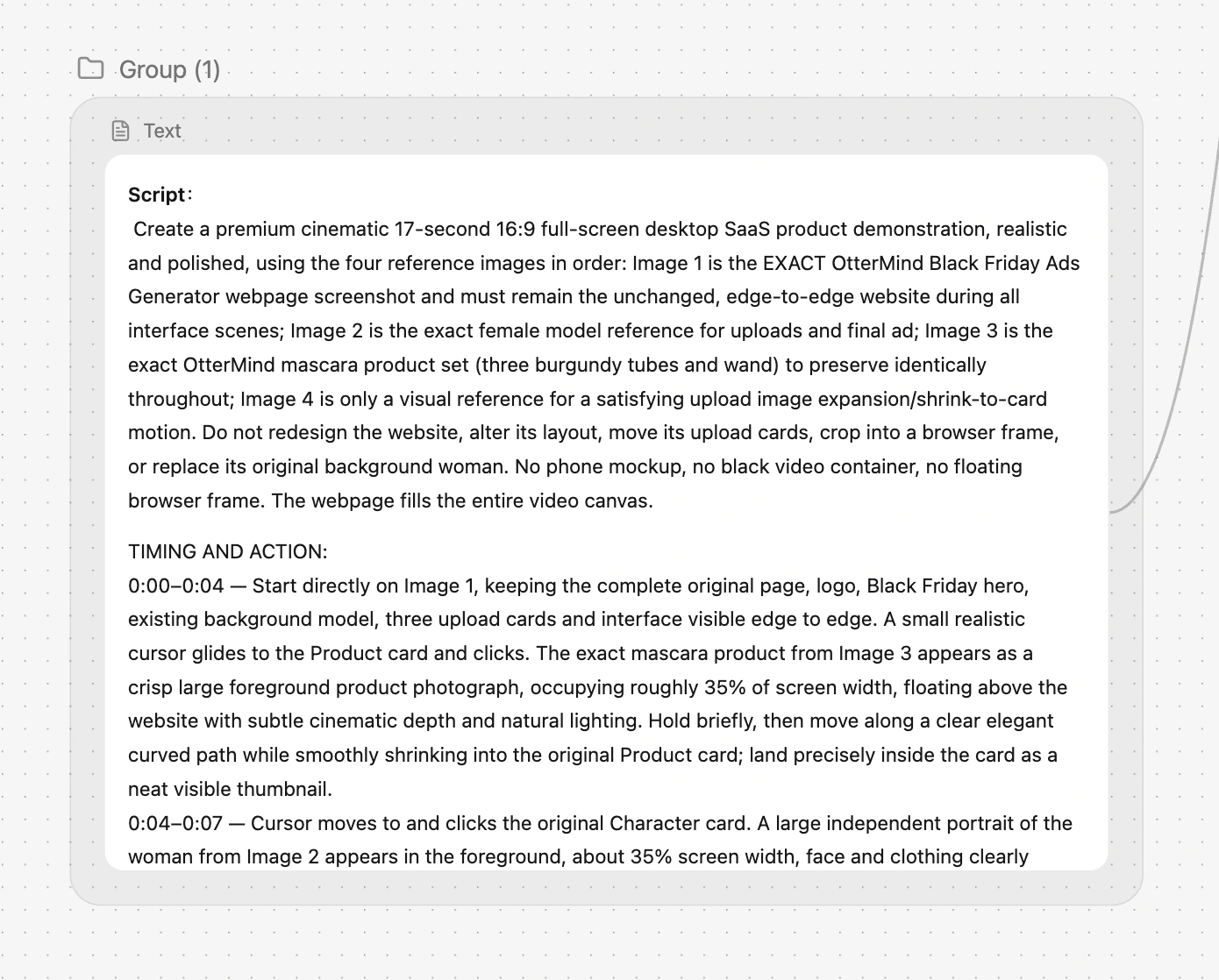
Studio script describing the Black Friday Ads Generator demo, its references and timed actions

Input script

The brief opens on the Black Friday Ads Generator page. It asks for the original layout, upload cards, and background to stay in view while the product and model references appear in the demo.

In the first four seconds, the cursor clicks Product. The burgundy mascara set appears in the foreground, then shrinks into the upload card as a thumbnail. The next beat moves to the Character card and introduces the model reference.
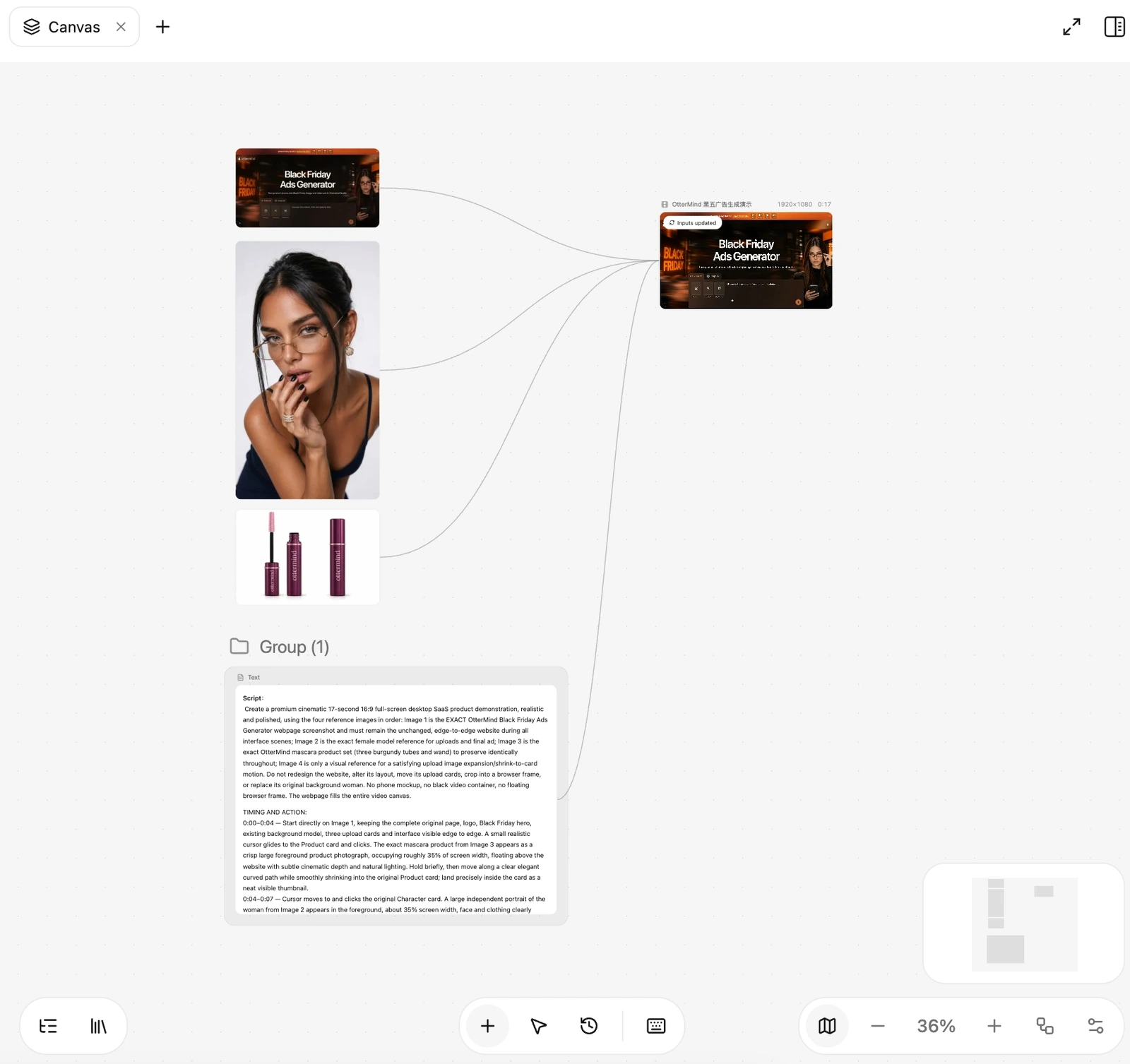
Ottermind Canvas connecting the page reference, portrait, mascara product image and script to a video node

Storyboard

The Canvas screenshot shows the script, the original page, the model portrait, and the mascara reference connected to the video node. The connections let you check which inputs the video uses before generating it.

For this demo, check three things against the script: the page layout, the burgundy packaging, and the order of the Product and Character uploads. Each reference gives you something concrete to compare with the result.

Result video

In the 12-second result, the mascara set appears over the Black Friday Ads Generator page. The page and upload cards come back into view before the video cuts to close-ups of the mascara and the model.

Play the clip to see where the demo gives way to the ad. Compare the packaging and model with the Canvas references, and check whether the upload sequence reads clearly at playback speed.

How to create a video from a script

Add your script
  1. Paste your script

    Keep the lines as written and mark visual directions separately so Studio can distinguish them from narration or dialogue.

  2. Set the direction

    Tell Studio where the video will appear, its target length and the references to keep consistent across shots.

  3. Review the storyboard

    Check that each shot covers the right line. Confirm the sequence, framing and keyframes, and revise shots that miss a beat.

  4. Generate approved clips

    Use the approved frames as video references where supported. Review the motion and pacing of the resulting clips before putting the cut together.

Questions about script to video AI

Can I review the storyboard before generating clips?

Yes. In Studio, ask for a storyboard and say to wait for your confirmation before generating clips. Review the planned shots, then tell Studio which ones to generate.

What should I include with my script?

Include the intended audience, format and running time if you know them. Put visual directions on separate lines and attach references for recurring details that matter.

How should I separate spoken lines from scene directions?

Put scene directions in brackets or on a line marked Visual. Put narration or dialogue on its own line and say whether the wording needs to stay verbatim.

Can I change one storyboard shot before generating?

Ask Studio to revise the specific shot. For example, request a closer angle while keeping the spoken line and the other shots as they are.

When can I see the actual video?

You can view the generated clip after you confirm the shot for generation. Review its motion and timing before using it in your final edit.

Take your script into Studio

Review the storyboard and decide which shots to generate.

Add your script