Prompt Guidance
Tweening: Keyframes, Spacing, and In-Between Frames
Tweening is the stretch between two poses you have already chosen. Below the composer sits the spacing prompt this page starts with — already typed in, so you can read it, edit it, or send it.
Optional
JPG / PNG / WebP
This is Ottermind's composer, not a Dreamina screen. The prompt is filled in already; sending is a separate action and continues in Studio.
November 12, 2026 · 10 min read
Tweening is the work that happens between two frames you have already decided on. The poses that define the action are the keys; everything the viewer sees between them is the tween. Someone has to supply those frames — an animator at a desk, an animation tool interpolating properties, or a video model now told what should happen. If you cannot describe the first and last frame, there is nothing to tween, and the result reads as drift rather than motion.
Reach for it when a move has a start and an end and the gap is the problem: a product that has to travel across a set without being touched, a camera push that should gather weight instead of gliding, a five-second loop that must close on the pose it opened with. Skip it when the cut is the point — a snap, a hard match-cut or a deliberate jump from pose to pose loses its bite the moment you smooth it out.
How this guide was prepared: Published pages were checked on November 12, 2026: Dreamina's tweening explainer and its Multiframes guide, the New York Film Academy's page on Disney's twelve principles (for pose-to-pose and arcs), MDN's easing-function reference (for the cubic-bézier values quoted below), and the RIFE (ECCV 2022) frame-interpolation repository (for interpolation ratios and failure modes). Descriptions of Ottermind's image-to-video flow come from Ottermind's own tool page. This is a working guide, not a measured benchmark: no generation was run in Ottermind for this article, and no output is presented as a tested result. The cover and the figures are AI-generated illustrations; the frame-spacing diagram is drawn from stated arithmetic. Where a number appears, it is either quoted from those sources or defined by how you measure it on screen.
What tweening is, stated as decisions
Pose-to-pose animation sets the key poses first and fills the gaps afterwards, as opposed to straight-ahead animation where every frame is drawn in sequence. The New York Film Academy's summary of Disney's principles describes the pose-to-pose method exactly that way: keyframes first, then the in-between moves. Tweening is that second half. It is not a style, and it is not a mood; it is a scheduling problem with measurable output.
Four properties decide whether the filled frames read as movement or as a slideshow.
| Property | How you measure it | A tween that reads | The failure it explains |
|---|---|---|---|
| Spacing | Distance between consecutive positions of the moving element; divide each gap by the one before it | The ratio changes through the move — gaps grow into the middle, then shorten into the end | A ratio stuck near 1.0 everywhere: constant speed, the "sliding sticker" look |
| Arc | The widest distance between the path of the subject and a straight line drawn from its start to its end, as a share of that straight line | A thrown, swung or lifted object bows away from the straight line | Dead-straight travel on an action that should curve, or a path that kinks mid-way |
| Hold | How many frames at the start and at the end are identical to their neighbour | Two or more frames of stillness at each end, so the clip can be cut or looped | Motion already running on the first frame: a visible pop where the clip joins |
| Peak speed | Fastest frame-to-frame movement divided by the average across the clip | Above 1.0 for an eased move, because the middle is faster than the ends | Exactly 1.0 when you asked for weight; you got an interpolation, not an animation |
Those four are not art-school abstractions. Each one is a number you can pull off a frame sequence in a few minutes, and each one tells you which instruction to change rather than "try again with a better prompt".
Frame count is the floor under all of them. At 24 frames per second, a four-second move is 96 frames; at 60 fps it is 240, and every one of those states has to be plausible. That is why short clips tween more reliably than long ones: the same motion-direction instruction has less room to drift.
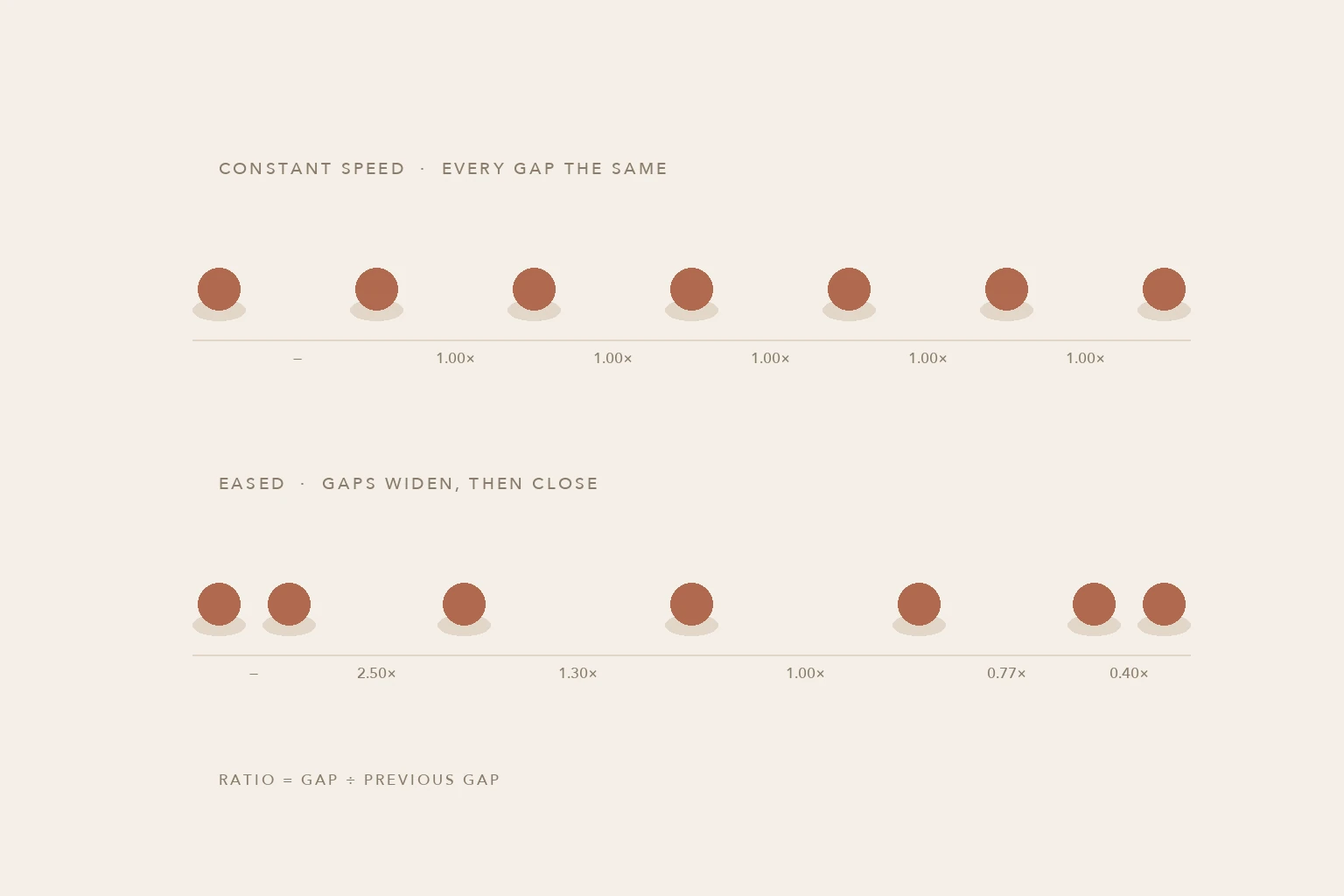
Spacing, drawn from stated arithmetic rather than a model output: seven positions on the same travel, once at constant speed and once with smoothstep easing. The number under each gap is that gap divided by the one before it. A flat ratio is what makes a tween look like a sticker dragged across the frame; a rising then falling ratio is the thing you are asking a model for when you write "eases to a stop".
Who fills the in-betweens now
Four arrangements cover almost every tween you will actually run.
A human between two keys. Still the reference case: the keys are drawn, the in-betweens are drawn to match their volume and line, and the animator controls the spacing by hand.
Two keys given to a video model. You supply a start frame and an end frame and ask for the transition. This is the closest software equivalent of classic tweening, and it is the arrangement with the tightest control, because both ends are fixed.
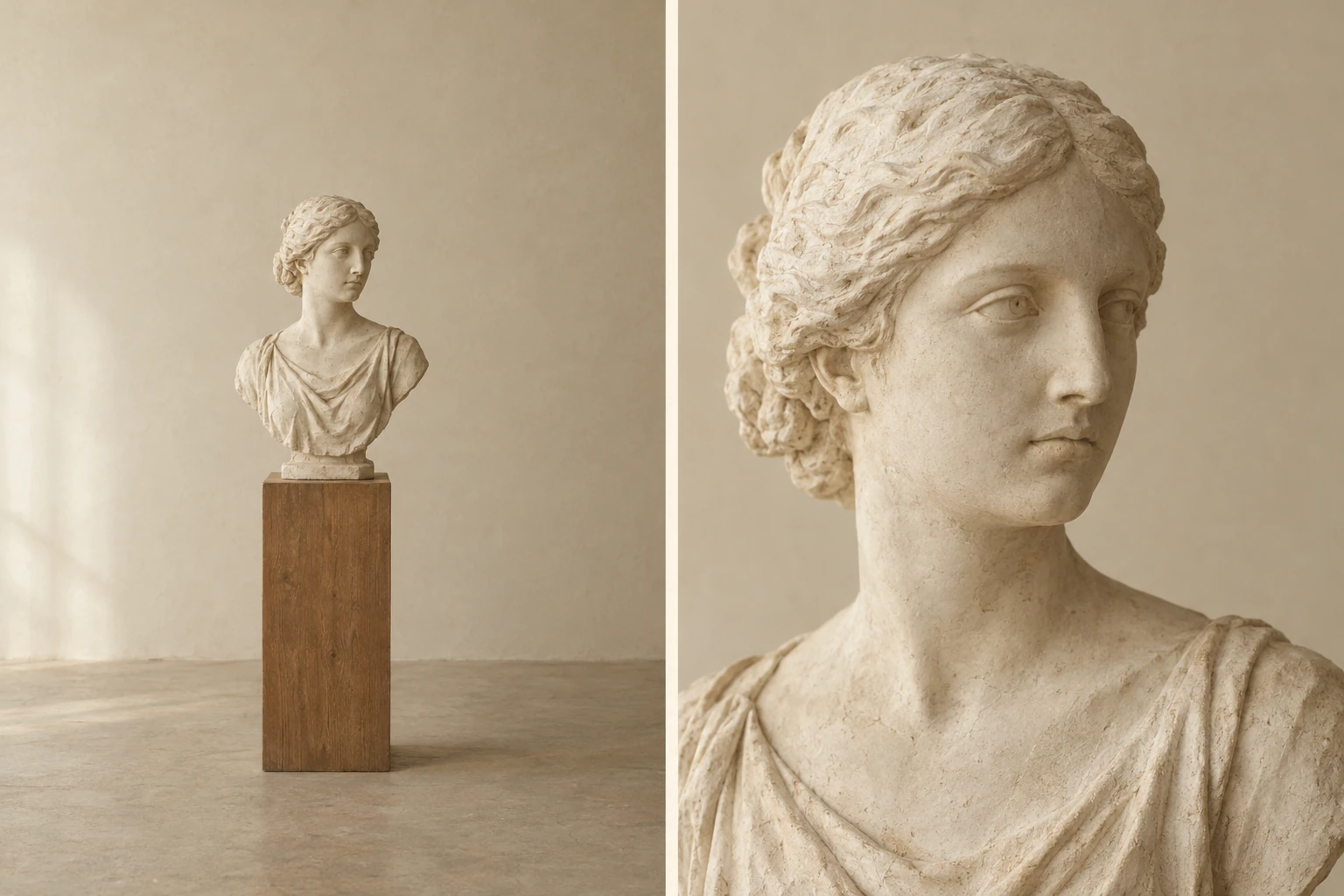
Two keys, one tween. Left: the opening frame. Right: the closing frame, the same subject from the same angle in the same light. Everything between them is what the model has to invent, which is why fixing both ends is the cheapest way to control a tween. Concept artwork generated for this article with an image model; it is an illustration of a two-key shot, not a frame pair pulled from a generation.
Check that the tool you use exposes both inputs before you plan around it — an image-to-video screen with one attachment slot is not a two-keyframe tween, whatever the marketing calls it.
One key plus a described move. Ottermind's Image to Video flow takes a reference image and written direction: subject movement, environmental motion, camera behaviour, pace and the intended frame. The reference supplies the first state and the look; your prompt supplies the tween, including where it should settle. This is the arrangement most people mean by "AI tweening" today, and the one where wording matters most.
Many keys in one pass. Some tools accept a sequence of keyframes rather than a pair. Dreamina's Multiframes documentation (checked November 12, 2026) describes 2–10 uploaded frames with a duration of 1–6 seconds assigned per frame, assembled into one long take. Useful when the tween is really a chain of moves, and a reminder that a five-move sequence is five tweens, not one.
Easing is the instruction most prompts forget
An eased move starts slowly, accelerates, then decelerates. A linear move does not. If your prompt only names the destination, you will usually get something close to linear, then spend three rerenders trying to fix the feel without naming the cause.
The curve names have exact values, which makes them worth using rather than avoiding. MDN's easing reference (checked November 12, 2026) gives ease-in as cubic-bezier(0.42, 0, 1, 1), ease-out as cubic-bezier(0, 0, 0.58, 1), and ease-in-out as cubic-bezier(0.42, 0, 0.58, 1). You can paste those numbers into a prompt, or translate them into the plain-language equivalent below — most video models respond better to the plain language, and the curve is still the thing you are choosing.
| What the move should feel like | Words that carry it | Curve it maps to |
|---|---|---|
| A heavy object starting to slide | Starts almost still, builds speed through the middle, keeps moving at the end | ease-in |
| Something arriving and settling | Enters at speed, decelerates over the last third, stops dead | ease-out |
| A camera push with a soft landing | Slow start, faster middle, gentle stop | ease-in-out |
| A machine or a conveyor | Constant speed, no acceleration, no settle | linear |
| A bounce or an impact | Accelerates downward, stops on contact, small rebound, then rest | ease-in on the fall, a hold on contact |
Two habits prevent most easing failures. Name the shape of the speed change ("starts almost still", "decelerates over the last third") rather than the adjective ("smooth", "cinematic"), and name the frame or moment where the speed changes, not just the total length. A model that knows the move is still at the start and fast in the middle has something to interpolate; a model told only "slow" has a mood.
Five prompts, one variable each
These are written for a one-image-plus-direction flow. Each one changes a single property from the table above and leaves the others alone, so the result tells you which instruction worked. Replace the subject; keep the structural sentence.
1. Spacing and easing
Controls: the acceleration profile, i.e. the spacing ratio through the move.
Animate the attached product photo as one continuous shot. The camera pushes in slowly, starting almost still, building speed through the middle of the clip, then easing to a stop on the final framing. Keep the acceleration smooth and continuous — no speed ramps, no pause in the middle, no sudden stop.Look at the gaps between positions, not the total travel. If the move covers the same distance every second, the acceleration clause was ignored and you got a linear push.
2. Arc
Controls: the path, i.e. whether the subject travels in a straight line or bows away from one.
Keep the camera locked off. Move the paper plane from the lower-left corner up and across to the upper-right along a smooth curved path that bows upward. The plane banks into the curve and holds that bank until it leaves the frame. It enters and exits outside the frame rather than starting or stopping inside it.Check the sagitta: draw a straight line from where the plane enters to where it leaves, and see how far the path departs from it. A straight path means the arc instruction lost to the model's default of moving things from A to B.
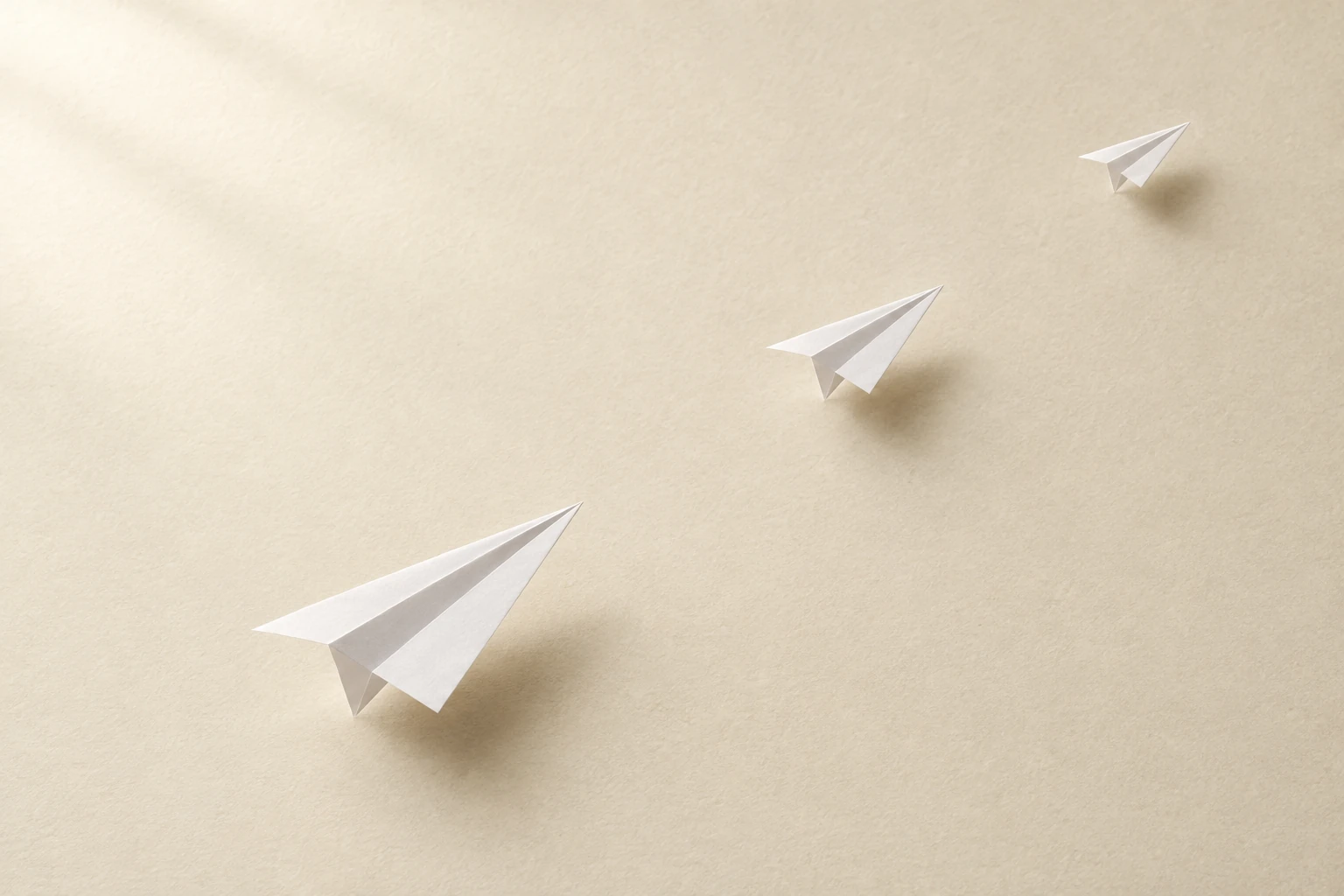
One subject, three moments, one path. The size change tells you the path is leaving the camera, and the distance between the impressions is where the spacing decision shows up. Concept artwork generated for this article; it shows the idea of a path between keys, not a tested generation.
3. End hold
Controls: how many frames at each end are still, i.e. whether the clip can loop or be cut cleanly.
Hold the first frame completely still for the opening beat, then let the steam begin to drift upward and to the left. In the final beat the steam settles and the frame returns to the same still pose it started on, so the clip can loop without a jump.Compare frame one and the last frame. If they differ in framing or in the subject's position, the loop will pop; if motion is already underway at frame one, the clip will pop at the cut-in instead.
4. Deformation budget
Controls: which pixels are allowed to change, i.e. how much of the reference the model may reinvent.
Animate only what I name: the linen backdrop moves gently, as if a window were open. The bottle, its label, the glass highlights and the shadow it casts stay exactly as they are in the reference photo — same shape, same lettering, same position. Do not redraw the label and do not add new text anywhere in the frame.This is the prompt that fixes most "AI melting" complaints, because it converts a vague hope ("keep it consistent") into a list of things that must not move. Expect it to reduce deformation, not to eliminate it: text and fine patterns still drift in long clips.
5. Camera versus subject
Controls: whether the motion belongs to the camera or to the thing in frame.
The camera is fixed on a tripod at eye level and does not move. The subject is the ceramic mug; only the steam and the highlight travelling along the rim change. No zoom, no push-in, no parallax, no handheld drift, and the background stays where it is.Two motions in one prompt cancel each other out. Naming which one is allowed is faster than adding "no camera movement" at the end of a prompt that already asked for a push.
The button fills the first prompt into the composer at the top of this page. It fills only; nothing is sent, and nothing is generated until you continue in Studio. That separation is deliberate, because the subject in these prompts is a placeholder — swap in what your reference actually shows before you spend a generation on it.
What AI tweening gets wrong
The failures below are specific to generated in-betweens, so they are worth checking before the more familiar craft problems.
| What you see | What is actually happening | The instruction that fixes it |
|---|---|---|
| The subject melts, bends or gains a second handle | The model is inventing new frames instead of interpolating the reference, and the deformation budget was never stated | Name what must not change: shape, label, lettering, position. Shorten the clip so there is less room to drift |
| Fine patterns and faces boil or shimmer in place | Temporal instability — each frame is plausible alone, inconsistent with its neighbour | Reduce motion, remove busy texture from the frame, or split one long move into two shorter ones |
| Motion is evenly spaced from first frame to last | Linear interpolation by default; no easing was requested | State the speed change and where it happens, not just the destination |
| The tween overshoots the end and snaps back | The model treated the arrival as an impact rather than a settle | Ask for a stop, and for the last beat to be still; cut the clip at the settle |
| The whole frame drifts although the camera was meant to be locked | Camera and subject motion were both left open | Say "camera fixed on a tripod" and say it before the subject description, not after |
| A hand, wing or wheel rotates through an impossible position | The tween crosses a configuration the model has no reference for | Break the move at the impossible pose and tween the two halves separately |
| The loop jumps at the join | No end hold, and the model let the motion run out of the last frame | Add the hold explicitly, then compare the first and last frame before you loop it |
Tweening is not interpolation, and not morphing
Three terms get used interchangeably in tool marketing. They answer different questions.
Frame interpolation fills between two frames that already exist, to raise the frame rate or to slow a shot down. It estimates motion from pixels rather than inventing a scene. The RIFE project (ECCV 2022, checked November 12, 2026) is the clearest technical description of the approach: it interpolates between a pair of images at arbitrary timesteps and advertises 2X, 4X and 16X multipliers. Because the input frames are real, interpolation cannot add anything that is not already in them — and it fails loudly at occlusion, where one object passes in front of another, producing the warped edges and ghost trails people blame on "AI smoothing". If your problem is stutter in existing footage, that is the tool class you want; if your problem is that the middle of the move does not exist at all, you need a tween.
Morphing is a deliberate transformation of one thing into another: a face into a landscape, one product into its successor. It is not a tween with better easing. Tweening keeps the subject's identity across the move and treats the shape as fixed; morphing dissolves that identity on purpose, which is exactly why it is the wrong choice when a label, a face or a logo has to stay recognisable. If the brief says "A turns into B", you are describing morphing even if you used the word tween.
Keyframe animation in a motion-graphics tool is a third thing again. There, the software interpolates numbers — position, scale, opacity — between keys you set, and the pixels follow deterministically. That is why a 3D or 2D compositor gives you exact control of spacing and an AI model gives you an interpretation of your instruction. Use the compositor when the element is a graphic you own; use a video model when the frames themselves have to be generated.
A working order
- Fix the two ends first. Describe the first frame and the last frame in words before you write anything else. If you cannot, the shot is not ready to tween.
- Decide which of the four properties is the problem. Spacing, arc, hold, or camera-versus-subject. Change one per attempt; a prompt that fixes everything tells you nothing.
- Write the subject as a list of things that must not change. Label, geometry, logo, colour, shadow. This is the cheapest insurance against melting.
- Generate short, then extend. A two-second move that reads is worth more than a six-second one that drifts; longer sequences can be built from takes that already work.
- Measure before you judge. Count the frames, compare the first and last, check the gap ratio. "It feels off" becomes "the spacing ratio is flat" only if you look.
When the tween is a single still coming to life, the reference matters as much as the prompt. If you need a cleaner starting image first, generate it with AI image generation and bring that frame in as the reference. If the tween is one shot inside a longer cut, Seedance video cases shows how multi-shot sequences are assembled, and the image-to-video prompting tutorial covers the motion vocabulary this page assumes.
Tweening questions worth answering
Is tweening the same as motion graphics?
No. Motion graphics is a discipline — typography and shapes animated for a screen — and it usually uses keyframe interpolation to get there. Tweening is the specific act of supplying the frames between two keys. A motion-graphics title can contain many tweens, and a hand-drawn character shot can contain none if every frame was drawn straight ahead.
How many in-between frames do I need?
Enough that the motion reads at the frame rate you will deliver. At 24 fps a four-second move has 96 frames, and a slow move needs more of them to avoid visible stepping than a fast one. In practice the limit is not the frame count but the model: ask for a shorter clip first, confirm the motion, then extend it rather than trying to hold a long tween together.
Can AI tween two images automatically?
Only if the tool exposes two keyframe inputs. Many image-to-video screens accept a single reference plus a text instruction, which is a one-key tween: the model chooses the ending. Check the inputs before you plan a two-key shot, and if you only have one slot, describe the ending precisely instead — "settles on a three-quarter view from the left" does more work than "moves smoothly".
Why does my tween look like sliding?
Because the spacing ratio is flat. The subject is being moved at a constant rate with no acceleration at either end, which reads as a sticker dragged across a still image. Name the acceleration, name where the speed changes, and check the middle of the move rather than the start and end.
Does the frame rate change the tween?
It changes how much work the tween has to do. The same four-second move is 96 frames at 24 fps and 240 at 60 fps, and the higher count makes small inconsistencies easier to see. Interpolation can raise the frame rate of footage you already have, but it cannot repair a tween whose motion is wrong — fix the motion first, then consider the frame rate.
Try it on a frame you own
Tweening rewards a specific instruction more than a long one. Take one still with a clear subject, write the start and the end in a sentence each, then choose the property you want to change and change only that. Ottermind's Image to Video flow carries your reference and your motion direction into Studio, where you can rerender with a different instruction and compare takes against the same frame.
If you are still choosing a model rather than a motion, the AI video generator comparison covers what differs between them, and faceless short-form workflows shows where a two-second tween sits inside a longer edit.