Explainer
How to Use Claude to Make Presentations: Complete 2026 Guide

Claude can help you make a presentation in several different ways: it can plan the story, write slide copy and speaker notes, generate HTML slides, or create and edit presentation files when the required Claude capability is available. The most reliable workflow is to define the audience and decision first, ground every claim in source material, review the outline, and only then generate the final deck. This guide explains the options and shows where Ottermind fits when the presentation is one deliverable in a larger project.
Claude is a strong writing and reasoning assistant, but a presentation is more than a block of text. A usable deck needs a clear audience, a narrative arc, evidence, visual hierarchy, and an output format that your team can actually review and edit. The right workflow depends on whether you need a quick outline, a web-based prototype, an editable PowerPoint file, or a connected research-to-deliverable process.
Primary product references: Use Claude for PowerPoint, Turn research into presentations, Anthropic Agent Skills quickstart
How do the Claude presentation workflows compare?
| Workflow | Typical output | Best for | Main trade-off |
|---|---|---|---|
| Claude chat + manual assembly | Outline, slide copy, and notes | Existing PowerPoint or Google Slides templates | You still build and format every slide |
| Claude Artifacts or HTML | Browser-based interactive slides | Web demos, technical talks, and fast visual iteration | HTML is not automatically an editable PPTX |
| Claude document or PowerPoint workflow | Presentation file or slide edits where supported | Teams that need a file they can continue editing | Availability depends on the Claude surface and account |
| Ottermind research-to-deck workflow | Connected source material, narrative, and editable presentation | Work that starts with files, links, notes, or research | Important claims and final design still need human review |
The table is a choice guide, not a promise that every account exposes the same file features. Check the current Claude documentation for the surface you use, and test the export format required by your team.
Method 1: Use Claude chat for the outline and slide copy
This is the simplest path. Give Claude the audience, purpose, source boundary, slide count, and narrative structure. Ask for a slide-by-slide outline before asking for polished wording. You can then move the approved content into PowerPoint, Keynote, Google Slides, or your existing company template.
The prompt that works
Create an 8-slide presentation outline for [audience] about [topic].

The decision this presentation should support is: [decision].
Use only the source material below. If a number, quote, or claim is missing,
write [NEEDS SOURCE] instead of inventing it.

For every slide, return:
- a title of 8 words or fewer
- one sentence stating the slide's takeaway
- up to 3 concise bullets
- one visual suggestion
- a short speaker note

Structure the story as: hook -> problem -> evidence -> approach -> proof ->
implications -> recommendation -> next step.

Source material:
[paste or attach sources]
Review the outline before you spend time on design. Useful follow-up requests include “give me a data-first and a story-first version” or “rewrite slide 4 to address the buyer’s main objection without adding new facts.”
Pros and limitations
Pros: No special setup, easy to iterate, and compatible with any slide template you already use.
Limitations: Claude does not automatically know your slide master, spacing rules, or brand library in a plain chat. Copying content by hand can also introduce omissions and formatting errors.
Use this method when you need better thinking and writing, but already have a reliable production process for the final deck.
Method 2: Generate HTML slides with Claude
Claude can generate a self-contained HTML presentation or an Artifact that renders in a browser. This is useful when the presentation will be shared by URL, shown in a technical setting, or iterated visually before anyone needs a PowerPoint file.
The prompt
Create a self-contained HTML slide presentation for a 10-minute talk titled
"[title]".

Requirements:
- 8 slides in a 16:9 layout
- one central idea per slide
- high-contrast typography and generous whitespace
- one comparison table and one simple data visualization
- speaker notes in a clearly labeled section
- no invented statistics; mark missing evidence as [NEEDS SOURCE]
- include keyboard navigation and a visible slide number

Return the complete HTML and CSS in one file, then list the facts that still
need human verification.
HTML gives Claude more control over layout and interaction than plain text. It is a good prototype format, but it is not the same as a native PowerPoint file. Animations, responsive behavior, and CSS layouts may not transfer cleanly when someone needs to edit the deck in PowerPoint or Google Slides.
When HTML is the right choice
- A developer or technical audience will view the deck in a browser.
- You want to test the story and visual hierarchy before choosing a final file format.
- The presentation benefits from lightweight interaction or animation.
When the deck is going to an executive committee, client, legal reviewer, or sales team that expects an editable file, choose a workflow that explicitly supports that format and verify the export.
Method 3: Use a supported Claude document or PowerPoint workflow
Anthropic documents PowerPoint creation and editing through supported Claude capabilities and Agent Skills. Depending on the account and surface, Claude may be able to create a presentation file, make targeted slide edits, or work with an existing deck. These capabilities are separate from the basic chat experience, so do not assume that asking for a .pptx in every Claude chat will produce a usable file.
A safer file-generation prompt
Turn the attached source report into an editable 10-slide PowerPoint
presentation for [audience].

Before generating slides:
1. Return a proposed outline and wait for approval.
2. Map every number and quote to a source location.
3. Mark unsupported claims as [NEEDS SOURCE].

Then create the deck with one takeaway per slide, concise text, accessible
font sizes, a final recommendation, and speaker notes. Preserve the source
meaning and list any layout or export limitations after generation.
Before sharing the file, open it in the application your audience will use. Check that text remains editable, charts are legible, fonts are available, speaker notes are present, and no source claim changed during formatting.
Method 4: Bring the full work into Ottermind
Claude is useful for outlining and refining language. Ottermind is useful when the presentation is the end of a longer task that starts with research, documents, links, product context, or team notes. Its AI PPT workflow keeps those inputs connected while you move through intermediate deliverables such as summaries, proposals, and slide structures.
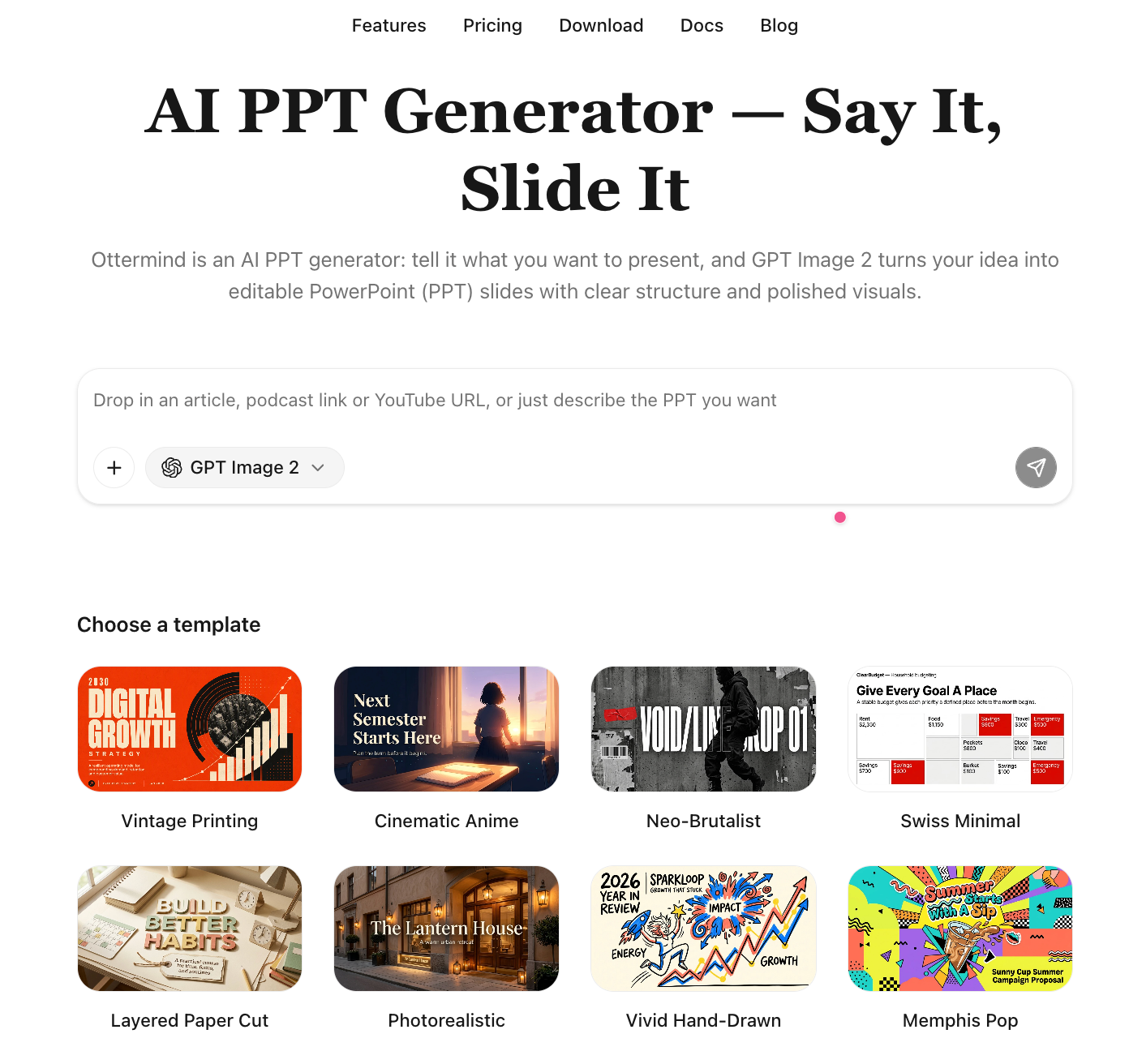
A connected presentation sequence
- Start with the real material. Add the report, source deck, web links, notes, or brief that the presentation must reflect.
- Create an inspectable summary. Confirm the facts, terminology, open questions, and evidence before visual design begins.
- Shape the decision narrative. Turn the summary into a proposal or outline for a defined audience and outcome.
- Generate the presentation. Ask for the required slide count, visual direction, language, and editable output.
- Review and continue. Update claims, respond to feedback, and create related deliverables without losing the original context.
This sequence is especially useful for investor decks, sales proposals, research briefings, and product updates. The presentation remains one output of the work rather than an isolated artifact.
For a concrete example of this pattern, see How to Use Ottermind to Generate a Presentation. For a broader tool selection, see Best AI Presentation Makers.
Prompt templates that work well with Claude
1. Audience-first deck
Build a [number]-slide deck for [audience role] at [organization type].
They care most about [concern 1], [concern 2], and [concern 3].
Address these objections: [objections]. Make every slide advance the decision
they need to make: [decision].
2. Constraint stack
Deck rules: [number] slides maximum, one takeaway per slide, no more than
three bullets per slide, short titles, readable presentation-size text, and
speaker notes that add context rather than repeat the slide. Do not invent
facts. Mark missing evidence as [NEEDS SOURCE].
3. Narrative arc
Create three possible structures for this presentation:
(a) data-first, (b) story-first, and (c) recommendation-first.
For each structure, explain the audience question answered by every section,
then wait for me to choose one before drafting slide copy.
4. Fact guardrail
Use only the attached sources. For every number, quote, named customer,
market claim, and dated statement, include the source file and page or URL.
If the sources do not support a claim, write [NEEDS SOURCE]. Do not fill the
gap with a plausible estimate.
Common mistakes when making presentations with Claude
Asking for the final deck before approving the story
“Make me a 20-slide deck” leaves too many decisions implicit. Ask for two or three outline directions first, choose one, and then generate the slides.
Providing no source boundary
Without source material, Claude may produce fluent but unsupported market sizes, percentages, or quotes. Attach the evidence and explicitly prohibit invention.
Treating attractive HTML as a finished business deck
Browser slides can be excellent for a talk or demo and still be a poor handoff format. Match the output to the next person who must edit, review, archive, or present it.
Letting design hide weak reasoning
The visual layer cannot repair an unclear recommendation. Review the summary and narrative before adding themes, images, or charts.
Skipping the final human review
Verify facts, citations, terminology, slide order, chart labels, accessibility, and export behavior. The person presenting the deck remains responsible for its claims.
Frequently Asked Questions
Can Claude generate a real PowerPoint file?
Claude can create or edit PowerPoint presentations through supported capabilities documented by Anthropic, but availability depends on the Claude surface, account, and enabled features. The basic chat experience should not be treated as a guaranteed binary-file generator.
Can Claude generate HTML presentations?
Yes. Claude can produce HTML slide code or an Artifact for browser-based review. HTML is useful for fast iteration and web sharing, but it should not be assumed to convert cleanly into an editable .pptx.
What should I give Claude before asking for slides?
Provide the audience, decision, source files or links, required slide count, visual constraints, delivery format, and any claims that must be preserved exactly. Ask for an outline before final slide generation.
Can Ottermind replace Claude for presentation work?
The tools serve different roles. Claude can help reason about structure and wording. Ottermind is designed for work that connects research, files, notes, proposals, and the final presentation in one workspace. Choose the workflow that matches where your source material and review process live.
How do I review an AI-generated presentation?
Compare every claim with the source, check one idea per slide, inspect text at presentation size, verify charts and citations, test the required export, and confirm that the next editor can change the file without rebuilding it.
The takeaway
Match the method to the output you actually need: use Claude chat for thinking and copy, HTML for browser-based iteration, a supported file workflow for editable PowerPoint, and Ottermind when research and related deliverables must stay connected.
Do not ask for slides first. Start with the audience, decision, and source material. Make the outline inspectable, generate the deck only after the story is sound, and keep a human responsible for the evidence and final recommendation.
When the presentation is part of a larger project, start with your brief and source files in Ottermind.