Explainer
Desktop AI Agents: Capabilities, Limits, and Human Review
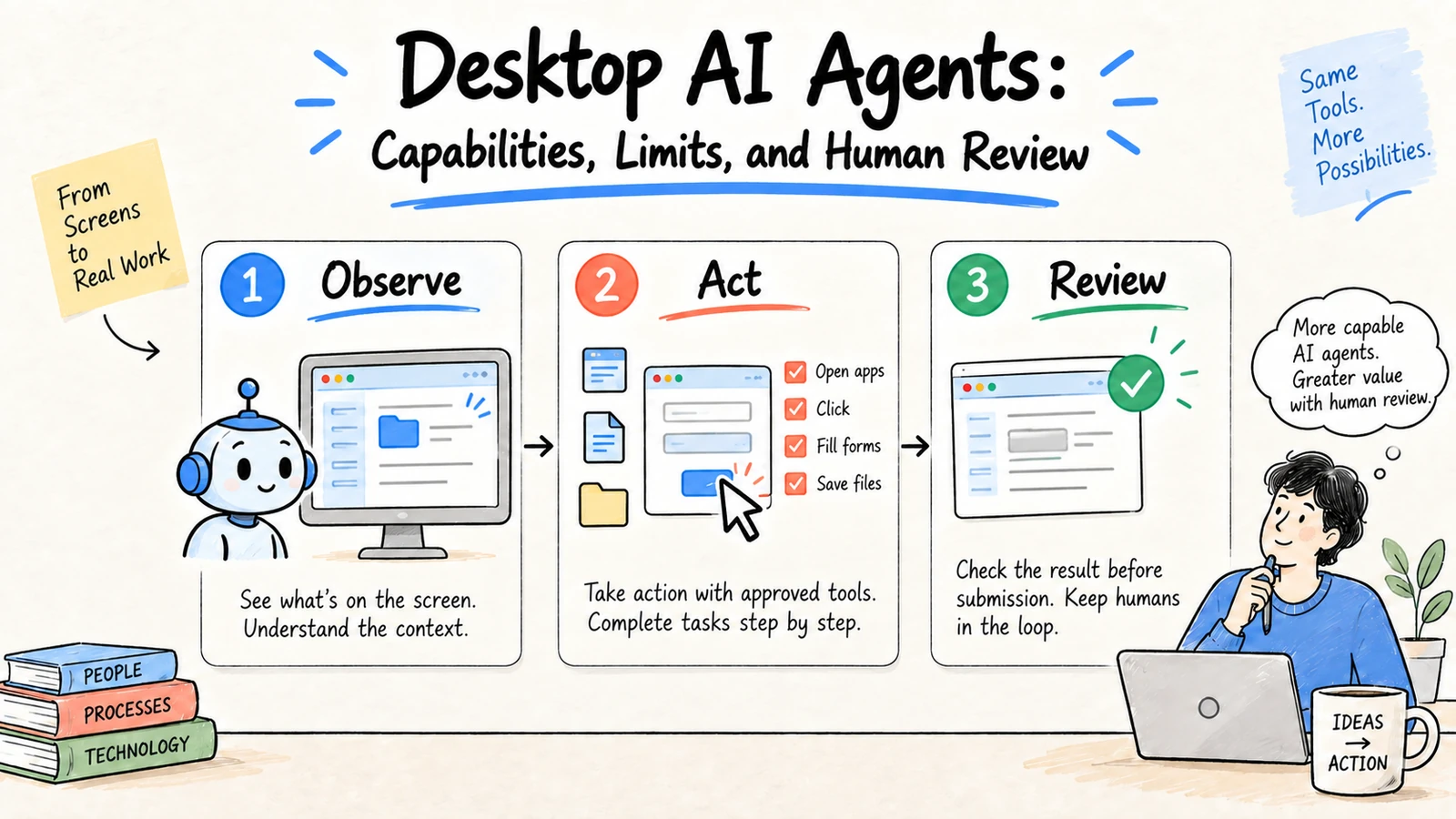
A desktop AI agent can observe a computer interface and use permitted apps, files, or browser controls to pursue a task. That makes it useful for workflows that lack an API, but it also gives the agent a wide action surface: screens can contain secrets, interfaces can change, and a mistaken click can create an irreversible result. Start with a visible, reversible task and a human checkpoint.
When the task is primarily research, planning, or document production, Ottermind can be the safer starting surface because the work can remain in a connected workspace with reviewable context and deliverables. Desktop control is most useful when a required application has no suitable connector or API.
Research and disclosure: This guide compares patterns described in Anthropic computer-use documentation, OpenAI computer-use guidance, and the Bytebot open-source desktop agent, reviewed September 3, 2026. Product capabilities and availability change; verify the current implementation.
What desktop agents can do
- Navigate a browser where no integration exists.
- Move information between approved applications.
- Fill repetitive forms for review.
- Inspect visible state and report what changed.
- Combine several UI steps into a bounded workflow.
They are less reliable when the task depends on hidden application state, ambiguous visual labels, CAPTCHAs, changing layouts, or sensitive credentials.
Desktop agent versus API automation
| Approach | Strength | Main limitation |
|---|---|---|
| API integration | Structured, testable, predictable | Requires an available API |
| Browser automation | Works across web interfaces | Selectors and layouts change |
| Desktop agent | Can operate unfamiliar UI surfaces | Visual ambiguity and broad access |
| Human operator | Handles exceptions and judgment | Higher repeated labor |
Use the narrowest interface that can complete the task. A desktop agent should not be the default when a scoped API call is available.
Why computer use is a different risk class
An API usually returns structured fields and rejects malformed arguments. A desktop agent interprets pixels, labels, menus, and transient notifications. It may misread a selected account, click a similarly named control, or continue after a page changes. Screen content can also reveal passwords, customer data, browser history, and private notifications. The flexibility is useful, but it expands both the attack surface and the test matrix.
Anthropic's current computer-use documentation requires a sandboxed environment and describes a loop in which the model requests an action, the application evaluates it, and the result is returned. Claude's desktop research preview also prioritizes connectors before browser and screen interaction, because direct integrations are faster and less error-prone. These are practical design signals: use a connector when one exists, and make screen control an explicit fallback.
Common desktop-agent patterns
Form preparation
The agent fills a low-risk internal form from an approved source packet, then pauses before submission. Show every field and source value to the reviewer. This is safer than allowing an agent to submit an external application or change a customer record unattended.
Cross-application collection
The agent opens a small allowlist of dashboards, reads visible status, and drafts a report with URLs and timestamps. It should stop when a login, warning, unexpected domain, or ambiguous value appears. Never ask it to browse the open internet with unrestricted access when the task needs three known sources.
Visual quality review
A desktop agent can inspect a local build, simulator, or design tool and list visible issues. Keep credentials and customer data out of the environment, capture the screen state used for each finding, and have a human verify the issue before filing or closing work.
Browser profile and secret hygiene
Use a dedicated operating-system account or virtual machine for high-risk testing. Start with a clean browser profile, disable personal extensions, and allowlist domains. Do not store passwords in screenshots, prompts, logs, or model-visible files. Use short-lived test credentials and revoke them after the run. If the agent encounters a login form, pause for a human rather than asking it to infer or retrieve a secret.
Recovery and observability
Save a before-state for any file or record the agent may change. Record screenshots, action coordinates or selectors, URLs, timestamps, tool results, and reviewer decisions. After interruption, query the system of record before retrying. A good workflow can explain whether an action happened, did not happen, or needs human verification.
A decision matrix
| Task | Preferred interface | Desktop agent allowed? |
|---|---|---|
| Read a known project status | API or connector | Yes, read-only fallback |
| Create a draft report | Workspace or document API | Yes, with review |
| Submit a public form | Direct integration | Only with per-submit confirmation |
| Change permissions | Admin API | Human-only in most teams |
| Delete or purchase | Direct controlled workflow | Human confirmation required |
The goal is not to eliminate desktop agents. It is to give them a narrow job, a visible stop condition, and a reviewer who can recover from an unexpected screen.
A safe first task
Goal: collect the status shown in three approved dashboards.
Allowed apps: the named browser profile only.
Allowed actions: open pages, read visible status, and draft a report.
Forbidden actions: send, delete, purchase, change permissions, or download files.
Stop when: a login, warning, unexpected domain, or ambiguous control appears.
Review: a person verifies every status and source URL before sharing.
Controls to require
- Use a dedicated account and a clean, isolated browser profile.
- Allowlist domains, applications, files, and network destinations.
- Mask secrets and keep credentials out of screenshots and prompts.
- Show actions and require confirmation before consequential clicks.
- Record screenshots, tool calls, timestamps, and reviewer decisions.
- Make retries and partial completion recoverable.
How to evaluate one
Test normal pages, changed layouts, missing permissions, misleading labels, and interrupted sessions. Measure successful completion, unsafe actions blocked, recovery time, and human corrections. A fast demo is not evidence of reliable production behavior.
FAQ
Are desktop AI agents safe for banking or admin systems?
Do not grant that access by default. Use approved policies, isolated accounts, strict allowlists, confirmation for every consequential action, and an audit trail before considering sensitive workflows.
Why not use a browser automation script?
Use a script when the interface and steps are stable. A desktop agent is useful when the task needs visual interpretation, but its flexibility comes with more uncertainty and testing effort.
Should a desktop agent run unattended?
Only for low-risk, reversible tasks with strong monitoring and a stop condition. Keep a human checkpoint before sending, deleting, purchasing, or changing access.
For the broader category, see best AI agent workspaces and the AI agent security checklist.