Clideo Review 2026: Free Limits, Pro Pricing, and What It Can't Fix
Clideo's free plan stops at a 500 MB upload and a 720p export. If the only thing wrong with your file is its size, state the ceiling and the details that must survive here, then continue in Ottermind Studio, where the model and the credits are shown before anything runs.
Optional
This is Ottermind's composer. It does not open Clideo, call Clideo's tools or spend Clideo credits.
November 9, 2026 · 9 min read
Clideo is a browser-based video workbench: roughly forty-five single-task pages behind one multi-track editor, sold as a free tier plus a $12/month Pro plan. Its free access is controlled by four numbers — a 500 MB upload cap, 720p exports, a watermark in the corner, and 10 AI credits a month — and those four numbers decide more about whether Clideo suits you than the size of its tool catalog does.
This review is written for the decision people actually arrive with: either "can I get this clip small enough without paying?" or "is Pro worth it?" Both answers are on Clideo's own pages, and they are spread across the pricing page, the Help Center and the Terms, which do not fully agree. The page also marks the video work Clideo's catalog does not cover at all, because that is where a compression tool stops being the right tool.
If your file is already the picture you want and only the file size is wrong, write the ceiling and the details that must survive in the composer above, then continue in Ottermind Studio; the same brief appears in full further down the page. If your job is editorial — cut, subtitle, merge, translate, convert — Clideo is the closer fit, and the sections below show which of its routes to take.
How this review was prepared: Clideo's public pages were read on November 9, 2026: the homepage, the tools catalog, the Compress Video, Video Editor, Add Subtitles and Auto Subtitle Generator pages, the pricing page in both its monthly and yearly views, the Help Center articles on usage limitations and how credits work, and the Terms of Use, effective August 28, 2026. Prices, limits and credit rules appear here as text, not screenshots. This is a documentation review: no Clideo account was created, no file was uploaded, no credit was spent, and no export was compared with its source. Ottermind publishes this article and offers the compression and clarity workflow described near the end, so the comparison below is about workflow shape, not measured output quality.
What Clideo is, according to its own catalog
Clideo is used in two different habits, and the catalog page makes the split visible.
The tools directory is a grid of single-task pages: trim, crop, merge, split, loop, reverse, mute, rotate, resize, speed, filter, adjust, transitions, text, stickers, GIF and meme making, format conversion, screen and camera recording, subtitles, transcription, translation and compression. If you know the exact operation you want, you pick the card that names it and never open the editor.
The video editor is the place where a chain of those operations can happen in one project: a multi-track timeline with text, picture-in-picture and split-screen, aspect-ratio presets for social formats, and imports from Google Drive and Dropbox as well as from your own device.
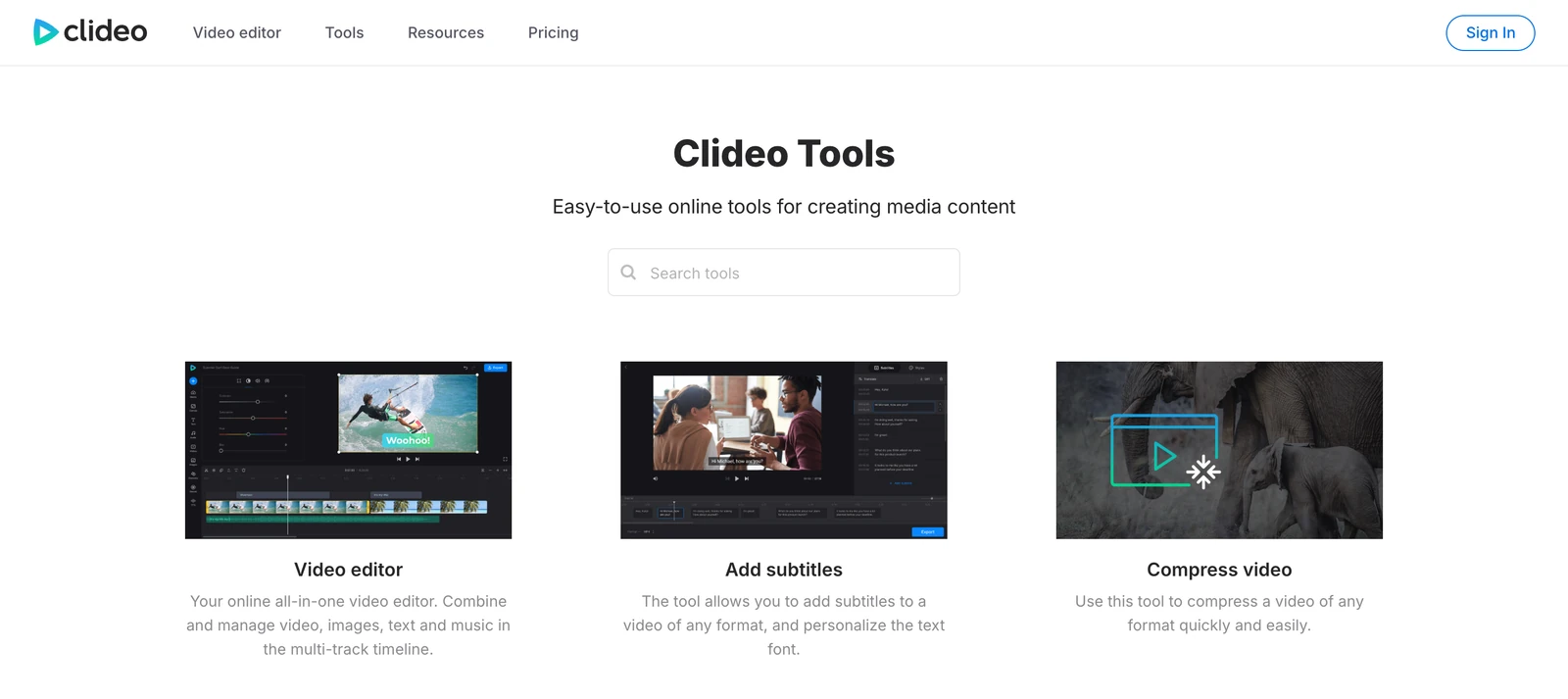
Real capture of Clideo's public Tools page in a desktop browser on November 9, 2026. The three cards above are the shapes most first jobs fall into: assemble a timeline, subtitle a finished clip, or shrink a file. Each card opens its own upload screen.
That structure is genuinely useful, and it is worth naming why: a grid of narrow tools forces a site to state what each one accepts. Clideo's compressor page, for example, names its formats (MP4, WMV, MOV, VOB, AVI and others) and states the free file limit on the same screen as the upload button. Fewer surprises than a single "AI video" box that secretly does one thing.
The free plan, in the numbers that decide it
Clideo's pricing page shows two cards. The free column is not a demo of the paid one — it is a smaller product, and these are the differences that matter before you upload anything. The upload, export, watermark, recording, "Continue in" and AI voiceover rows come from the Help Center's usage limitations article; the credit allowance and the storage period are printed on the pricing cards.
| Limit | Free (visitor or registered) | Pro |
|---|---|---|
| Upload size per file | 500 MB | 100 GB per file |
| Export resolution | 480p or 720p (standard quality), or GIF | up to 2160p (4K, high quality), or GIF |
| Watermark | Small Clideo mark, bottom-right | None |
| AI credits | 10 per month (registered accounts only) | 500 per month, higher tiers available |
| Project storage | 14 days | Unlimited storage period |
| Recording length | 15 minutes per session | 60 minutes per session |
| "Continue in" (reopen an export in another Clideo tool) | Not available; export and re-upload | Available |
| AI voiceover | Up to 500 characters per track | Up to 500 characters per track, all plans |
Three details in that table deserve more than a table cell.
"Unlimited upload" and "100 GB per file" are not the same claim. The pricing card promises unlimited upload file size; the Help Center, which the pricing page itself links to for limit details, states a 100 GB ceiling per file. Plan for the smaller number.
Storage is the quiet timer. Free projects last 14 days according to the pricing card, while the Help Center says projects are stored for "a specified period of time" and links elsewhere for the exact rule. If you are returning to a project next month, assume the free tier will not hold it and export anything you care about.
"Continue in" is the line that changes a workflow, not a feature list. On the free tier, moving a file from the compressor to the subtitle tool means exporting it, downloading it, and uploading it again — with the watermark and the 720p ceiling applied to that export. A three-step job becomes three watermarked exports. That is the real cost of the free tier for anyone doing more than one operation, and it does not appear on the pricing card.
Visitors without an account get a narrower version again: no AI features, and no stored projects at all. When people describe Clideo as free, they usually mean the registered tier with 10 credits a month, which does exist and does refresh monthly on your registration date.
What Pro costs, and what a credit actually is
The pricing page defaults to the yearly view. The two numbers on it are $12 per month (monthly view) and $9 per month billed yearly as $108.
| Plan | Billed monthly | Billed yearly |
|---|---|---|
| Free — 10 AI credits a month | $0 | $0 |
| Pro — 500 AI credits a month | $12 / month | $9 / month, billed yearly as $108 |
The Pro card also carries a credit selector. It lists 500, 2,000, 5,000, 10,000, 25,000, 50,000 and 100,000 credits per month, but the page we read did not print a price for each tier, so the cost of anything above 500 credits is not public — it has to be read at checkout. The yearly view advertises "Save 25%", which is the difference between twelve monthly payments ($144) and the annual $108; no separate second-year rate is shown.
Credits are not a general currency for the editor. According to the credits article, they are consumed by four families of features: the AI Agent inside the video editor, AI media generation (in the iOS app, and basic generation through the AI Agent), speech recognition behind Add Subtitles, Auto Subtitle Generator, Video to Text and Audio to Text, and translation. The Help Center says the cost of a task depends on the feature, the action, the file length, the model and the provider's rates; the Terms add that credit consumption can change without notice, that unused credits expire at the end of the billing cycle, and that they are non-refundable.
So "500 credits a month" is not yet a budget. What you can count on Pro are the unmetered parts: no watermark, 4K exports, the 100 GB file ceiling, unlimited storage, longer recordings, and the ability to carry a file from one Clideo tool to the next.
Two commercial terms are worth knowing before the card comes out. Subscriptions renew automatically until cancelled, and the pricing FAQ states plainly that Clideo does not give refunds after purchase, including when a renewal is forgotten. A monthly Pro at $12 is therefore the low-risk way to test the paid tier; the annual $108 is a bet that you will still need it in eleven months.
Compression is the one job both stacks do
Compression is the task most Clideo searches start with, and it is the one place where Clideo and Ottermind are solving the same problem.
The Compress Video page offers a file up to 500 MB for free, lists MP4, WMV, MOV, VOB, AVI and other formats, previews the result before you save it, and offers three presets. Its own sample file shows what those presets mean in megabytes:
| Preset on Clideo's sample | Resulting file | Change |
|---|---|---|
| Original | 145.1 MB | — |
| Basic | 66.1 MB | −53% |
| Strong | 24.2 MB | −83% |
| Superb | 34.1 MB | −76% |
Read that table twice, because the labels do not form a clean ladder. On Clideo's own sample, Superb produces a larger file than Strong while still cutting three quarters of the original. The names describe a quality intent, not an ordered size scale, so the useful move is to pick a preset, watch the preview, and check the two things compression damages first: on-screen text and fast motion.
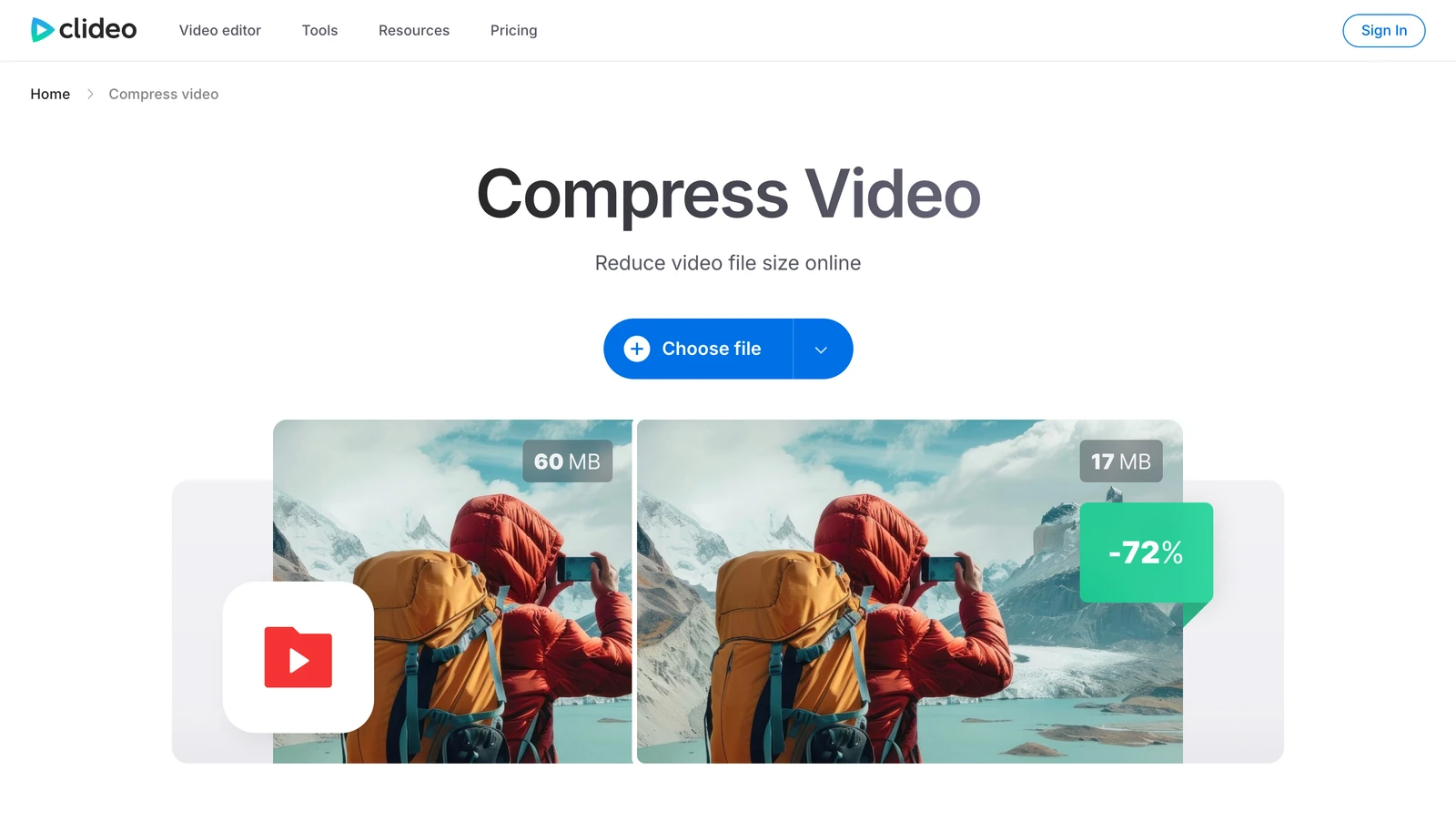
Real capture of Clideo's public Compress Video page on November 9, 2026. The page states the free 500 MB limit in its own three-step instructions; the 60 MB → 17 MB comparison is Clideo's illustration, not a test result of ours.
That page is honest about the mechanics and silent about the thing you need to judge: whether your footage still reads after compression. Clideo's free tier caps the export at 720p and stamps it, so the free compressor is a way to try the workflow, not a way to deliver a file.
If the destination limit is the part you actually care about, that is the task Ottermind's Video Compressor is built around: you state where the file has to fit and what must stay legible, send it to Studio, and compare the export against the source before sharing. The difference is not a claim about better compression — it is that the brief names the ceiling and the priorities instead of leaving you to guess which of three preset names is the small one.
The two jobs Clideo's catalog does not cover
Here is the boundary worth knowing before you subscribe, because it decides whether Clideo is the last tool in your workflow or the wrong one.
Clideo's catalog is editing and format work: cutting, joining, cropping, resizing, converting, subtitling, translating, recording. What it does not list is recovery — making soft, blurry or over-compressed footage clearer. There is no upscaler and no deblur tool in the tools directory we read, and the obvious addresses return "Page Not Found": clideo.com/video-upscaler and clideo.com/unblur-video, checked on November 9, 2026.
The nearby tools do something else, and the difference is easy to miss. Resize video changes dimensions and crop; Adjust video changes saturation and contrast and adds vignette or fade; Filter video applies a look. None of them claims to create detail that was never captured. A 4K export setting on Pro changes the resolution of the file; resolution is not detail, and it does not restore the focus or the sensor information the original recording missed.
Those are the jobs Ottermind's Video Upscaler and Unblur Video are for: preparing low-resolution footage for a clearer export, and working on blur, soft focus or pixelation in footage you own. Neither restores information that is simply not in the frame, and both are worth judging on a frame you can inspect — faces, labels and brand marks are where an enhanced frame gives itself away.
Try the same compression brief in Ottermind
The brief below is the one loaded into the composer at the top of this page. It is written the way the compression problem is actually stated in a deadline: a ceiling, the details that must survive, and an instruction for what to do if the two conflict.

The trade the brief is about, illustrated: the same frame at a size that keeps its label readable and at a size that fits an envelope. AI-generated concept illustration for this article; it is not a Clideo screenshot, a Clideo export or an Ottermind output, and no model was run on either product to produce it.
Compress this 38-second product demo from 62 MB to under 20 MB so it can go out as an email attachment. Keep the on-screen price text and the label on the glass bottle readable, keep the voice-over natural, and avoid visible blocking around the hand movement. If 20 MB cannot hold those details, tell me which preset trades the least before you export.Two actions stay separate here, and the difference matters. Use the compression brief above only fills the composer and scrolls to it; nothing is sent, and no setting is chosen for you. When you send, Ottermind stages the brief and any reference frame you attached, and continues in Studio, where the model and the credits are shown before anything runs. A frame grab is optional, but attaching one — the frame with the price text on it, for instance — is what turns "make it smaller" into a brief something can actually check.
Where each task continues:
| Your task | Where to continue | Why that destination |
|---|---|---|
| Fit a clip under an upload, email or form cap | Video Compressor | State the ceiling and what must stay readable, then review the export before sending |
| Make small or soft footage read more clearly | Video Upscaler | Prepares low-resolution footage for a clearer export and asks you to check faces and labels for artifacts |
| Work on blur, soft focus or pixelation | Unblur Video | For footage you own; judge the result on frames you can inspect |
| Cut, subtitle, merge, translate or convert | Clideo | That is timeline, subtitle and translation work. Ottermind's composer is not a replacement for an editor |
None of those Ottermind links open Clideo, call its tools, or spend its credits. And the last row is the honest one: if your task is trimming a clip, burning in subtitles, translating a voiceover or converting a format, Clideo's catalog is the more direct route, and this composer does not do that work.
Three checks before you pay for Pro
1. Is your job an edit or a repair? Editing — cut, subtitle, join, convert — is Clideo's home turf and the free tier will show you whether the workflow suits you. Repair — softness, blur, blockiness inherited from an earlier export — is not in the catalog, and paying for Pro will not add it. Decide which one you have before the plan decision, because they lead to different tools.
2. Does your file fit inside the free cage? Four limits, all on one screen: 500 MB upload, 720p export, a watermark, and a 14-day project window. If the answer to any of those is no for a real deliverable, the free tier is a test, and the honest comparison is $12 against whatever the paid alternative costs for one job.
3. Will you spend 500 credits before the refresh? Credits do not roll over and are not refundable, the per-action rate is not published, and the Terms reserve the right to change consumption. That combination is fine for someone using AI features weekly and wrong for someone buying Pro once to remove a watermark. If you only need the watermark gone and the export at 1080p, one month of Pro is the whole purchase.
Where this review stops
The official pages establish the plans, the file limits, the credit rules, the ownership terms and the shape of the catalog. They do not establish how Clideo's compression looks on a given clip, how fast a queue moves, or whether a 4K export from a paid plan is worth the bytes. We have not created an account, uploaded a file, spent a credit or compared an export to its source, so this review assigns no rating and reports no speed.
Three conflicts are worth carrying into your own check. First, the pricing card says unlimited upload while the Help Center says 100 GB per file. Second, the pricing card promises unlimited project storage while the Help Center describes storage as a specified period and does not print it. Third, the credit tiers above 500 show no price on the page, so "500 credits" is the only Pro allowance you can cost out from public information. The ownership terms are the clearest part: you keep the rights to what you upload, Clideo does not claim ownership of AI output and permits commercial use of it, free exports may carry the watermark, output is explicitly not guaranteed to be unique or non-infringing, and liability is capped at the greater of twelve months of payments or €100 — a licensing statement, not a clearance.
A reasonable verdict is conditional. For a one-off conversion, a subtitle pass or a quick trim, Clideo's free tier is the shortest path and the $12 month is a fair price for removing the watermark. For a delivery file with a size cap and a set of details that must survive, the brief-first route described above is the shorter path, and for soft or blurred footage neither Clideo's compressor nor its resizer is the right tool. Check your own frame before you commit either way.
Clideo questions worth answering
Is Clideo free?
Yes, with four limits: 500 MB per file, exports at 480p or 720p, a watermark in the bottom-right corner, and 10 AI credits a month — the credits only for registered accounts, since visitors cannot use AI features at all. It is a usable free tier for evaluation, not a free delivery path.
Does Clideo put a watermark on exported video?
On the free and registered tiers, yes: a small Clideo mark in the bottom-right corner of exported video and image files. Pro removes it. The Terms add that the watermark only indicates the file was processed with Clideo and does not imply Clideo created or endorsed the content.
Can I use Clideo videos commercially?
The Terms allow lawful personal or commercial content creation, and you keep the rights to what you upload. They also state that Clideo does not claim ownership of AI-generated or AI-modified output and that you may use it commercially, while warning that output may not be unique and is not guaranteed to be original or non-infringing. You may not resell or provide access to the service itself. Commercially usable is not the same as cleared, so review the output you publish.
Does Clideo upscale or unblur video?
No tool in the catalog we read does either, and clideo.com/video-upscaler and clideo.com/unblur-video both returned "Page Not Found" on November 9, 2026. Resize changes dimensions and crop, and Adjust changes color settings; neither claims to recover detail. That is the job for a dedicated upscaler or deblur pass, judged frame by frame.
Which Clideo plan should a one-off job use?
Monthly Pro at $12, if the job needs 1080p or a clean export, because the annual plan is $108 and renewals are not refundable. If the job fits under 500 MB and 720p with a watermark is acceptable, the free tier does it — and one extra export is cheaper than a subscription you forget to cancel.
Can I use Clideo inside Ottermind?
No. The two products are separate. This page offers an Ottermind composer and a matching compression brief for an adjacent task, and Clideo's own tools stay on Clideo's site.