GPT Image 2.6: GIFs, SVGs, and Smarter Image Editing
Describe an image or upload a reference to continue in Ottermind Studio.
Optional image
JPG / PNG / WebP
Nov 4, 2026 · 6 min read
GPT Image 2.6 goes beyond still images: you can generate animated GIFs, create editable SVG graphics, guide edits with markup, and adjust how much planning goes into an image. OpenAI released Sunburst and Flare on November 4, 2026. These new controls give creators more ways to turn an idea into the format their project needs.
For a social post, that might mean a small looping animation. For a website, it could be a vector illustration you can recolor. For an existing product image, it means pointing out a specific change instead of describing its location repeatedly.
Release: OpenAI’s November 4 API changelog. This guide explains documented capabilities and suggested workflows; it is not an independent benchmark.
What is new in GPT Image 2.6?
| New capability | What you can make | A useful first project |
|---|---|---|
| Animated GIF output | Short looping motion | A character lifting a lantern in a short loop |
| SVG output | Vector graphics with editable shapes and colors | A simple illustration for a website or slide |
| Markup-guided edits | Changes guided by visual annotations | Recolor a marked vase while preserving the scene |
| Complexity control | More or less planning before rendering | Compare a focused edit with a dense composition |
GIF and SVG are the biggest changes to the deliverable itself. Markup and complexity give you more control over how you get there. Choose the output first, then write a brief for that format.
1. Create animated GIFs from a prompt
A GIF adds a small repeatable action to an image idea. Instead of briefing a long sequence, choose one subject, one movement, and a clear return to the starting pose. A lantern swaying, a mascot waving, or a flower opening gives you a concrete motion to inspect.

OpenAI’s published Sunburst example: a nine-frame GIF that repeats every 1.8 seconds. Source · Open GIF.
Describe the motion, not just the scene
The example above makes the action easy to read: one character, one lantern, and a return to the starting position. An animation brief needs that motion as well as the scene. Try your own variation:
Create a short looping GIF of a friendly monkey wearing a hooded winter coat outside a snowy cabin. It slowly raises a glowing lantern, blinks, then lowers the lantern to its starting position. Keep the character, clothing, cabin, and lighting consistent. Use a fixed camera and one continuous action, with no text or scene cuts.For the direct Image API, request output_format="gif" on the image generation endpoint. The animation controls are:
| Control | Purpose | Documented range / default |
|---|---|---|
frame_count | Number of frames | 2–64; default 9 |
frame_duration_ms | Time per frame | 20–2000 ms; default 200 ms |
size | Dimensions of each frame | auto or supported dimensions in multiples of 16 |
Nine frames at 200 milliseconds each make a nominal 1.8-second cycle. Increasing frame count at the same frame duration lengthens the cycle; it does not automatically make the motion smoother. Frame dimensions and count must also fit the request’s pixel budget.
GIF controls: OpenAI image generation guide. GIF output uses generation rather than the image edit endpoint and does not support streaming.
Check the loop where you will publish it
Watch the transition from the final frame to the first. Does the arm jump? Does the character or lantern change shape? Does an unwanted object appear? Then inspect the exported file at the size of the actual social card or email placement. A restrained, readable motion often gives you a clearer result than several competing actions.
To prepare the visual direction in Ottermind, start with a still concept:
2. Generate SVG graphics you can refine
SVG output changes the next step after generation. A raster image gives you pixels; a vector graphic gives you shapes you can inspect and refine in a design tool. That makes a simple icon, decorative motif, or spot illustration a useful first project.
Start with a small number of shapes and an explicit palette. The two published examples below show how the same bakery theme can become different vector compositions. Open either original SVG to inspect it.


OpenAI’s Field & Flour examples, Flare first and Sunburst second. These previews are rendered from the published vector files. Open Flare SVG · Open Sunburst SVG.
For a text-free variation of your own, try:
Create a static SVG spot illustration for an independent bakery: a golden loaf between two simple wheat sprigs. Use clean closed shapes, a warm cream and charcoal palette with one golden accent, and generous negative space. Keep the silhouette readable at small sizes. No lettering, gradients, photographs, or decorative background scene.Request the actual vector format
On POST /v1/images/generations, use output_format="svg" and n=1. OpenAI describes the result as static vector content with no scripts, external resources, or embedded raster images. SVG output does not support streaming or the image edit endpoint.
SVG output: OpenAI SVG generation documentation. The API produces a reference image and then authors the vector document.
Review editability as well as appearance
Open the exported SVG in your normal design tool. Try changing an accent color, enlarging it, and removing a decorative element. Those small tasks reveal whether the structure is practical for your project.
| Review task | What to look for |
|---|---|
| Display at icon size | A readable silhouette without crowded detail |
| Change one color | Shapes you can select and recolor sensibly |
| Enlarge for a slide | Clean edges and appropriate line weight |
| Place on your page | The intended spacing and background behavior |
A graphic that looks attractive in a preview may still need path cleanup. Treat the export as a design asset to review before publishing.
3. Point to a change with markup-guided editing
Markup helps explain where an edit belongs. Pair it with a short written instruction saying what should change and what must stay. This is useful when several similar objects are close together or a location is awkward to describe.
The API reference describes markup as a transparent PNG aligned with the first input image. Its dimensions must match after orientation, it must contain transparent pixels, and it cannot be combined with a mask. The November 4 release note confirms markup-guided editing for supported 2.5 and 2.6 models.
Markup specification: OpenAI image edit reference and release note.
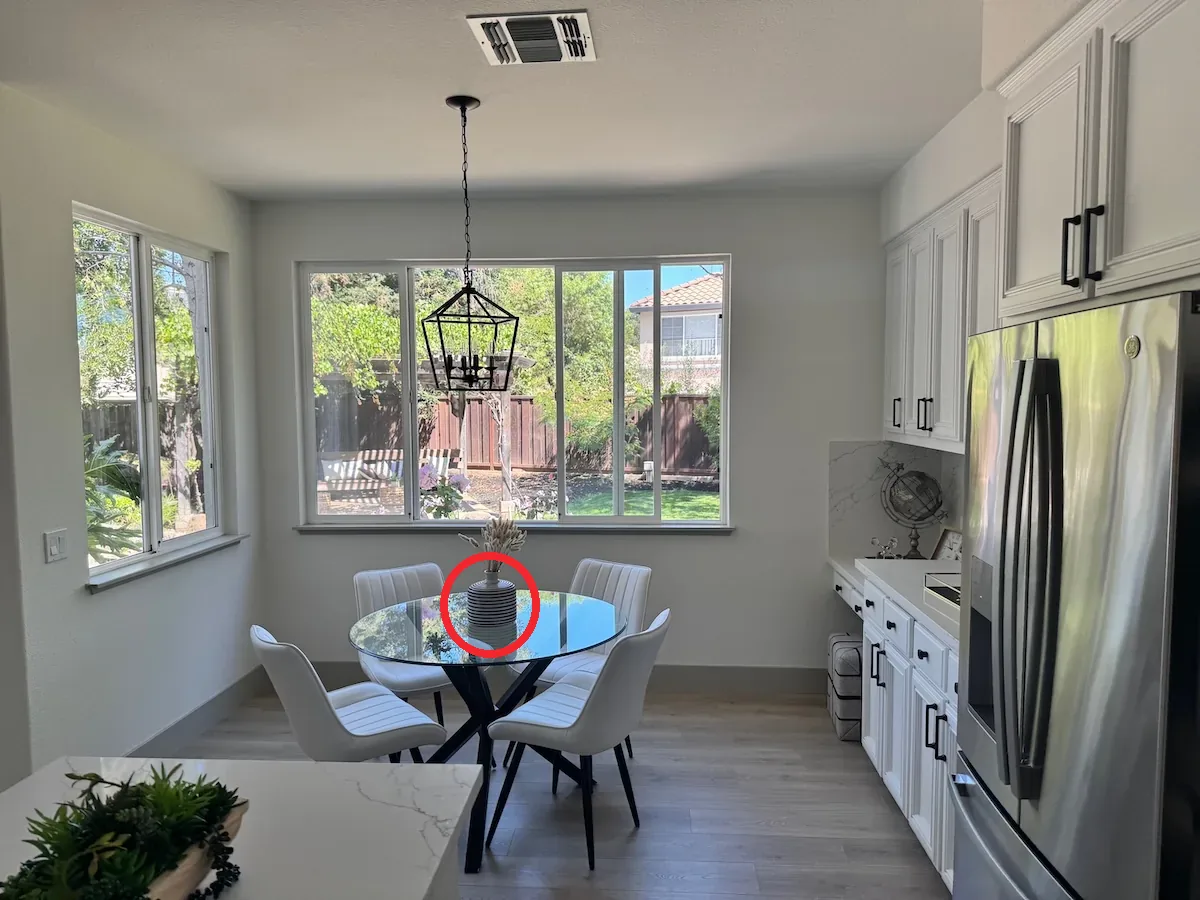
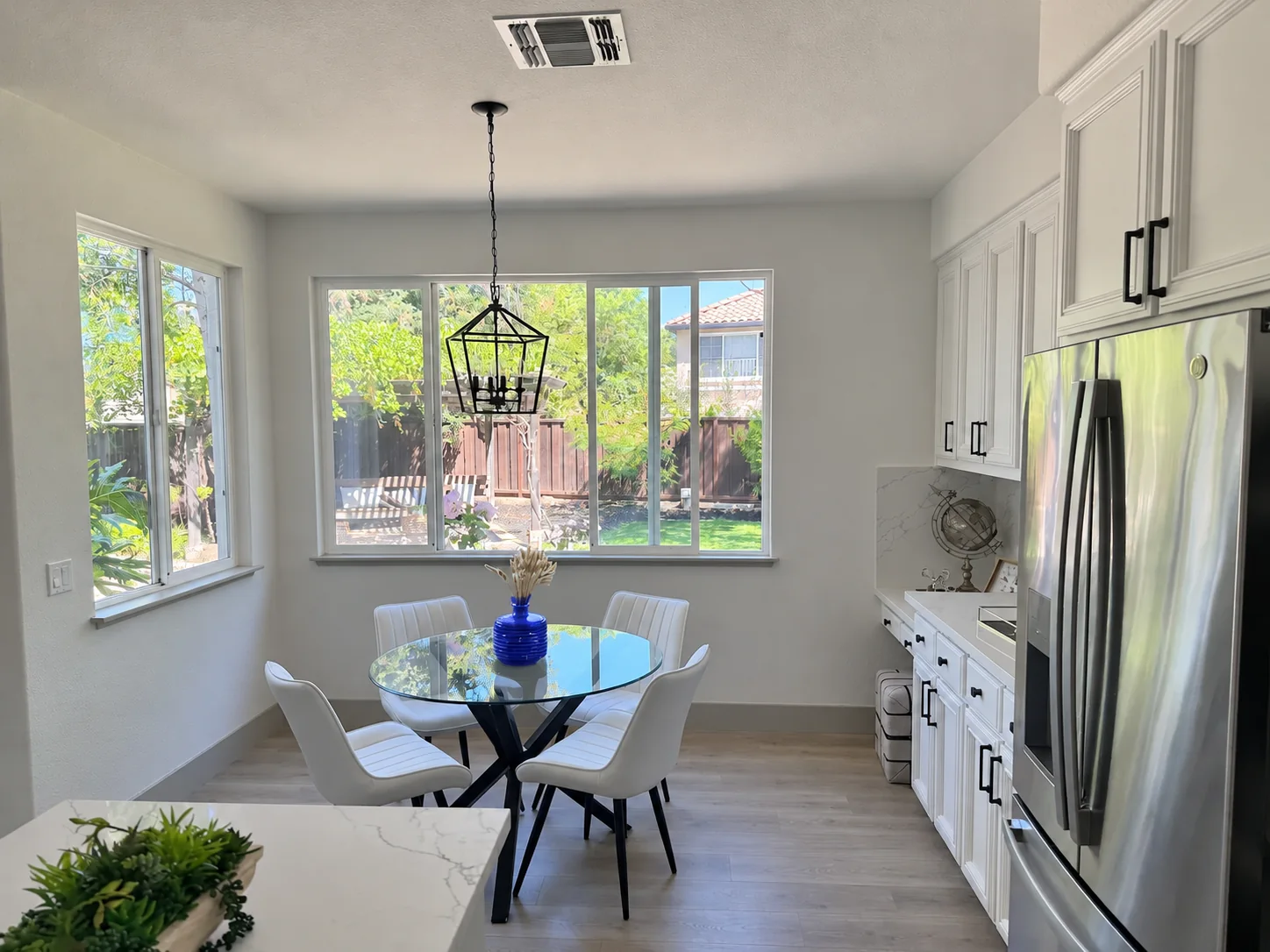
OpenAI’s published markup example: the annotated input comes first, followed by the Flare result. The marked vase changes to blue and the circle disappears. Source.
A brief for this kind of localized change:
Change the circled vase to cobalt blue. Keep the vase outline and dried stems intact, preserve the surrounding kitchen, and leave no annotation in the finished image.Review the protected details against the original source. Visual guidance makes the instruction clearer; it is still worth checking the vase outline, stems, and nearby furniture after the edit. If something important changes, return to the approved source and narrow the request.
4. Adjust complexity separately from quality
complexity controls planning, while quality controls rendering. The available complexity settings are low, medium, and high; the default is high. OpenAI cautions that higher complexity can add latency or introduce unwanted changes.
Complexity: OpenAI generation guide.
For your own comparison, try a focused background change at lower complexity and a scene with several spatial relationships at a higher setting. Keep the other settings and source unchanged. Judge whether the extra planning improves the part you actually care about.
More detail is not always the goal. If the brief is “recolor one vase,” success means the requested color change with the important scene details intact.
Which model and format should you choose?
OpenAI positions Sunburst for detailed visual work and Flare for fast iteration. Both belong to the 2.6 release. Use that distinction as a starting point, then evaluate a representative task rather than assuming one always wins.
| You need… | Start with… | Review before shipping |
|---|---|---|
| A short repeated motion | GIF | Loop seam and subject stability |
| A graphic to resize or recolor | SVG | Path structure and small-size readability |
| A specific change to an existing image | Markup-guided edit | Protected details and reconstructed background |
| A still campaign image | Raster output | Crop, text, product identity, and composition |
Model selection: Sunburst model page and Flare model page.
Start your next creative project in Ottermind
Put the brief to work: describe a visual in the composer above, add a reference if needed, and continue in Ottermind Studio. Start with a clear image direction, keep your original input, and refine one change at a time.
You can also open Ottermind’s image workspace. For motion from an approved still, explore the separate image-to-video workflow. For help preparing a reference and narrowing revisions, read our image editing walkthrough.
Frequently asked questions
Can GPT Image 2.6 generate GIFs and SVGs?
Yes. Both are documented output formats for the image generation endpoint. Choose GIF for short loops and SVG for static vector artwork; neither is an output format for the image edit endpoint.
Is markup exclusive to GPT Image 2.6?
No. The release note includes markup-guided editing for supported GPT Image 2.5 and 2.6 models. It is useful to distinguish that shared editing control from the new 2.6 release’s GIF and SVG outputs.
How much does GPT Image 2.6 cost?
The Sunburst and Flare model pages list $5 per million text input tokens, $8 per million image input tokens, and $30 per million image output tokens, with separate cached-input rates. Total cost depends on usage. SVG also involves authoring costs described in the generation guide. Check current pricing for your request rather than assuming a fixed per-image price.
Where do the visual examples come from?
The animated GIF, vector-file previews, and markup comparison come from OpenAI’s published documentation, linked beside each example. They are vendor examples rather than independent Ottermind tests. The cover is editorial artwork generated with Image 2.5.